When a booking is created in Exely PMS, a point of sale is specified for it. If the existing points of sales are not sufficient, you can add new points of sales to the reference.
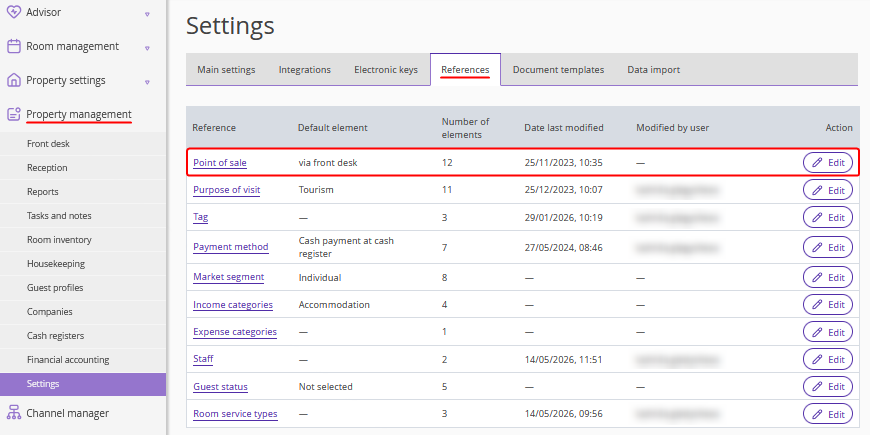
1. In the Exely extranet, go to "Property management" > "Settings". On the "References" tab, find the "Point of sale" reference and click its name or the "Edit" button.
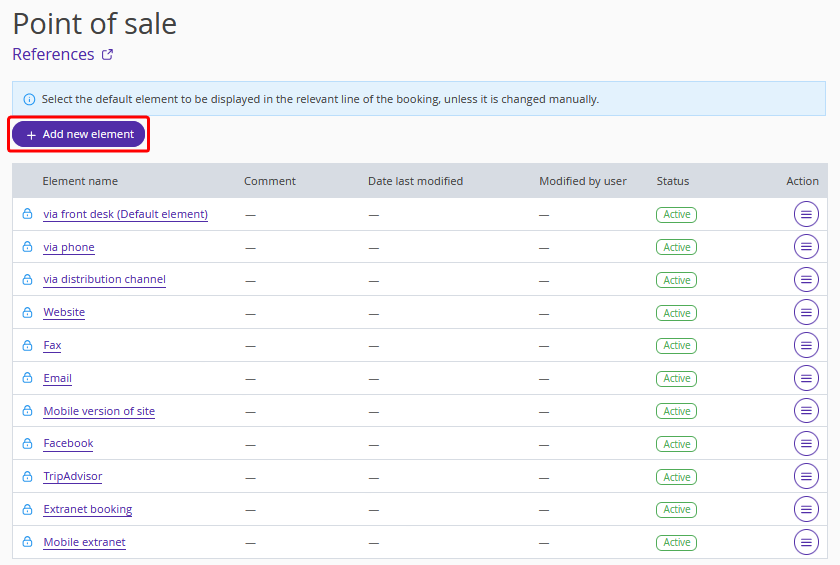
2. On the reference page, click the "Add new element" button.
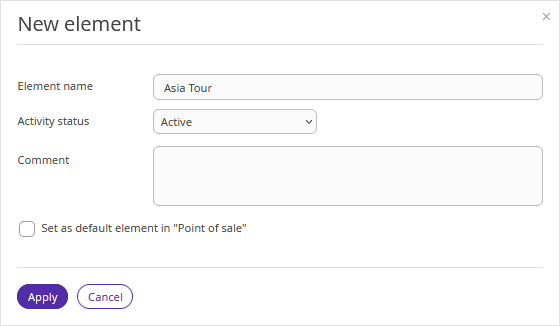
3. In the "Element name" field, enter the name of the new point of sale.
4. In the "Activity status" field, keep the "Active" value so that the new item can be used immediately after saving.
5. To make the new point of sale automatically selected for all new bookings, select the "Set as default element in "Point of sale" check-box.
6. Click "Apply".
7. Click the "Save" button at the top of the page.
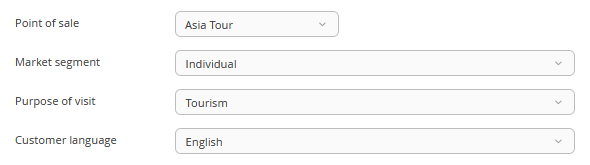
You can now select the new point of sale when editing a booking.
To analyze bookings by point of sale, use the report “Companies and points of sale — Detailed report”.
