In the Exely extranet, you can send a payment link from a booking. For this, you need to have Exely Payment Links enabled and set up. When a guest clicks the link and pays for the booking, the payment is immediately displayed in the booking details page.
You can send a payment link to a guest from the "Payment links" section, as well as from the “Reports” > “Bookings” section or Exely PMS Front Desk.
How to charge payment
1. You can charge payment for a booking using any of the ways:
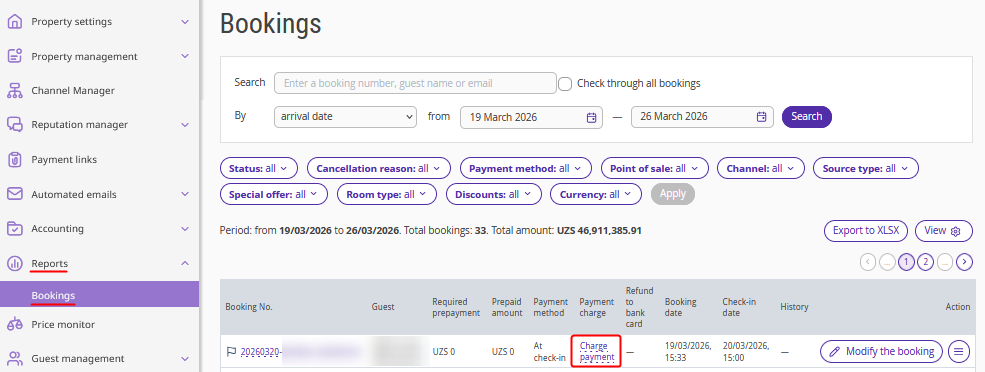
In the Exely extranet, go to “Reports” > “Bookings”, find the required booking and click the “Charge payment” link.
Or go to "Property management" > "Front Desk", click the required booking > "Edit". In the opened booking details page, on the "Details" tab, scroll to the "Billing" section and click "Charge payment".
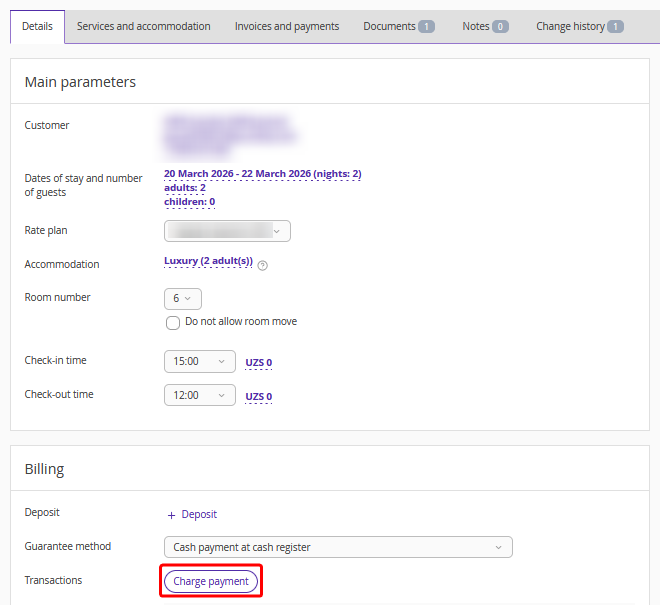
Pay attention. The "Charge payment" button is hidden as soon as the booking is paid in full. Until then, you can send payment links from the “Reports” > “Bookings” section or Front Desk while the booking remains unpaid or partially paid.
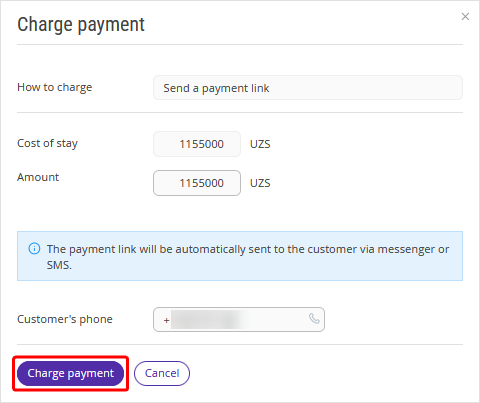
2. In the opened window, specify the amount for which a payment link should be created and click “Charge payment”.
Payment process:
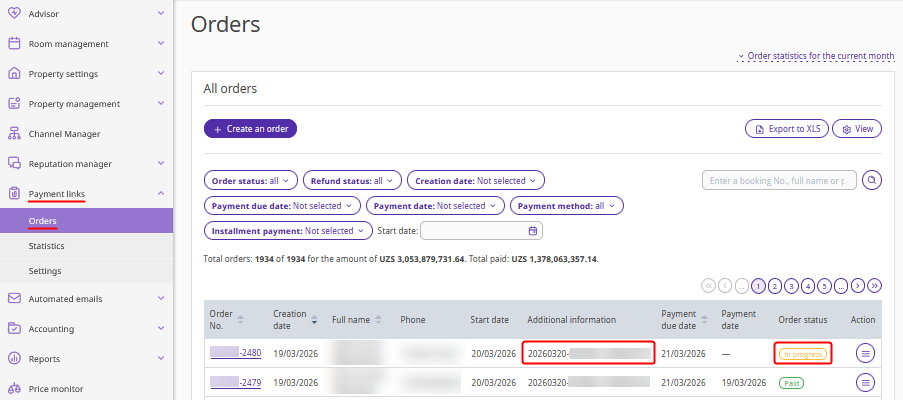
An order with the booking payment status will appear in the "Payment links" > "Orders" section.
The guest will receive a payment link. The link is sent to Viber business chats using the guest's phone number specified in the order. If the guest does not use Viber, the link will be sent via SMS. All messages are sent on behalf of Exely.
The process is automated: the guest follows the link and pays for the booking, and the payment information is automatically added to the booking details card.
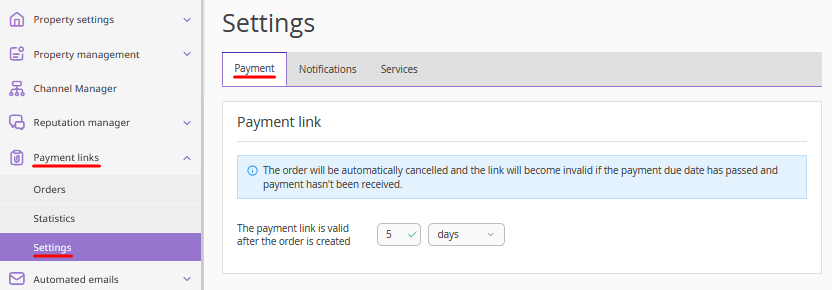
Pay attention. The validity period for a payment link is set in “Payment Links” > “Settings” > the “Payment” tab > the “Payment link details” section. The validity period applies to all payment links: those created in Exely Payment Links and those sent using the "Charge payment" link in the “Reports” > “Bookings” section or Exely PMS Front Desk.
What happens if a guest does not pay the order on time
In case a guest does not pay the order on time, the payment link becomes invalid, and the guest will not be able to pay the order using this link. In this case,
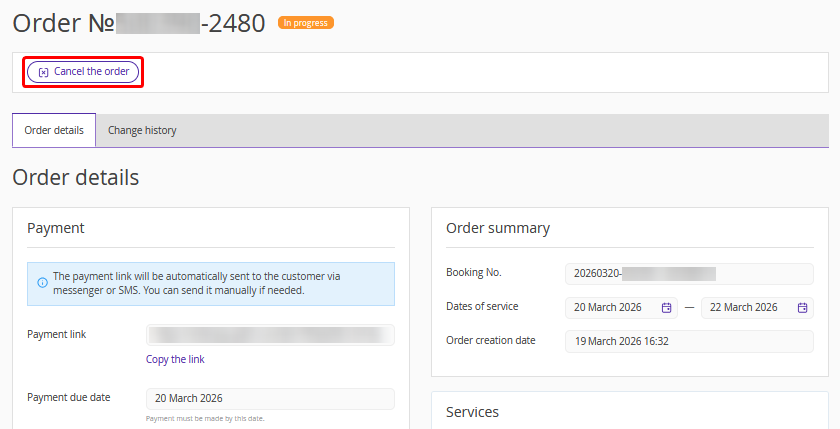
1. Go to "Payment links" > "Orders". Open the required order and cancel it by clicking the “Cancel the order” button.
2. Create a new order following the steps described above.
You can create a separate order in the “Payment links” > “Orders” section without linking it to the booking. For details, refer to the instruction “How to create an order in Exely Payment Links”.
If required, you can disable the link beforehand. For this, go to “Payment links” > “Orders”, open the required order and click “Cancel order”.
How to view all orders for a booking
In the “Payment links” > “Orders” section, enter the booking number in the search field. You will see all orders created via the “Charge payment” button in the booking.
