1. In the Exely extranet, go to “Reports” > “Bookings”.
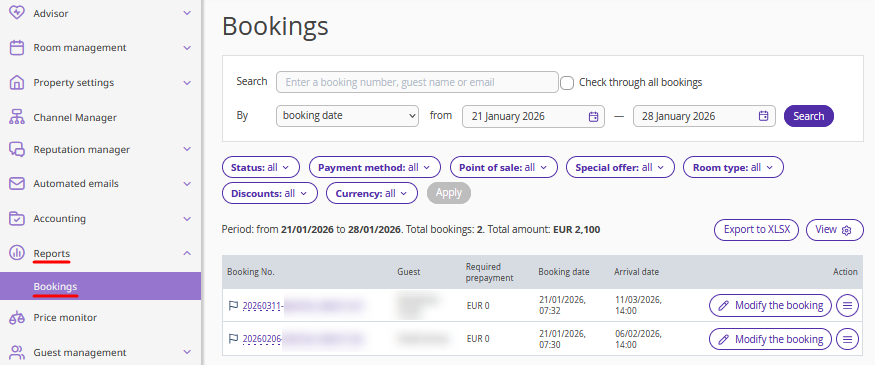
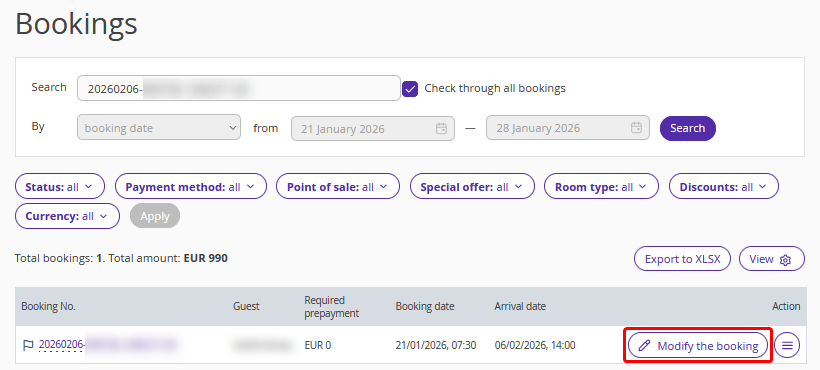
2.Find the required booking using filters, or enter the booking number in the "Search" field and tick the "Check through all bookings" check-box.
3. Click the "Modify the booking" button on the right, or "Action" > "Modify the booking".
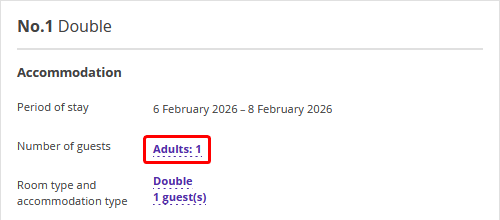
4. On the booking details page, find the “Accommodation” section and click the link for “Number of guests”.
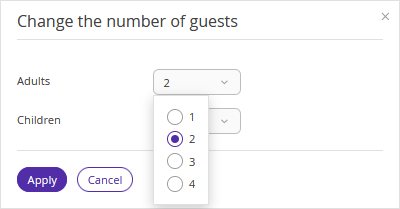
The “Change the number of guests” window will be opened.
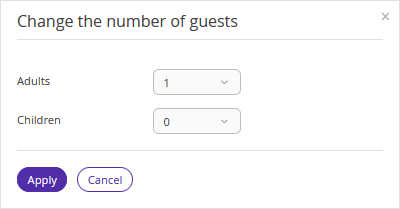
5. In the drop-down list, select the number of adults and children that should be specified in the booking and click “Apply”.
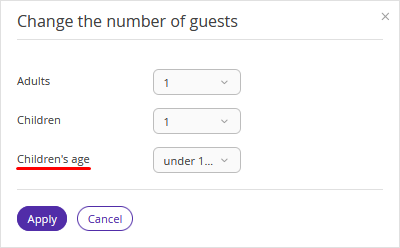
Pay attention. If you add children, the “Children’s age” field will appear.
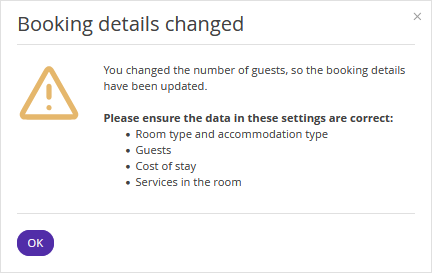
6. Confirm the changes.
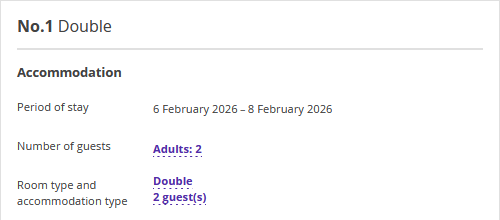
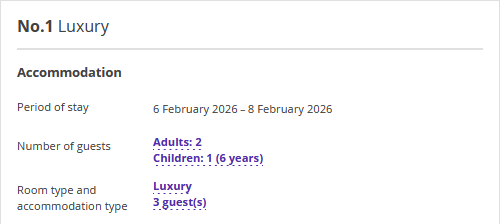
In the “Accommodation” section, the changes will be displayed in the following fields:
Number of guests,
Room type and accommodation type.
In the “Guests” section, the “Add a guest” button will appear. Click it to add new guest details.
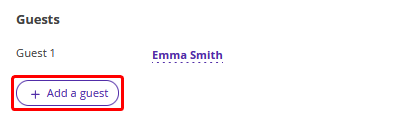
Once the number of guests is changed, changes will be made to the room details.
Check the values in the following settings:
Room type and accommodation type,
Guests,
Calculated amount.
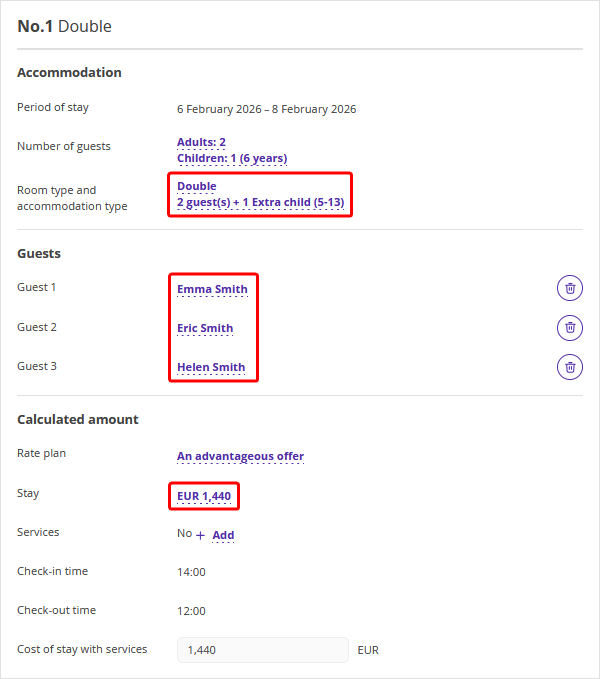
Pay attention. The price for accommodation is recalculated according to the rate plan prices. If prices for the required accommodation are not set in the rate plan, the current stay amount is kept and the price becomes a special price.
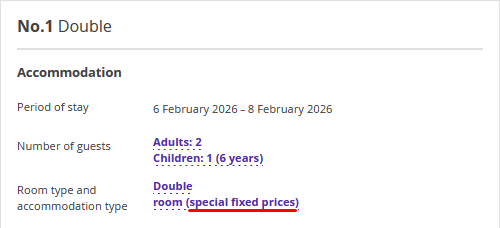
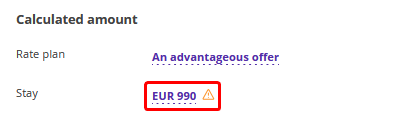
If the selected number of guests does not fit in the current room, you will see the following message:
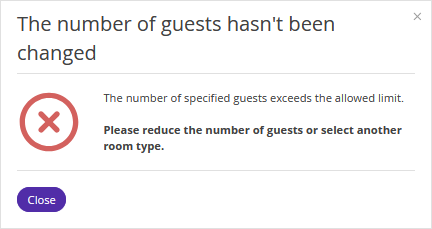
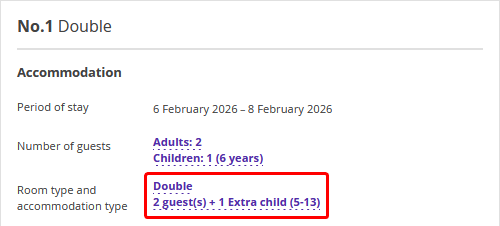
If the new number of guests does not fit in the room that was originally selected, you can change the room type. For this, click the link for “Room type and accommodation type”.
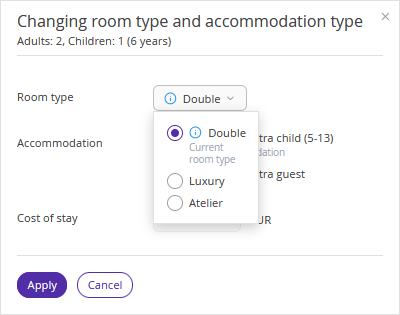
In the drop-down list, select the new room type.
Select the accommodation type and click “Apply”.
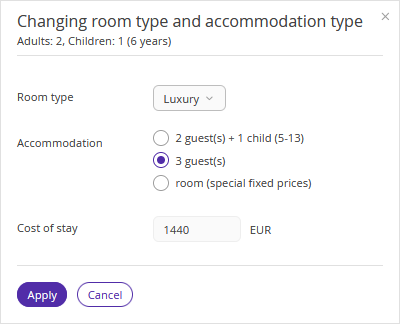
The room type will be changed.
Once all necessary changes are made, click the ‘Save’ button at the top of the page.
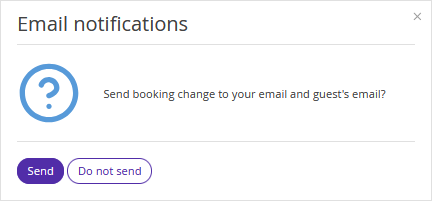
To send an updated booking confirmation to a guest, click "Send".
To change other booking parameters, use the relevant instruction:
