Step 2. Specify sender and subject
Step 4. Save and activate automated email
The birthday email is sent to guests whose date of birth is specified in their profile. This automated email increases guest loyalty and supports a customer-focused approach.
Pay attention. The automated email is available if you use Exely PMS or Opera. If you use another PMS, it will not be available.
In the Exely extranet, go to "Guest management" > "Guest relations" > "Emails", click "Create an automated email", and select “Birthday email”. The "General settings" tab will be opened. For more details on how to create an automated email, see the article "How to create automated emails in Exely Guest Relations".
Then follow these steps:
Step 1. Make general settings
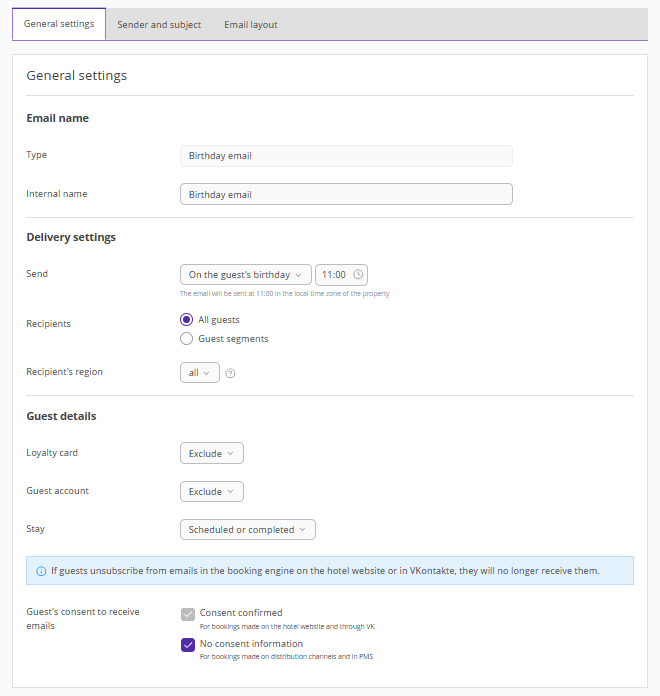
1. On the "General settings" tab, enter the internal name for the automated email. It is visible only to Exely extranet users. Statistics will be displayed based on the name and email type.
The automated email type is added automatically and cannot be edited.
2. Select when the guest will receive the email and the sending time.
3. Select which guests will receive the automated email:
All guests — all guests of the property will receive the email.
Guest segments — only guests that belong to the selected guest segments will receive the email.
Pay attention. Guests may belong to multiple segments. A guest will receive only one email per day for the same email type.
4. If required, select recipient regions. The regions specified in guest profiles in Exely PMS or a third-party PMS are taken into account.
5. Specify guest details: whether the guest has an account and a loyalty card.
Additionally, specify whether to consider guest stays when creating the automated email:
Exclude — all guests will receive the email, with or without bookings.
Scheduled or completed — guests who have at least one active or completed booking will receive the email, regardless of check-in date.
Neither scheduled nor completed — guests with no bookings in the past or future will receive the email.
Pay attention. The "Loyalty card" and “Guest account” settings are available only if the loyalty program and guest account are enabled for the property.
6. Check how emails will be sent to guests based on their consent to receive newsletters:
Guests who gave their consent when booking on the website, via the mobile version of the website, or when signing up for the guest account will always receive emails.
Guests with no consent information — including guests with bookings from Exely PMS or other PMS, channel manager, or guests without bookings who have not signed up for the guest account — will receive emails only if the "No consent information" check-box is ticked.
-
Guests who opted out when booking on the website, the mobile version of the website, or when signing up for the guest account will not receive emails under any settings.
Step 2. Specify sender and subject
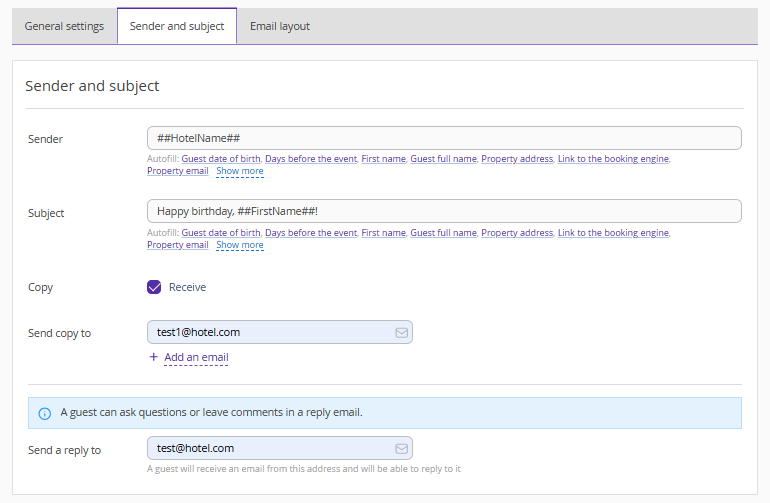
1. On the "Sender and subject" tab, specify the sender, for example, the property or department name. Use variables.
2. Enter the email subject. Use variables.
3. Tick the “Receive” check-box and specify an email address to send copies of emails to the property employees, if required.
4. Check or edit the reply-to email address.
Step 3. Set email layout
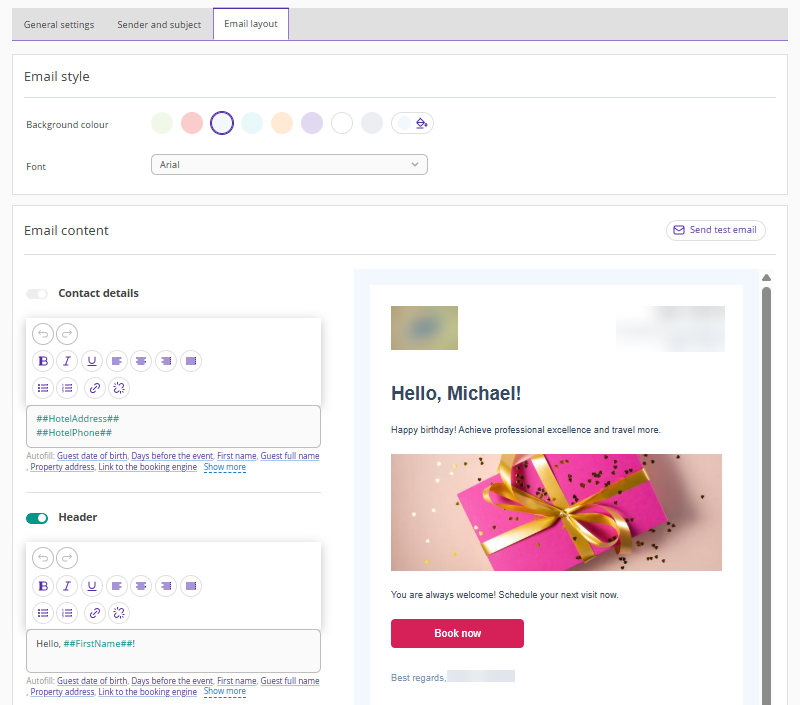
On the "Email layout" tab, make settings in the following sections:
Email style
1. Select a background color. To ensure you match your brand’s color exactly, use HEX codes (hexadecimal color codes).
2. Choose a font.
Email content
1. Fill in the main fields:
header;
body text;
additional text;
signature.
Use variables if needed so booking data is automatically inserted into the email.
2. Additionally, you can:
add an image;
set an action button.
Pay attention:
The logo and contact details are added automatically from property settings and cannot be edited.
The "Contact details" field cannot be disabled.
Some fields can be disabled using a switch.
The promo code has no expiration date but can be used only once per guest.
Attach files
Click “Upload files”. You can add up to 2 files, up to 2 MB each.
Test email
1. Click the “Send test email” button.
2. Enter an email address and click "Send".
HTML mode
If the standard email settings are not sufficient, you can use HTML mode (HTML stands for Hypertext Markup Language). In this mode, the template is displayed as code that you can edit to create a unique email style.
For more information on working in HTML mode, see the articles:
Pay attention. Changes made in HTML mode cannot be undone. If you edit the code and save it, you will no longer be able to return to the block editor in this automated email.
Step 4. Save and activate automated email
Save the changes and activate the automated email.
Set up language versions
For details on setting up language versions, refer to the article “How to create emails for international guests in Exely Guest Relations”.
How emails are sent
Emails in Exely Guest Relations are sent to the guest’s email address specified in the profile at the time set in the settings, according to the property’s local time, on the guest’s birthday. Emails start being sent according to the settings from the moment the automated email is activated.
Example. In the "Birthday email" settings, the sending time is set to "On the birthday at 13:00".
If the automated email is activated on January 3 before 13:00, the first emails will be sent to guests whose birthday is January 3.
If the automated email is activated on January 3 after 13:00, the first emails will be sent to guests whose birthday is January 4.
