How to activate an automated email
To send emails to guests, in the Exely extranet go to "Guest management" > "Guest relations" > "Emails" and activate the required automated email in one of the following ways:
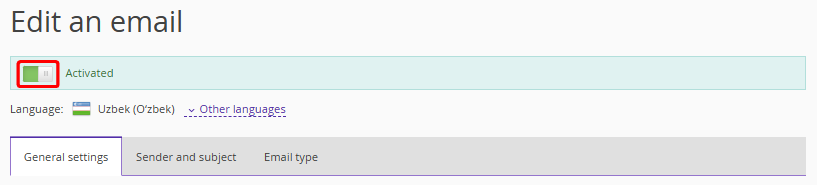
1. Open the email and change the position of the switch.
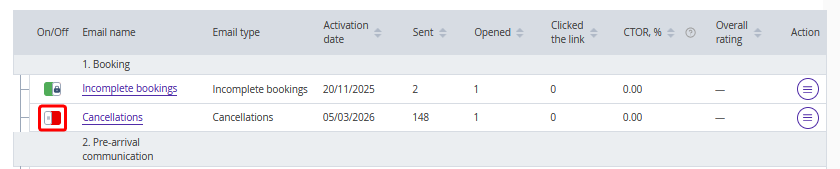
2. In the list of created emails, click the switch in the “On/Off” column to switch it to the active state.

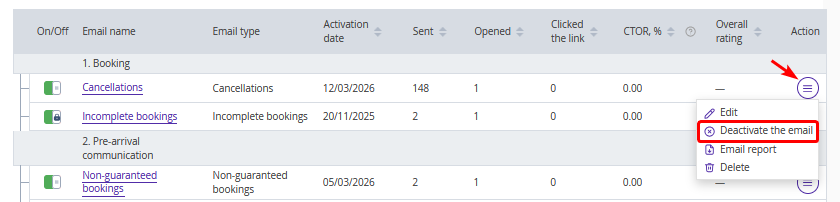
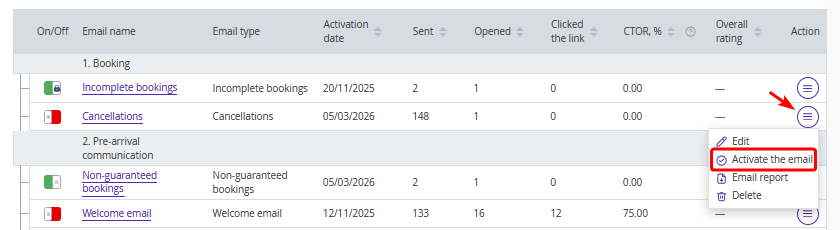
3. In the list of created emails, click "Action" > "Activate the email".
How to deactivate an automated email
To stop sending emails of a specific type, in the Exely extranet go to "Guest management" > "Guest relations" > "Emails" and deactivate the required automated email in one of the following ways:
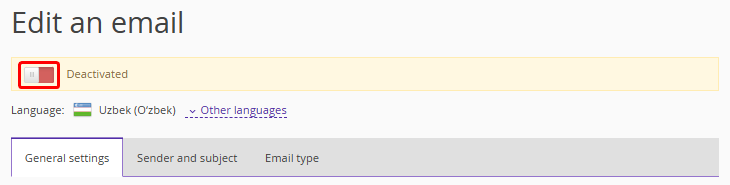
1. Change the position of the switch in the email settings.
2. In the list of created emails, click the switch in the “On/Off” column to switch it to the inactive state.
3. In the list of created emails, click "Action" > "Deactivate the email".