Step 2. Specify sender and subject
Step 4. Save and activate automated email
Emails are sent to corporate guests before check-out and remind them about the required closing documents.
In the Exely extranet, go to "Guest management" > "Guest relations" > "Emails", click "Create an automated email", and select “Reminder for corporate guests”. The "General settings" tab will be opened. For more details on how to create an automated email, see the article "How to create automated emails in Exely Guest Relations".
Then follow these steps:
Step 1. Make general settings
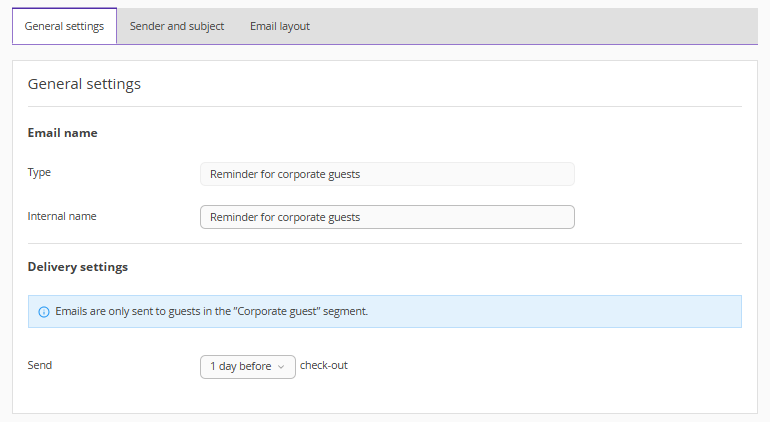
1. On the "General settings" tab, enter the internal name for the automated email. It is visible only to Exely extranet users. Statistics will be displayed based on the name and email type.
The automated email type is added automatically and cannot be edited.
2. Select the sending time — when the guest will receive the email: 1 day, 2 hours, or 1 hour before check-out.
Pay attention. Emails are sent only to guests from the "Corporate guests" segment.
Step 2. Specify sender and subject
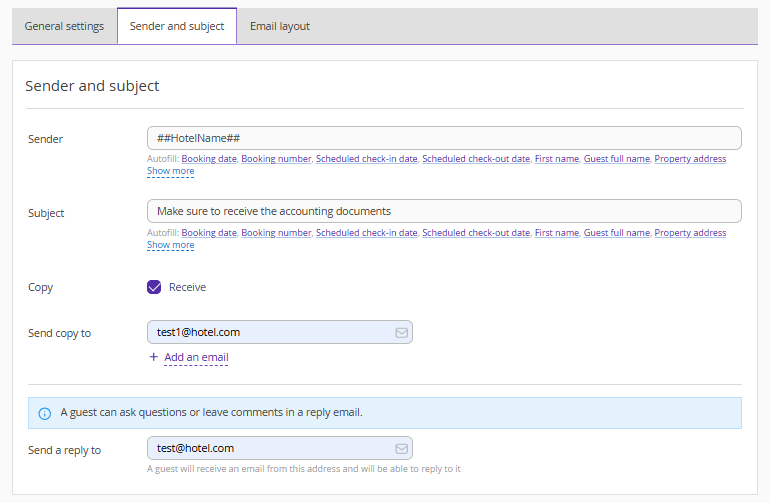
1. On the "Sender and subject" tab, specify the sender, for example, the property or department name. Use variables.
2. Enter the email subject. Use variables.
3. Tick the “Receive” check-box and specify an email address to send copies of emails to the property employees, if required.
4. Check or edit the reply-to email address.
Step 3. Set email layout
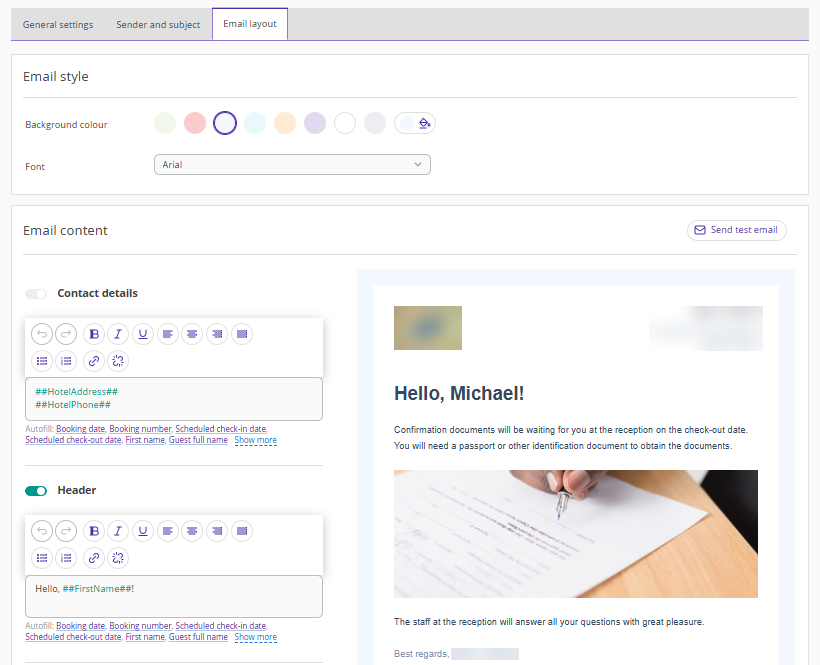
On the "Email layout" tab, make settings in the following sections:
Email style
1. Select a background color. To ensure you match your brand’s colour exactly, use HEX codes (hexadecimal colour codes).
2. Choose a font.
Email content
1. Fill in the main fields:
header;
body text;
additional text;
signature.
Use variables if needed so booking data is automatically inserted into the email.
Pay attention:
The logo and contact details are added automatically from property settings and cannot be edited.
The "Contact details" field cannot be disabled.
Some fields can be disabled using a switch.
Attach files
Click “Upload files”. You can add up to 2 files, up to 2 MB each.
Test email
1. Click the “Send test email” button.
2. Enter an email address and click "Send".
HTML mode
If the standard email settings are not sufficient, you can use HTML mode (HTML stands for Hypertext Markup Language). In this mode, the template is displayed as code that you can edit to create a unique email style.
For more information on working in HTML mode, see the articles:
Pay attention. Changes made in HTML mode cannot be undone. If you edit the code and save it, you will no longer be able to return to the block editor in this automated email.
Step 4. Save and activate automated email
Save the changes and activate the automated email.
Set up language versions
For details on setting up language versions, refer to the article “How to create emails for international guests in Exely Guest Relations”.
How emails are sent
Emails in Exely Guest Relations are sent to the guest’s email address specified in the profile at the time set in the settings before check-out, if the guest belongs to the "Corporate guests" segment. Emails start being sent from the moment the automated email is activated.
