The "Calendar" section in the Exely extranet helps you manage hourly services offered to guests, such as spa bookings, conference room rentals, equipment rentals, or appointments with specialists.
The calendar displays the occupancy of staff, locations, and equipment on a timeline, allowing you to monitor occupancy and avoid overbookings.
Orders for hourly services booked by guests on the website or created by property employees in the Exely extranet are saved under "Service management" > "Calendar".
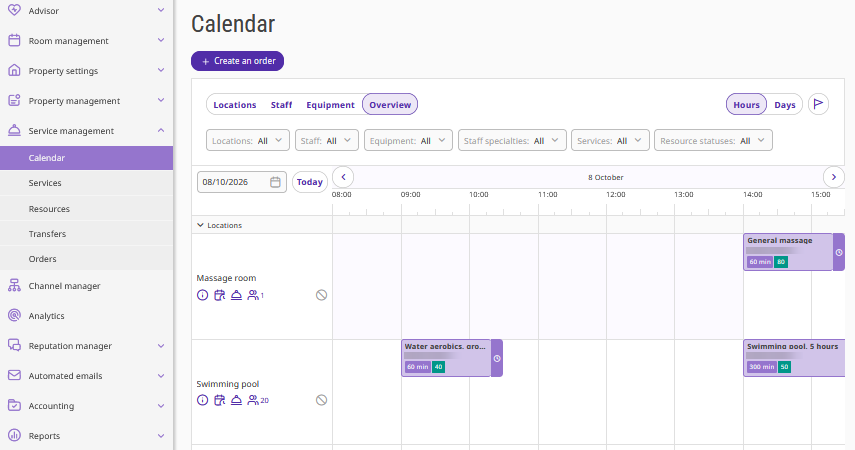
The calendar has two modes:
"Hours";
"Days" — selected by default.
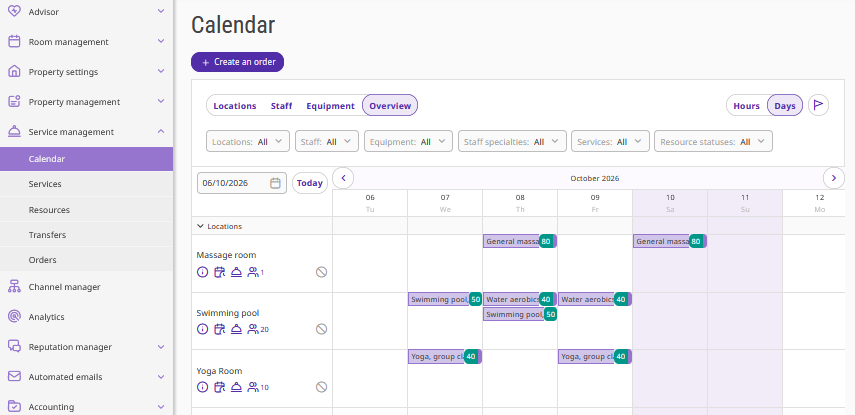
Resources (locations, staff, and equipment) are displayed vertically in the calendar, while the timeline is displayed horizontally. Order cards are displayed in the calendar cells. Each card represents a service booked by a guest.
Filters and switching between modes
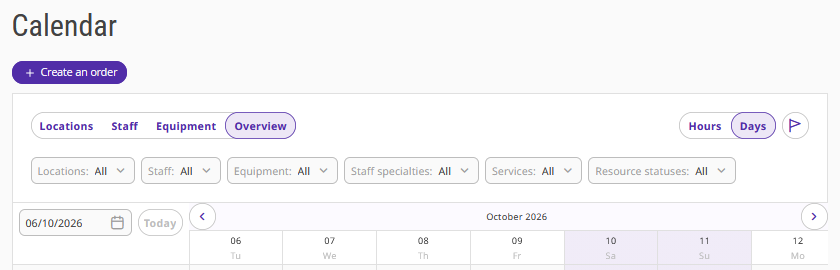
The following filters are available when working with the calendar:
Locations / Staff / Equipment / Overview — switch between the tabs to display only the required resource type in the calendar.
Resource filter (locations, staff, equipment) — displays orders only for the selected resource.
Staff specialties — displays orders for services provided by staff with the selected specialty.
Services — displays orders only for the selected services.
Resource statuses — displays only active or inactive resources.
Hours / Days — switch the calendar scale between the hourly view and a multi-day overview.
Order card
Click any cell with a booked service in the сalendar to open the order card.
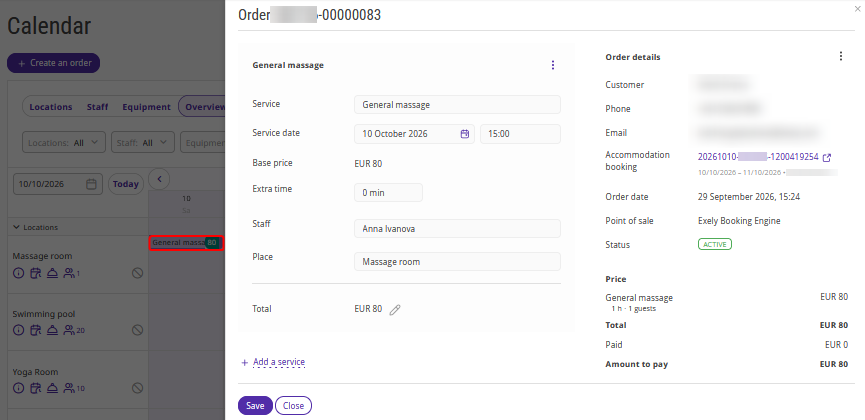
The order card contains:
service name;
service date and time;
service price;
service resources (location, equipment, staff member);
customer — guest's full name;
booking number;
order number;
order creation date;
point of sale;
order status;
total price.
Note:
If a guest booked several hourly services together with accommodation, they are displayed in the order card.
If several bookings are created for the same resource and time, only the first two bookings are displayed along with the "+ N orders" button.
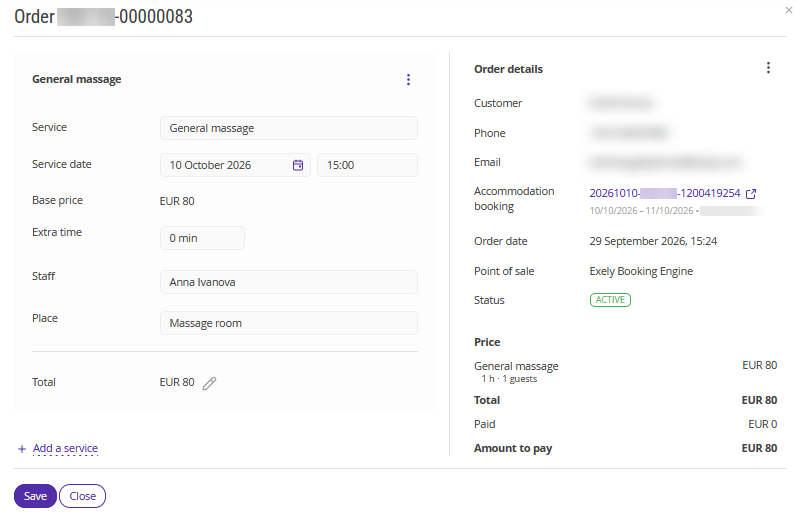
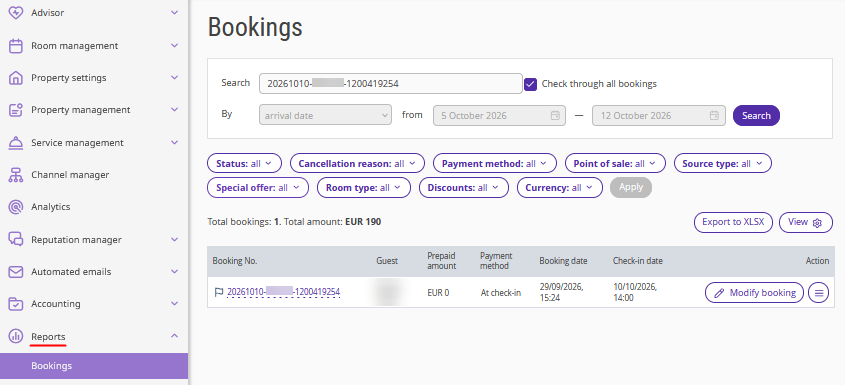
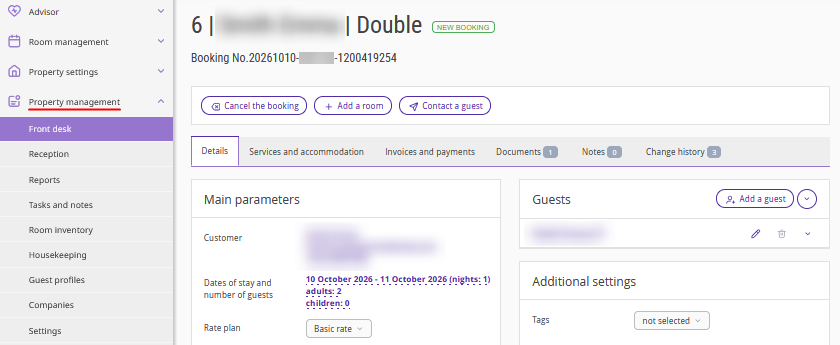
By clicking the booking number in the service order card, you can go to:
the booking in the "Reports" > "Bookings" section, if you do not have Exely PMS enabled;
the booking card in Exely PMS, if you use Exely PMS.
How to close and open a resource in the calendar
Closing and opening resources in the calendar allows you to quickly adapt sales to unexpected situations, such as a staff member's illness, maintenance work, or repairs.
If you close a resource for several hours or days, all services associated with it immediately become unavailable for booking. This helps prevent incorrect bookings, reduces the time spent manually canceling orders, and helps maintain guest loyalty.
To close a resource:
1. In the resource card, click the "Close availability" icon.
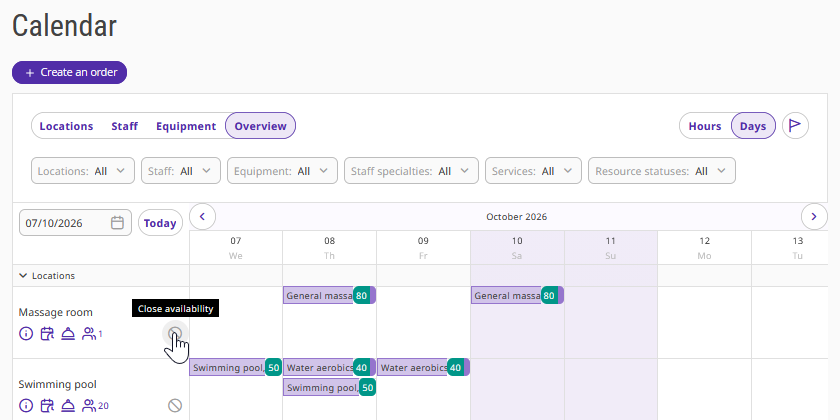
2. In the opened window, select the period and time when the resource will be unavailable for booking.
Note. You cannot close a resource for a past period. When changing the time, the nearest hour is suggested by default. You can only change the date and time to a future period.
3. Click "Close availability".
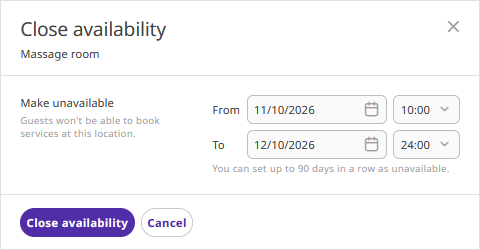
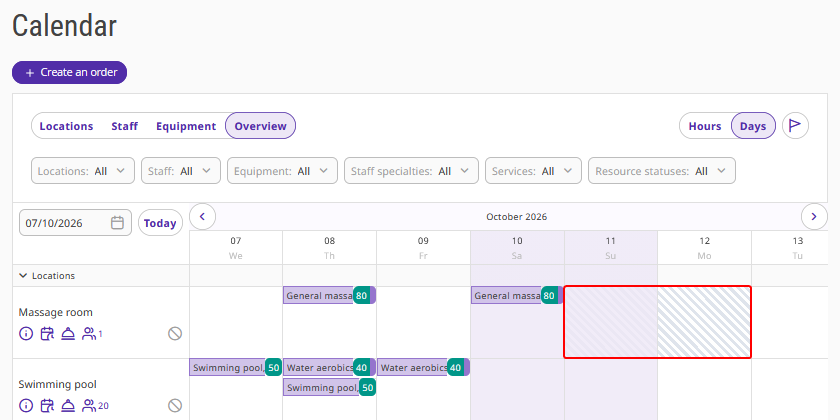
The resource will become unavailable for booking, and the corresponding cells in the calendar will be shaded.
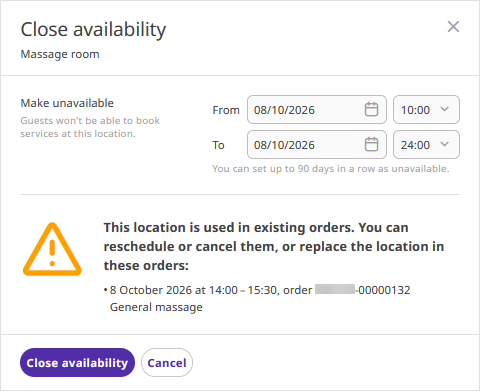
Note. Before closing a resource, check the orders associated with it. If there are active orders for the selected period, they will be displayed in the resource closure window. The resource can still be closed. If necessary, move the order or manually change the resource in the booking card in Exely PMS.
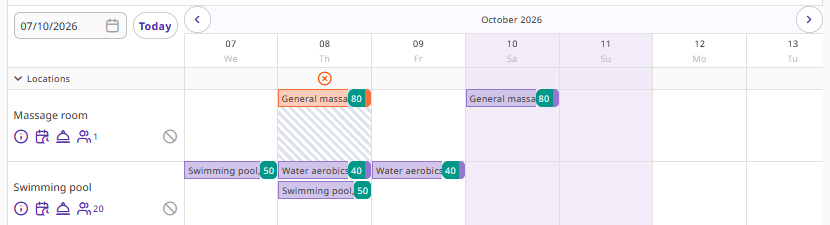
Closed resources with active orders are highlighted in red in the calendar.
To open a resource:
1. Click the shaded cell in the calendar.
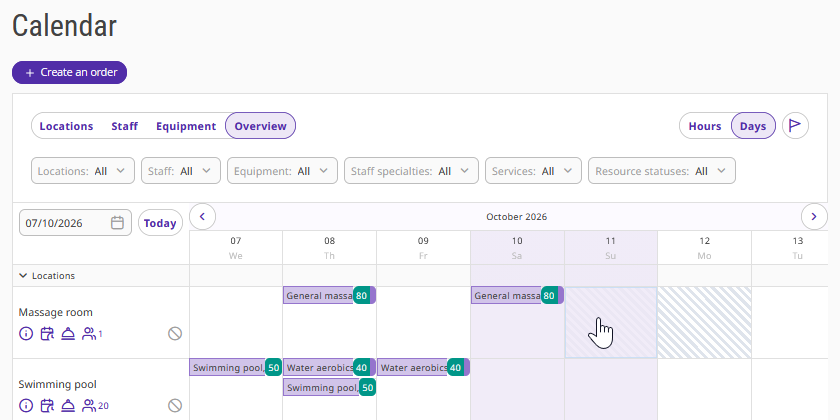
2. In the opened window, check the period for opening the resource.
If the Calendar is displayed in the "Days" mode:
in the "From" field:
if the current date is selected, the beginning of the current hour is entered by default;
if a future date is selected, 00:00 is entered by default;
the end date and time of the closed period are automatically added to the "To" field.
If the calendar is displayed in the "Hours" mode:
the date and time of the selected calendar cell from which the window was opened are automatically added to the "From" field;
the end date and time of the closed period are automatically added to the "To" field.
Note. You cannot open a resource for a past period. You can only change the date and time to a future period.
3. If necessary, change the date and time and click "Open availability".
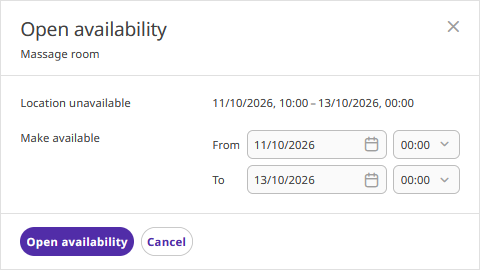
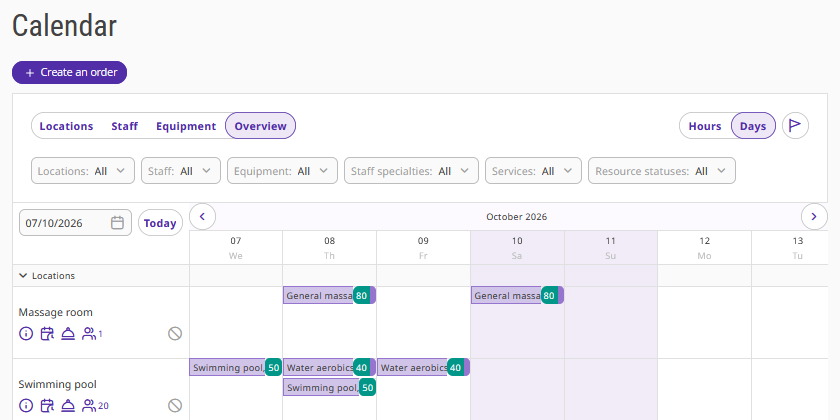
The resource will become available for booking again.
If a resource is deactivated, its cells in the calendar are displayed in gray.
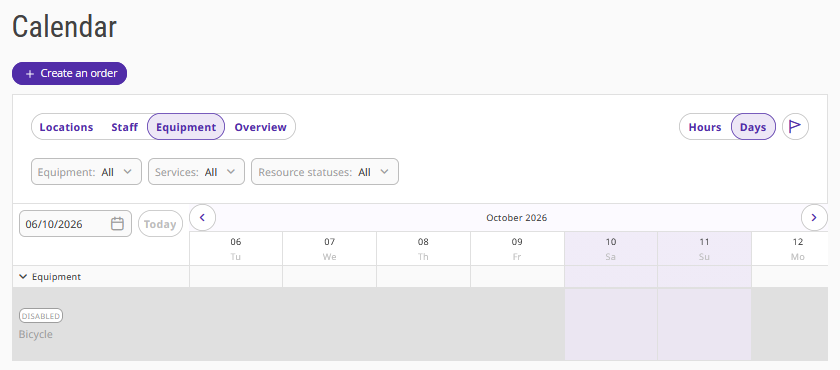
Note. A deactivated resource cannot be closed.
For details on how to deactivate a resource, see the article "How to create resources for hourly services".
Calendar legend
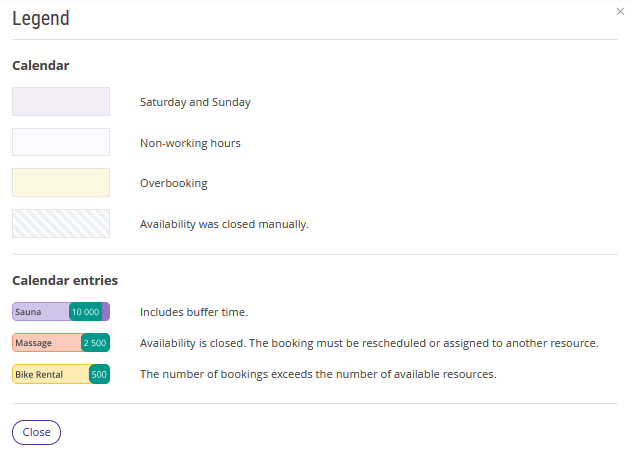
To view all calendar legends, click the flag icon.
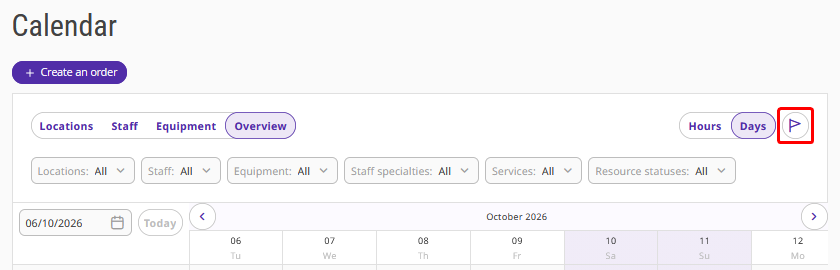
A window with descriptions of the calendar cells and entries will be opened on the right.
Features
1. The calendar allows you to view hourly services only. You cannot edit or delete a service.
2. You cannot edit a booking with a stay and hourly services in the "Reports" > "Bookings" section.
