If you work with Exely PMS, you can view, edit, and add hourly services in the booking card.
How to add an hourly service
1. In the booking card, go to the "Services and accommodation" tab.
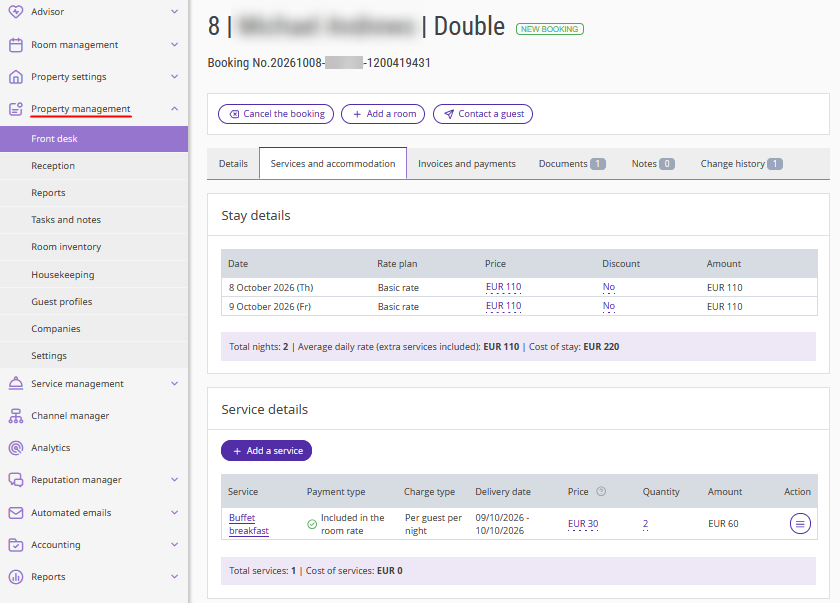
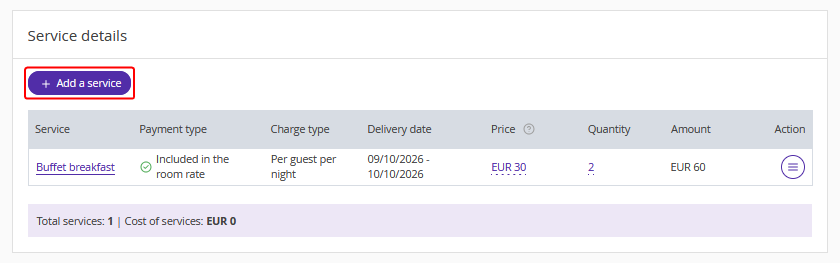
2. In the "Service details" section, click "Add a service".
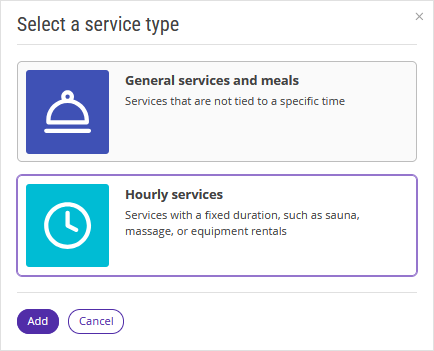
3. Select the "Hourly services" service type and click "Add".
4. In the "Add a service" window, select the group of services and service.
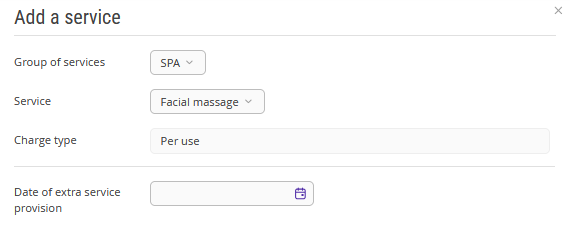
Group of services — optional field. It is filled in automatically after you select a service. The list displays only groups that contain hourly services.
Service — the list is filtered by the selected group. If no group is selected, all hourly services of the property are displayed.
Charge type — it is set automatically depending on the selected service.
5. Specify the service parameters.
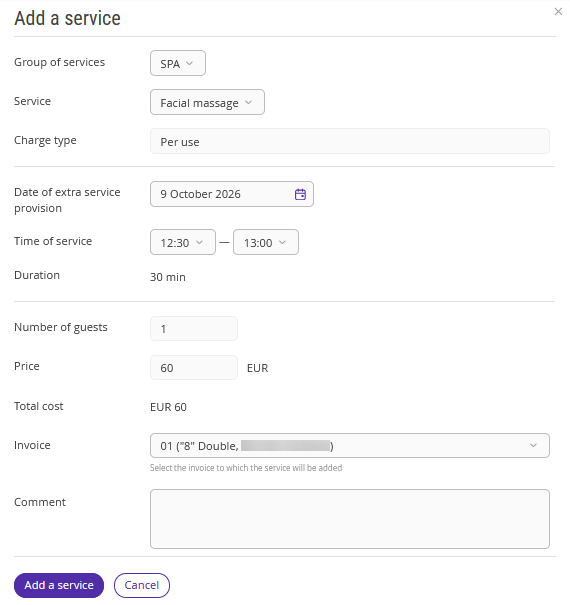
Date of extra service provision — only dates within the guest's stay are available, and only if there are free time slots.
Time of service — becomes available after you select a date. Select the start time and, if the service can be extended, the end time. The extra charge is displayed for extension options, for example, 10:00 (+EUR 50), 10:30 (+EUR 100).
Resources (staff, location) — displayed if the corresponding resources are configured for the service. If only one resource is available, the field is view-only. If several resources are available, select the required one.
Number of guests — does not depend on the number of guests in the booking. The maximum value is limited by the number of available time slots.
Guest age — displayed if age-based pricing is configured for the service.
Pay attention. The set of available fields depends on the settings of the specific service in the Exely extranet.
6. If necessary, add extra guests and specify their number.
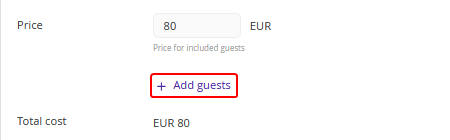
The price for extra guests is calculated automatically.
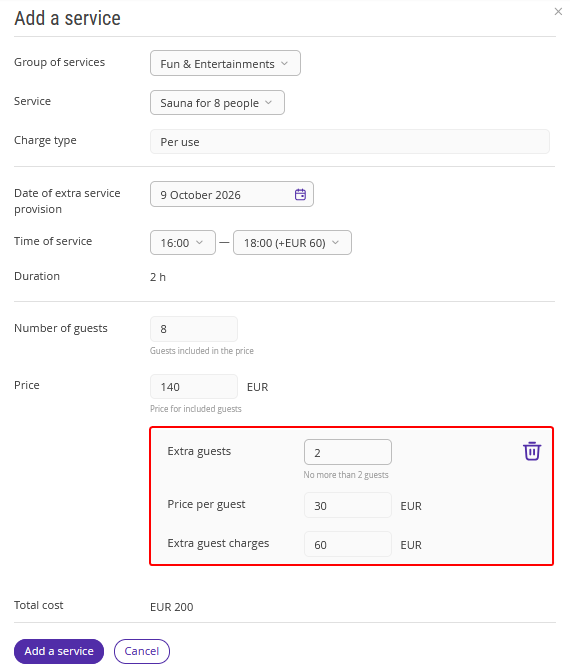
7. Check the total service duration and price — they are calculated automatically, taking into account extensions and extra guests.
8. In the "Invoice" field, select where to add the service:
to an existing individual room invoice or general booking invoice;
new invoice for a room;
new general booking invoice, if there is not such invoice yet.
9. If necessary, add a comment to the service (up to 255 characters).
10. Click "Add service".
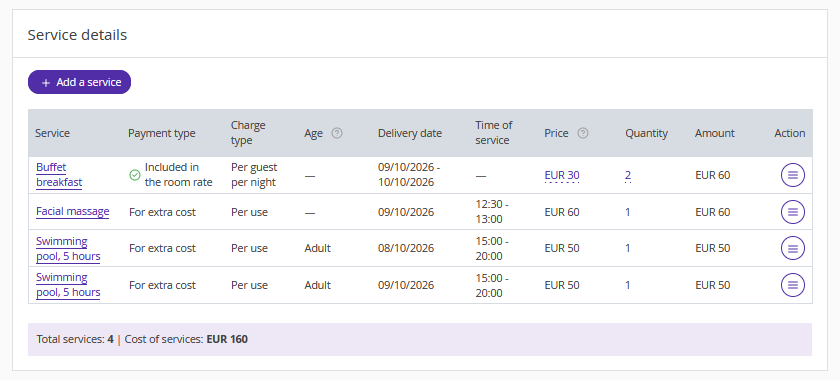
The added service is displayed in "Service details".
How to edit an hourly service
1. In the booking card, go to the "Services and accommodation" tab.
2. In the "Service details" section, click the service name or "Action" > "Edit".
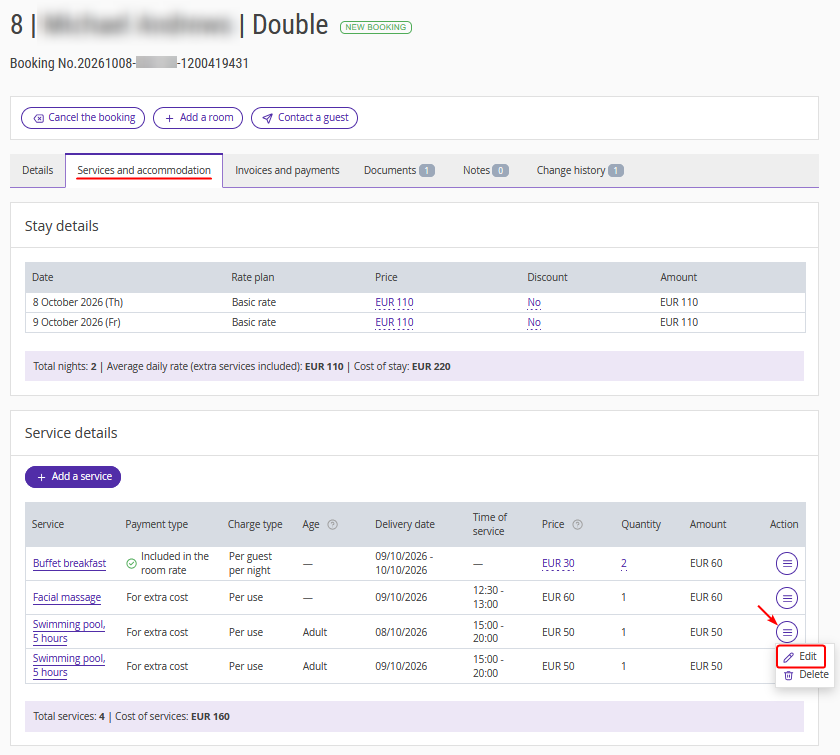
The "Edit a service" window will be opened.
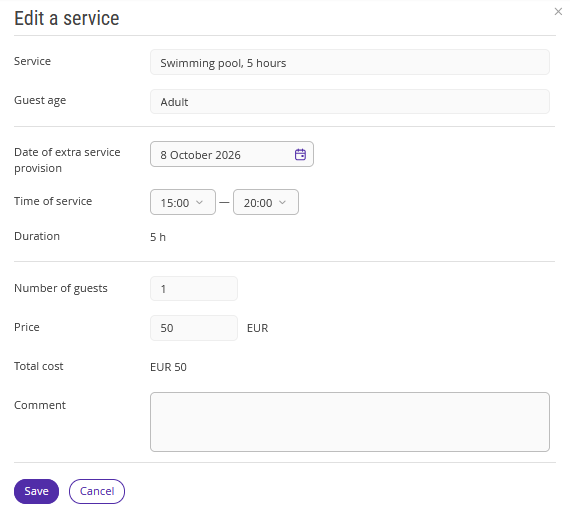
For an hourly service, you can:
Change the date of extra service provision. The maximum available date is the guest's check-out date specified in the booking.
Specify a different time of service, provided that the resources have free time slots.
Note. If the previous resources are available for the new date and time, they remain selected. If a previous resource is unavailable, the field displays "not selected".
Select a staff member if the service is provided by several specialists.
Select a location if several locations are configured for the service.
Add extra guests if this option was enabled when the service was created.
Extend the service if this option was enabled when the service was created.
Pay attention. The parameters that can be changed for hourly services may differ depending on the resource combinations.
How to delete an hourly service
1. In the booking card, go to the "Services and accommodation" tab.
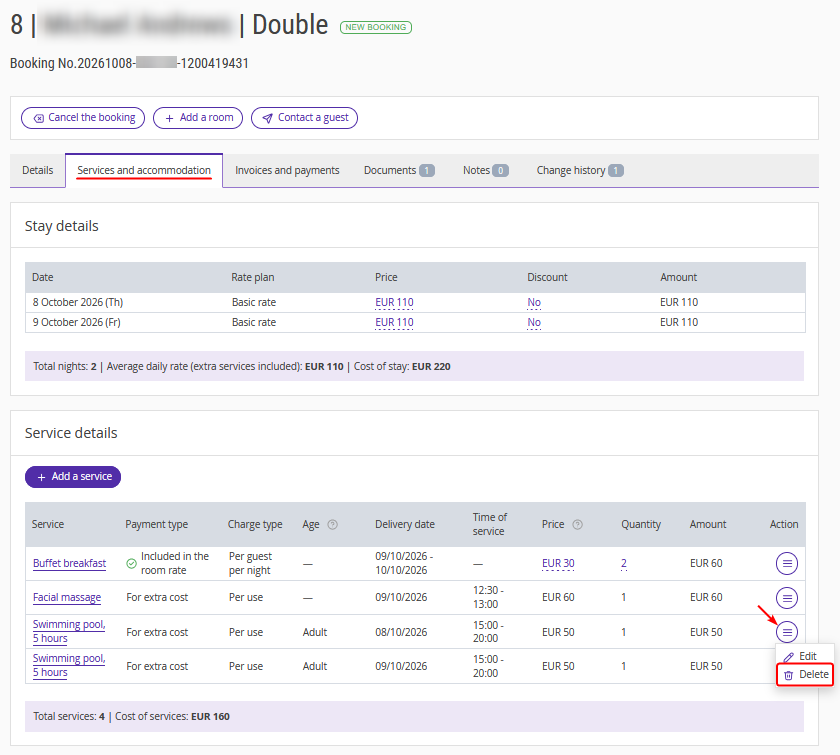
2. In the "Service details" section, click "Action" > "Delete".
3. Confirm the action.
Features
1. If the "Close sales before the service starts" setting was enabled when the hourly service was created, you can edit the time of service only if it meets the setting's terms. For example, if the "Sauna" service has "Close sales 3 hours before the service starts" configured, and the guest's check-in time is 14:00, the sauna can only be booked from 17:00.
2. The service start time is limited by the check-in time specified in the booking. For example, if check-in is at 14:00 and guests arrive earlier and want to book a service, they can only select a time starting from 14:00.
3. An hourly service can be moved from one invoice to another, but it cannot be split between invoices.
4. If a service was extended, the service card displays the final time and price, including the extension.
5. The number of guests receiving the service does not depend on the number of guests staying under the booking.
