Deposit is the amount of money that is conveyed from a guest to a property at the check-in time. The guest receives a receipt that confirms this operation. Deposit money can be used to pay for services or penalties during a guest's stay, while the unused amount is refunded to the guest at the check-out time.
How to make a deposit
A deposit can be made on the booking details page:
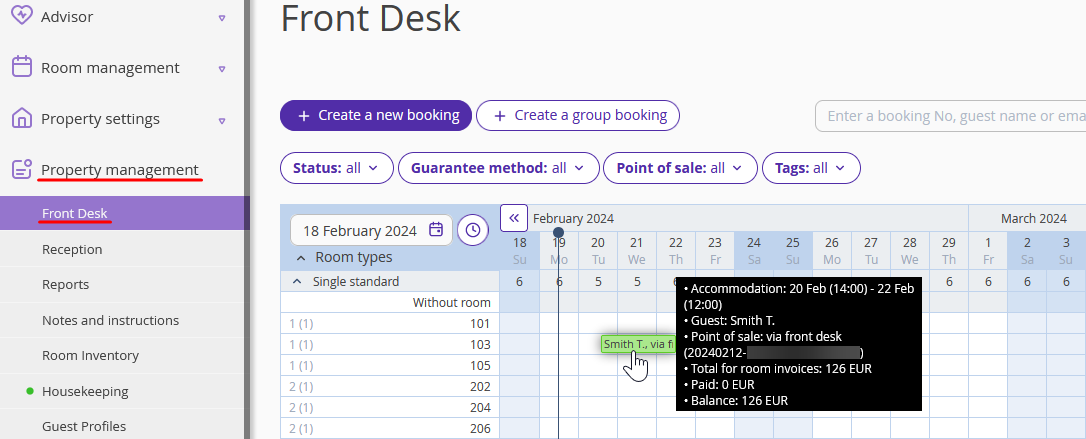
1. Go to "Property management" > "Front Desk" and click the required booking.
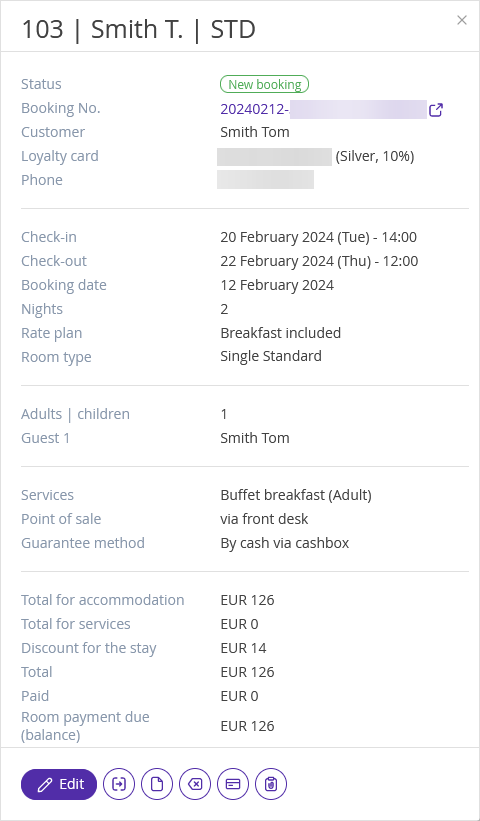
2. In the opened window with brief booking details, click "Edit".
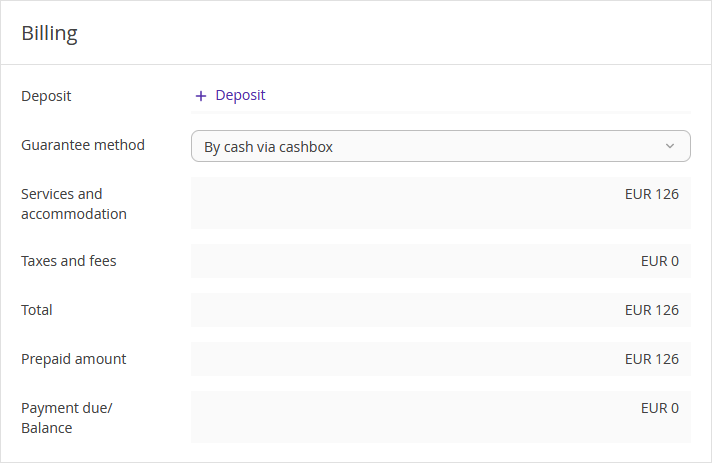
3. The booking details page will be opened. On the "Details" tab, find the “Billing” section and click the “Deposit” link.
You can also make a deposit on the "Invoices and payments" tab. Click on the "Make a deposit" button.
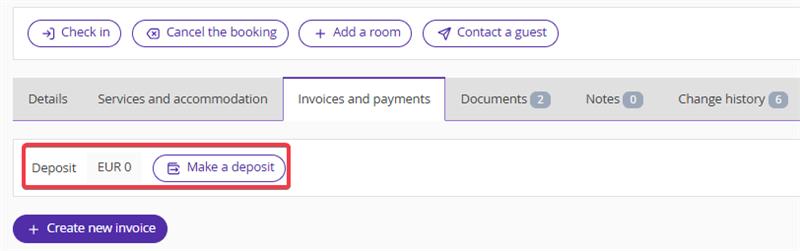
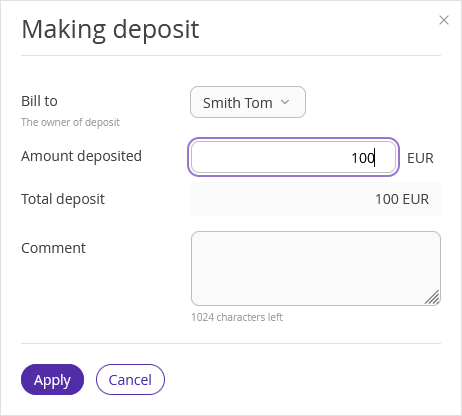
4. Select the owner of the deposit from the guests list, enter the amount and comment, if required, and click “Apply”. Then, click the "Save" button at the top of the page to save the changes.
The "Deposit" section will be added to the “Invoices and payments” tab.
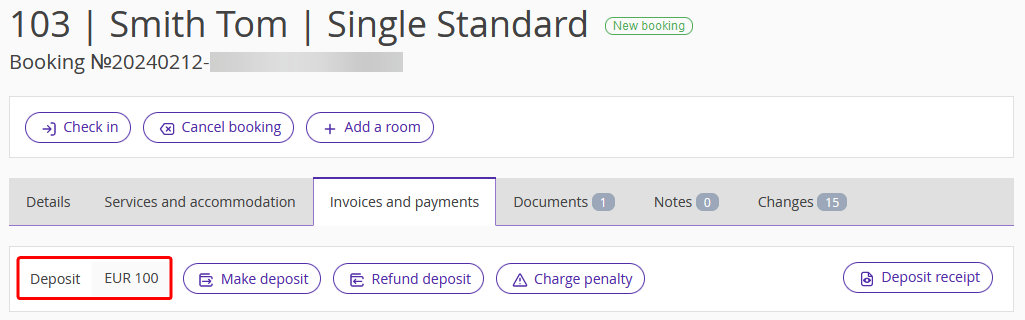
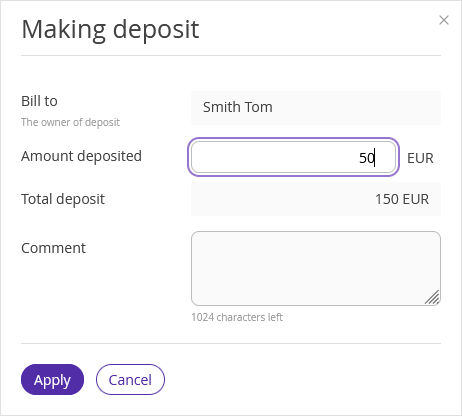
A booking may only include a deposit from one of the guests. If you need to increase the deposit amount, click “Make deposit”. In the opened window, enter the additional amount and click "Apply". Then, save the changes.
How to print a deposit receipt
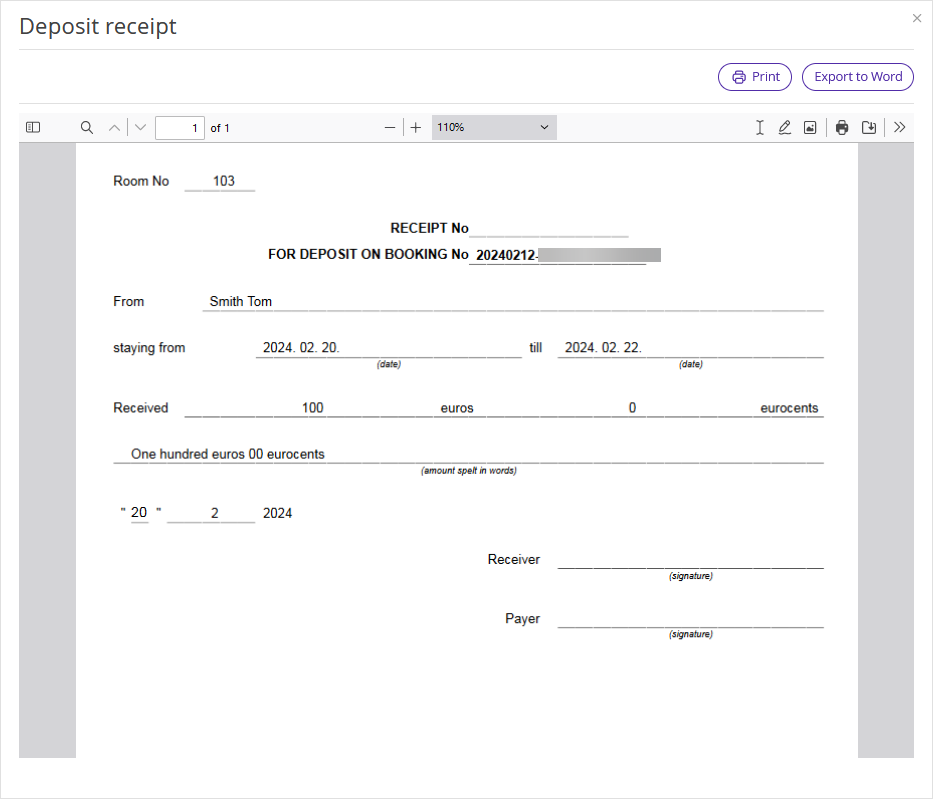
After making the deposit, a receipt should be provided to the guest. To issue the receipt, click the “Deposit receipt” button.

In the opened window, you can print the receipt or export it to Word, if any corrections are required.
How to make payment using deposit
It is possible to use a deposit in order to pay the invoice.
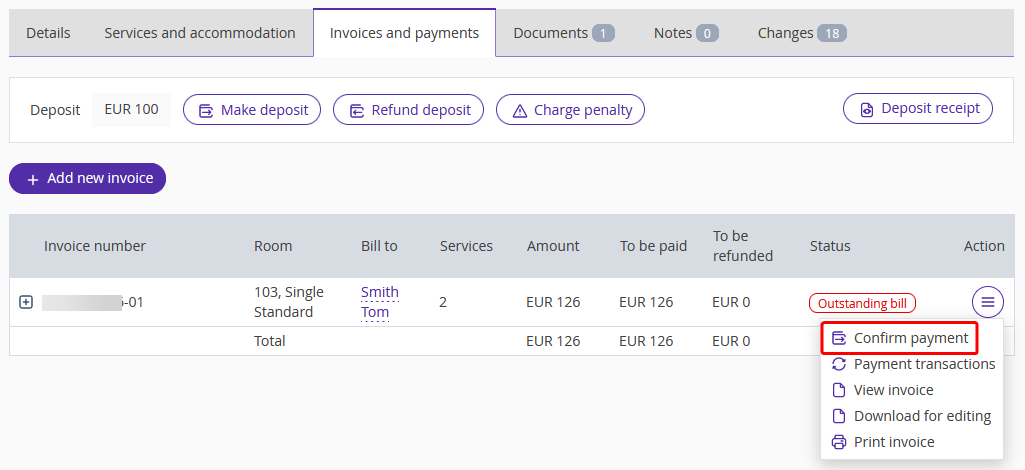
To do this, on the "Invoices and payments" tab, click the "Action" button on the right from the invoice requiring payment and select "Confirm payment".
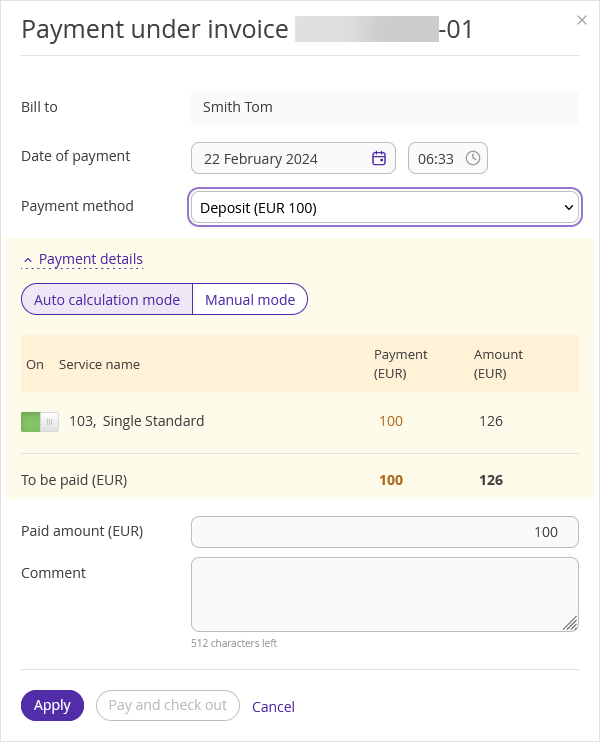
In the payment window, select the “Deposit” payment method, enter the amount to be paid, and add a comment, if required. Click "Apply".
How to charge a penalty
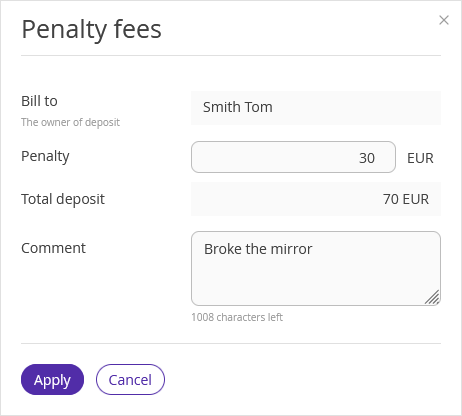
It is also possible to use a deposit in order to charge a penalty, if a guest has violated the rules and should be charged a penalty. To do that, click the “Charge penalty” button.

In the opened window, enter the penalty amount, add a comment, if required, and click “Apply”.
You can find information about penalties in “Summary statistics report”, “Financial comparative daily report” and “Manager report”.
How to refund a deposit
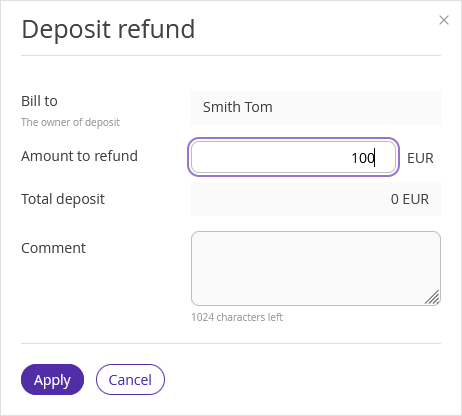
If a guest has not spent the whole deposit amount during their stay, the rest of the money can be refunded. For this, click the “Refund deposit” button.

In the opened window, enter the amount to be refunded, add a comment, if required, and click “Apply”.
How to credit the amount to be refunded to a deposit
Sometimes, guests make a full prepayment for their stay but check out early. In such cases, it is necessary to refund the rest of the paid amount to the guests. Guests often order extra services during their stay and pay for these services at the check-out time. Or, for example, the guest will be returning soon, and you need to keep the remaining balance to pay for a future booking.
To avoid making a refund, you can credit the rest of the paid amount to a deposit and then use this deposit amount to pay for extra services or future bookings. This is only suitable if you use the deposit to cover payments rather than refunding it to the guest — otherwise, you may encounter difficulties with your accounting records.
To credit the prepayment to the guest's deposit, on the booking details page, go to the "Invoices and payments" tab, click the "Action" button on the right from the invoice requiring a refund, and select "Refund to the guest".
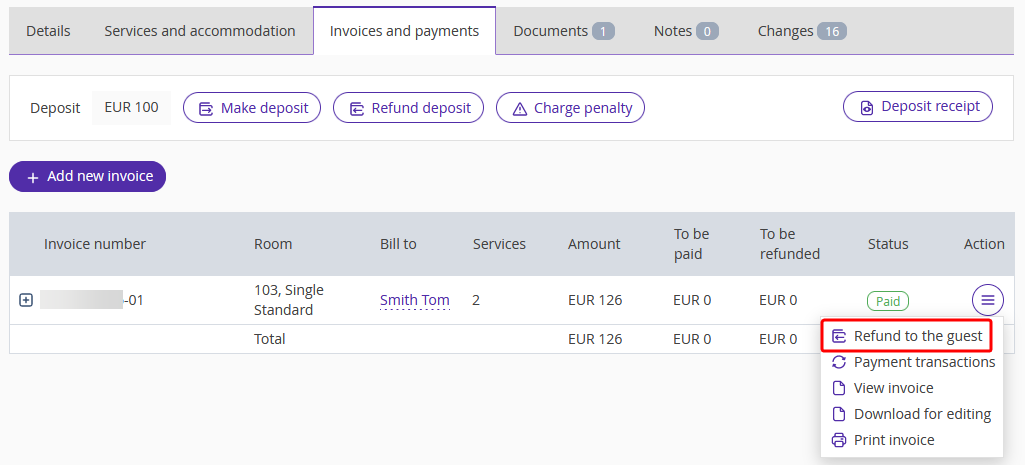
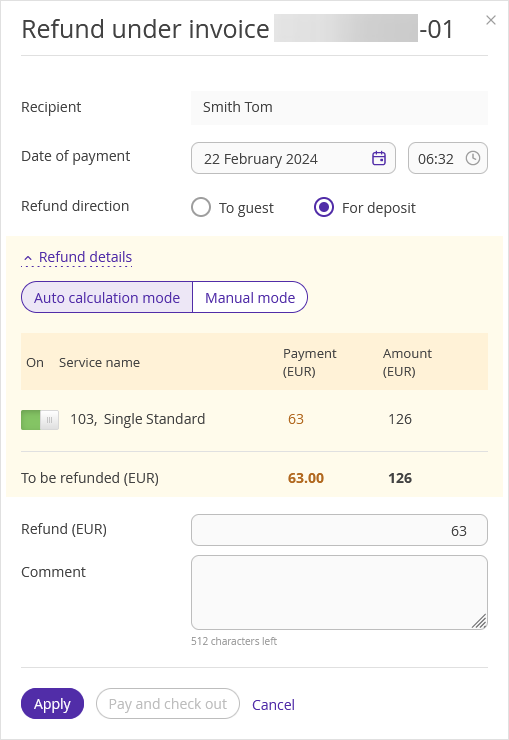
In the refund window, select “For deposit” as a refund direction, enter the amount to be refunded, and add a comment, if required. Click "Apply".