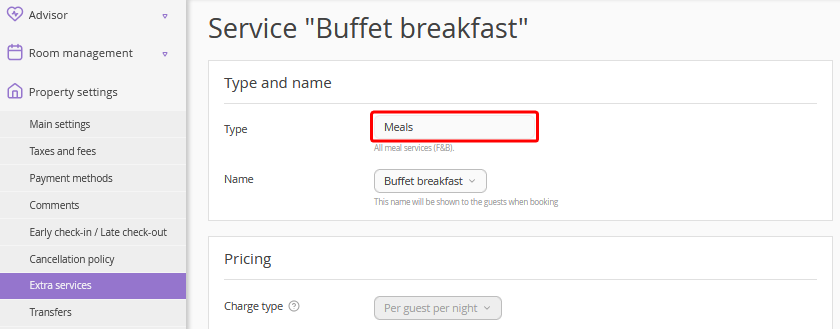
The “Meals” report is a useful tool for planning meals for specific dates. It helps accurately calculate the number of meal services provided to guests at the property.
Report features
Why the report is needed:
The report shows the number of guests who will receive meals during the selected period.
It helps plan meals for the specified dates.
You can download the report in Excel format so you can mark restaurant attendance by guests.
Features:
The report includes only services with the “Meal” type.
Services may be included in the rate plan or charged at extra cost.
The report includes services from bookings in rooms for which "Ignore in statistics" is selected in “Room inventory”.
How to generate the report
1. In the “For period” field, select the period for which the report must be generated.
2. In the “Report type” filter, choose how to display the values:
“Detailed” – shows a breakdown by bookings and the number of services for each booking (selected by default).
“Summary” – shows the total quantity for each service.
In the “Meal service” and “Room type” filters, select the specific meal service and room type. This allows you to generate a report not for all services, but based on the selected criteria.
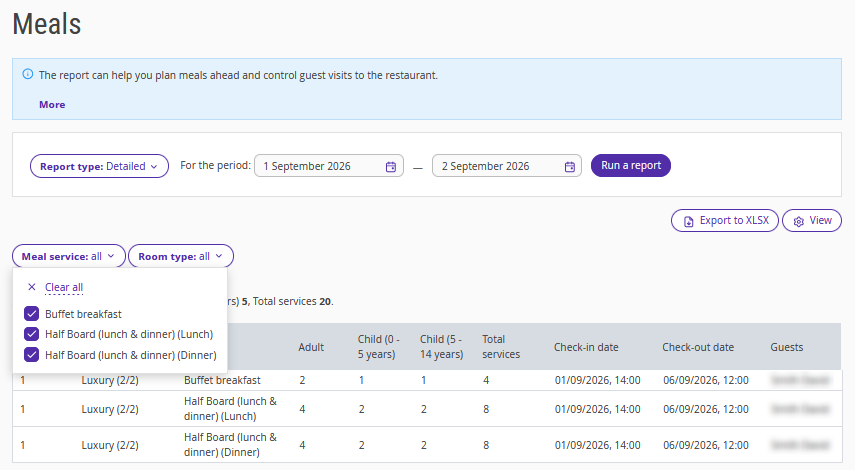
3. Click “Run a report”.
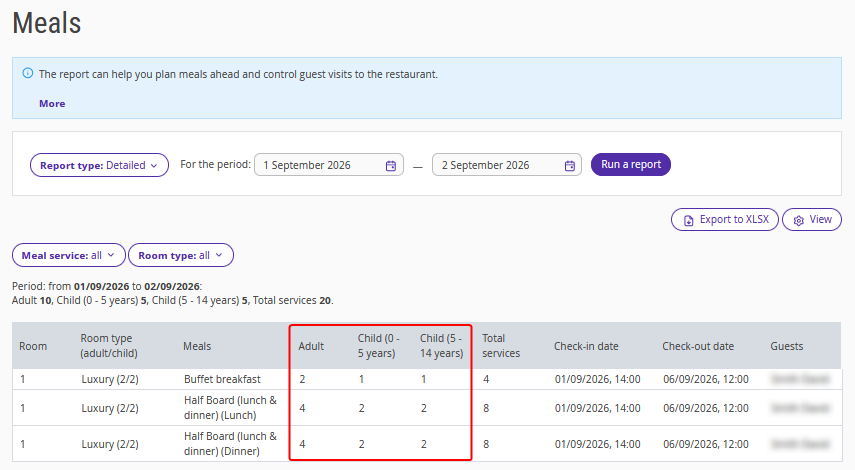
The generated table includes the following fields:
Room – the room number where the guest is staying;
Room type – the name of the room type;
Meal service – meal type;
Adult – number of adults staying in the room;
Child – number of children staying in the room;
Total services – the number of meal services of the type for the selected period;
Check-in date – booking check-in date and time;
Check-out date – booking check-out date and time;
Guests – full names of guests listed in the booking.
If you use different prices for services for adults and children, the report will display columns with guest age ranges and the number of services for each age group.
Summary report
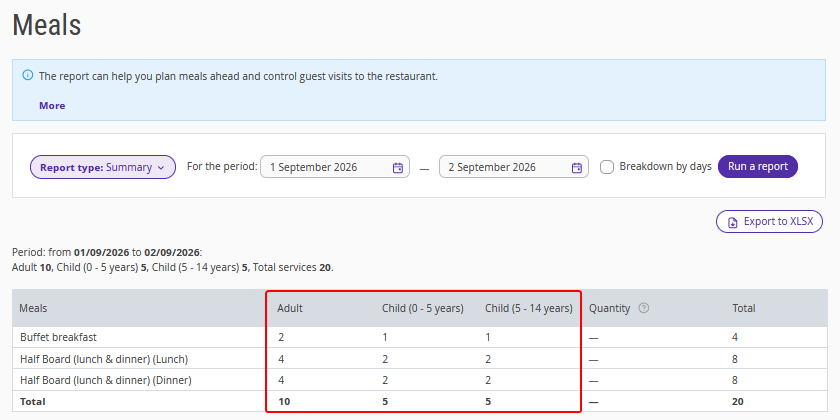
To see the total number of meal services for the period, select the “Summary” report type.
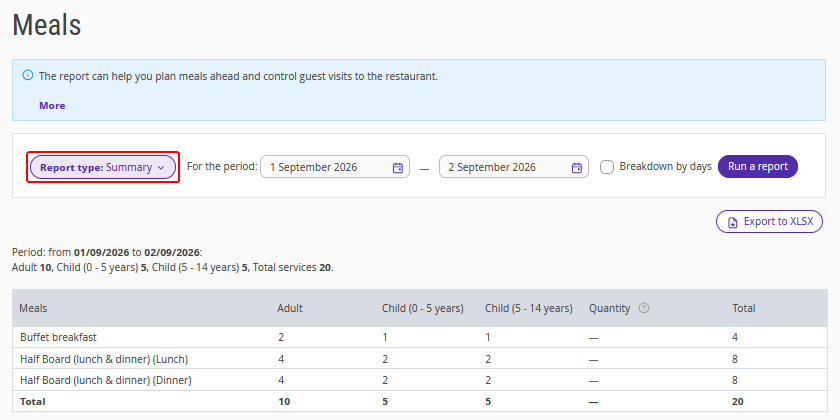
If you use different prices for services for adults and children, the report will display columns with guest age ranges and the number of services for each age group.
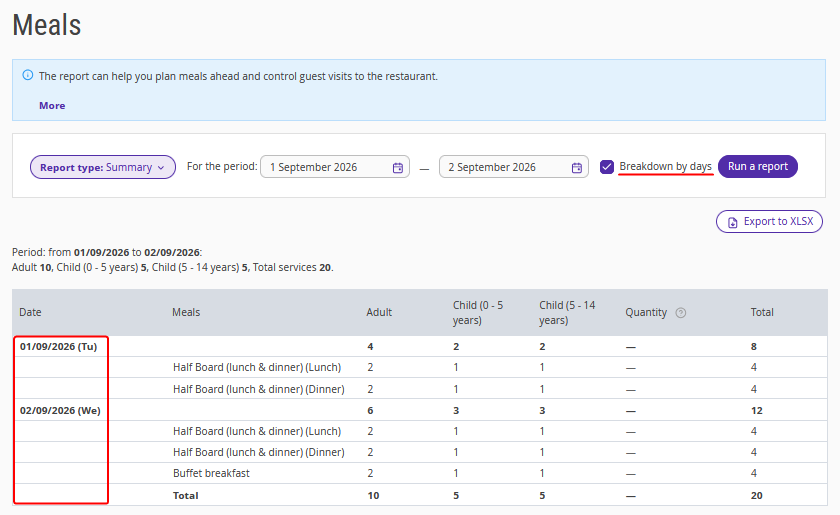
If you tick the "Breakdown by days" check-box, meal services will be displayed by day for the selected period.
How to download the report
To download the report, click the “Export to XLSX” button.
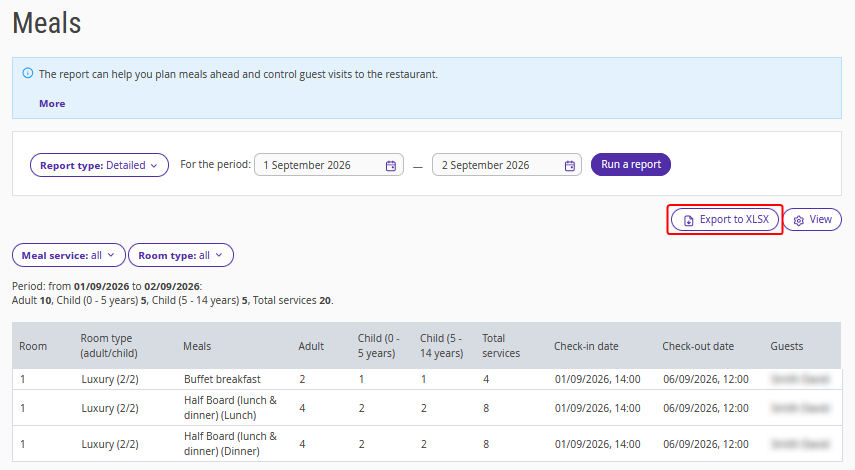
To make the report easier to work with, the room type and guest count appear in separate columns in the file.
How meals are calculated
The “Meals” report shows which meals should be provided to guests on each day of their stay.
Breakfasts are counted starting from the day after check-in, while lunches and dinners may be counted on the check-in day. For meal plans such as "Full board", “Breakfast & lunch”, “Breakfast & dinner”, “Lunch & dinner”, and "All inclusive", meals are distributed across the days of the stay.
Pay attention. The guest's actual check-in or check-out does not affect how meals are counted in the report. The calculation is based on the check-in and check-out dates and times specified in the booking.
If the check-in time is before 16:00
Meal type |
Check-in day |
Check-out day |
“Full board” and “All inclusive” |
Lunch and dinner |
Breakfast |
“Breakfast & dinner” |
Dinner |
Breakfast |
“Breakfast & lunch” |
— |
Breakfast and lunch |
“Lunch & dinner” |
Lunch and dinner |
— |
If the check-in time is after 16:00 and the check-out time is after 12:00
Meal type |
Check-in day |
Check-out day |
“Full board” and “All inclusive” |
Dinner |
Breakfast and lunch |
“Breakfast & dinner” |
Dinner |
Breakfast |
“Breakfast & lunch” |
— |
Breakfast and lunch |
“Lunch & dinner” |
Dinner |
Lunch |
If the check-in time is after 16:00 and the check-out time is before 12:00
Meal type |
Check-in day |
Check-out day |
“Full board” and “All inclusive” |
Dinner |
Breakfast |
“Breakfast & dinner” |
Dinner |
Breakfast |
“Breakfast & lunch” |
— |
Breakfast and lunch |
“Lunch & dinner” |
Dinner |
— |
Meals are counted in full on the remaining days of the stay, according to the selected meal plan: full board and "All inclusive" include breakfast, lunch, and dinner; half board include the two meals provided by the selected plan.
How the "Time on check-in date" setting affects meal allocation in the “Meals” report
Meals counted on the check-in and check-out dates depend on the selected meal plan and the time specified in the booking. The time affects lunch allocation only. Breakfast on the check-out day and dinner on the check-in day are counted regardless of the time if they are included in the selected meal plan.
How to change the meal calculation time
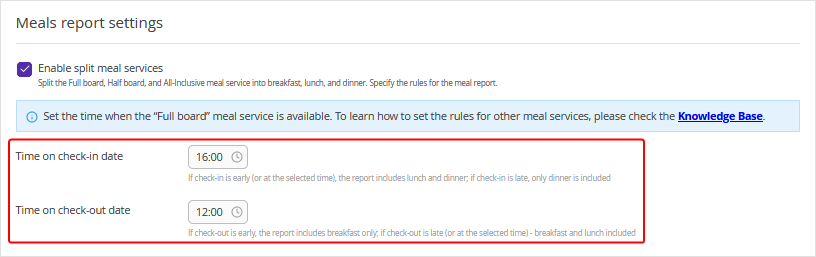
By default, the following times are used to calculate meals:
"Time on check-in date" — 16:00.
"Time on check-out date" — 12:00.
You can change these values to match your property's meal service rules. To do this:
1. Go to “Property management” > “Settings” > the “Main settings” tab.
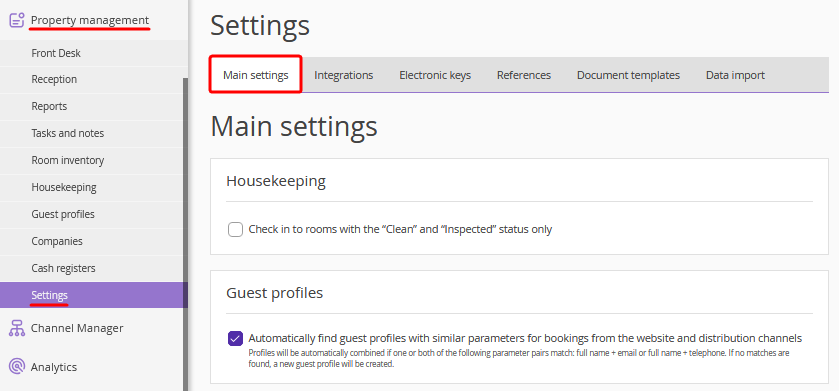
2. In the “Meal report settings” section, select the required time.
The "Time on check-in date" setting affects lunch allocation on the check-in day for full board, "all inclusive," and half board with lunch.
The "Time on check-out day" setting determines whether lunch is counted on the check-out day for meal plans that include lunch, according to the calculation rules for each plan.
Pay attention. For the "Breakfast & dinner" half board plan, changing the calculation time does not affect how meals are allocated in the report.
Guest groups in the report
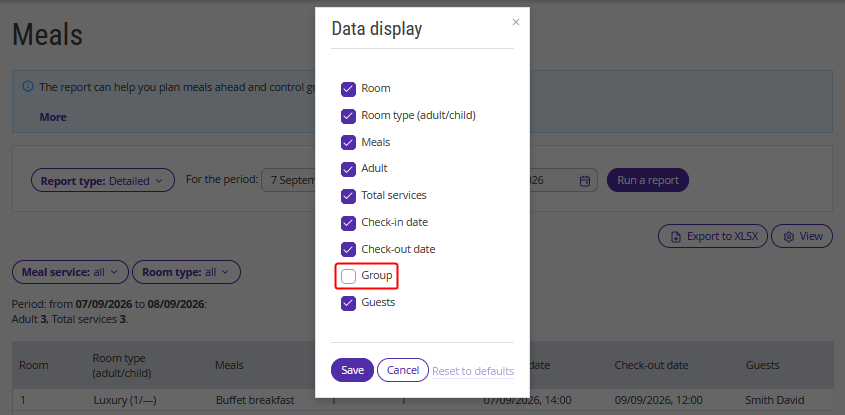
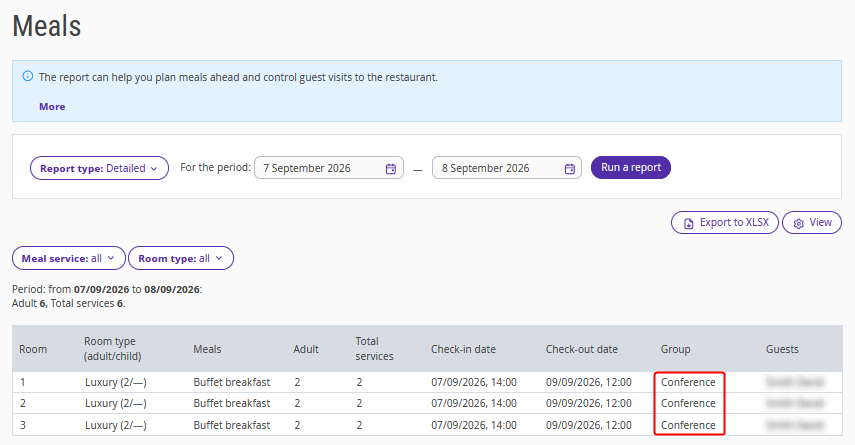
To simplify table seating, add the “Group” column to the “Meals” report: click the “View” button and tick the “Group” check-box.
Guest group names will appear in the list:
Why a meal service is not displayed in the report
If a meal service is not displayed in the report, check its type — a common cause is selecting the “General” type instead of “Meal” when creating the service. Another reason may be that the guest purchased the service through a distribution channel.