This article will help you change the price in a website booking in the Exely extranet. You can decrease or increase the booking price by setting a new price or applying a discount.
Pay attention. It is possible to modify a booking until the check-out date.
If you work with Exely PMS, follow the instructions given in the articles: "How to change the cost of stay for a booking in Exely PMS", "How to apply a discount to a booking in Exely PMS ".
To change price in a booking from the website:
1. In the Exely extranet, go to “Reports” > “Bookings”.
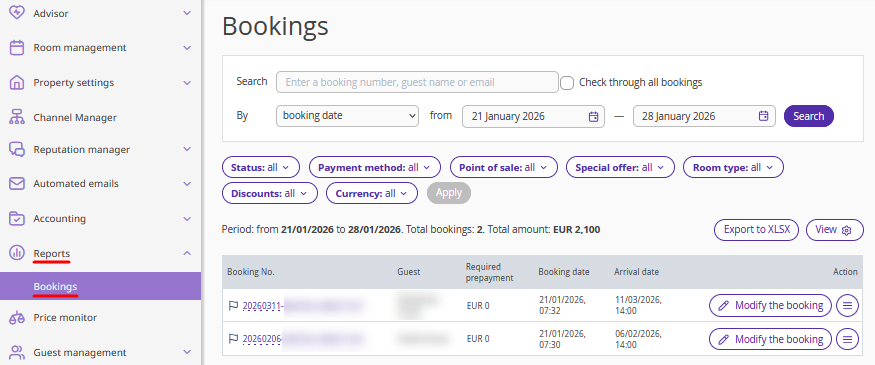
2. Find the required booking using filters, or enter the booking number in the “Search” field and tick the "Check through all bookings" check-box.
3. Click the "Modify the booking" button on the right, or "Action" > "Modify the booking".
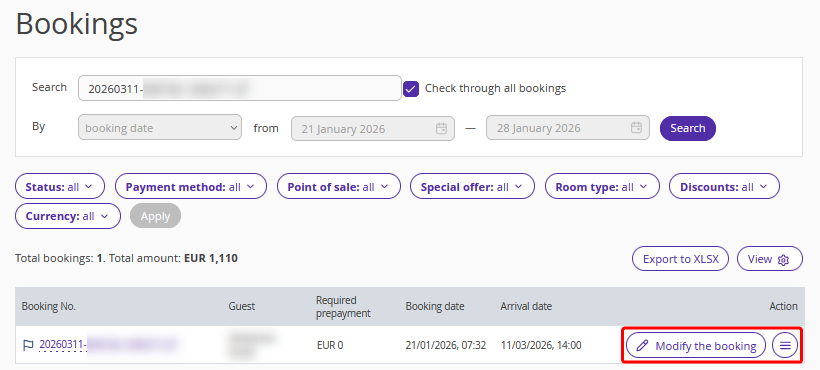
3. On the booking details page, in the "Calculated amount" section, click the amount in the "Stay" field.
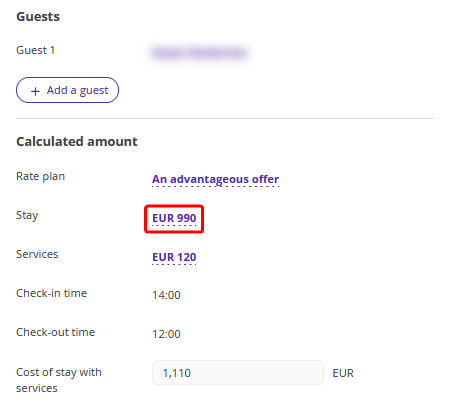
The "Booking cost change" window will be opened.
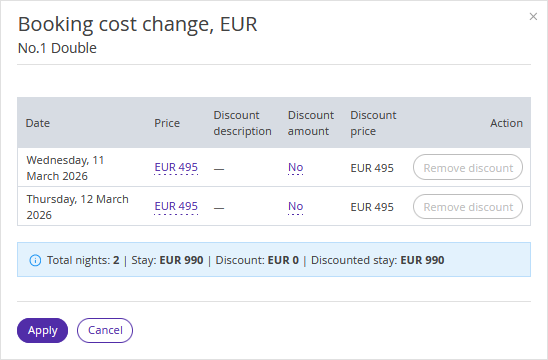
4. Apply a discount to the booking in a way that is convenient for you:
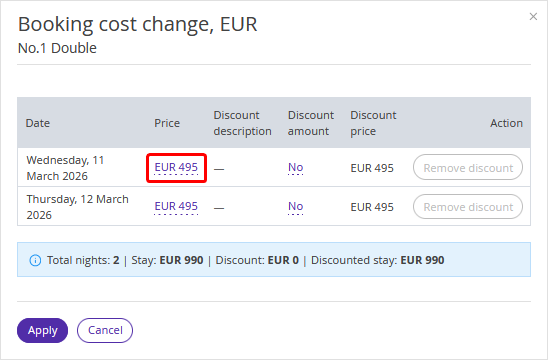
If you want to edit the price for a specific date, click the price in the "Price" column. The "Accommodation price" window will be opened.
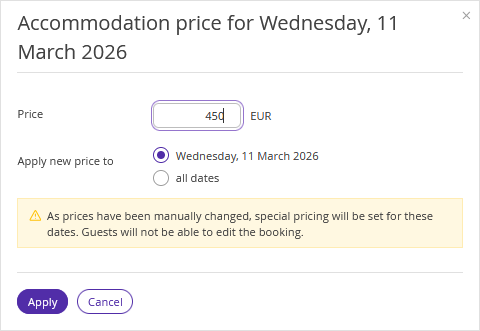
In the "Price" field, enter the new amount and select the period the new price should be applied to. Click "Apply".
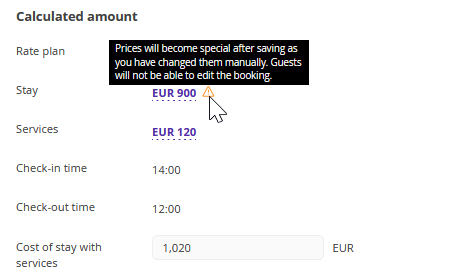
After saving, the prices for the modified dates will become special, because you changed them manually. Guests will not be able to edit the booking on their own. You will see a notification in the "Calculated amount" section in the "Stay" line.
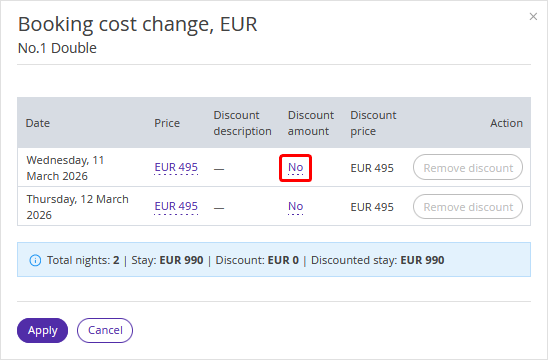
If you want to add a discount, click "No" in the "Discount amount" column. The "Discount on stay" window will be opened.
In the "Discount description" field, you can select an existing discount created in the "Room management" > "Promotions" section. To create a discount, use the instruction "How to add promotions displayed in the Booking Engine".
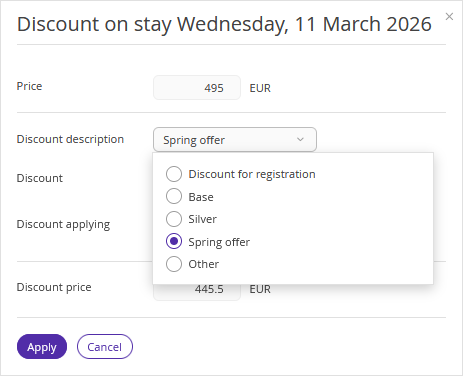
If the discount has not been created yet or you want to set the discount amount manually, select "Other".
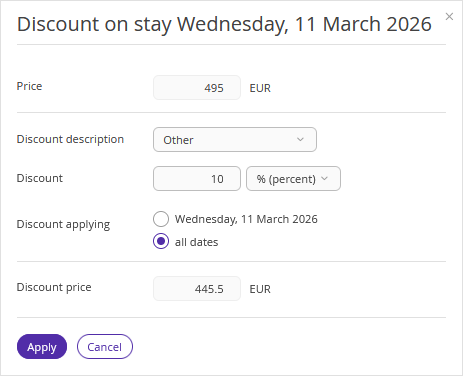
Specify the discount amount and the period the discount should be applied to, then click "Apply".
In the "Booking cost change" window, you will see the new price with the discount applied. You can also remove the discount there.
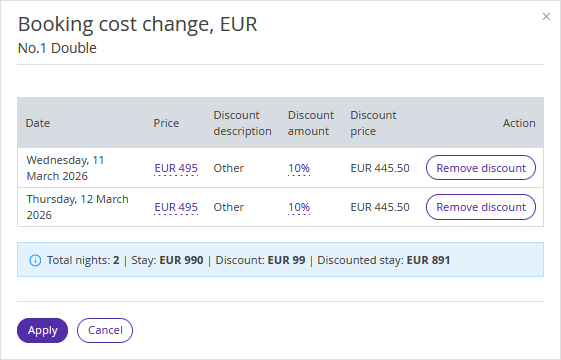
5. Click “Apply”.
6. Click "Save" at the top of the page.
To send an updated booking confirmation to a guest, click "Send".
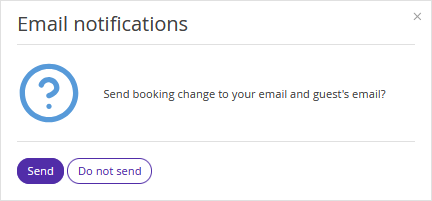
The guest will receive the updated booking confirmation via email. If the payment method of the booking is either “Bank transfer for individuals” or “Bank transfer for legal entities”, make sure to send an updated invoice to the guest.
The number of modifications is unlimited. If you need to change the booking price again or cancel the discount later, the system will allow you to do so.
Features:
1. After prices are changed to "Special", they are automatically fixed. If the booking dates are shifted in the future, the price from the last stay date is copied to the new dates.
2. "Special prices" cannot be canceled.
3. If a discount was already applied in the booking, this discount will be applied to the new price.
4. If a discount was already applied in the booking and you change the stay dates, this discount will be applied to the new dates.
To change other booking parameters, use the relevant instruction:
