Deferred payment is a payment method for the booking engine. The guest makes a prepayment not at the moment of booking, but within the period you specify in the settings.
For example, a guest books a stay five days before arrival and must pay the prepayment within three days. If the guest does not pay the prepayment by the specified due date, the booking may be canceled automatically, depending on the automatic booking cancellation setting.
Pay attention. All payment methods with deferred payments are marked in Exely Booking Engine with a “Deferred payment” motivator.
If you use Exely PMS, please refer to the following article for detailed information on how deferred payment works: “Deferred payment via link for Exely PMS».
How deferred electronic payment works
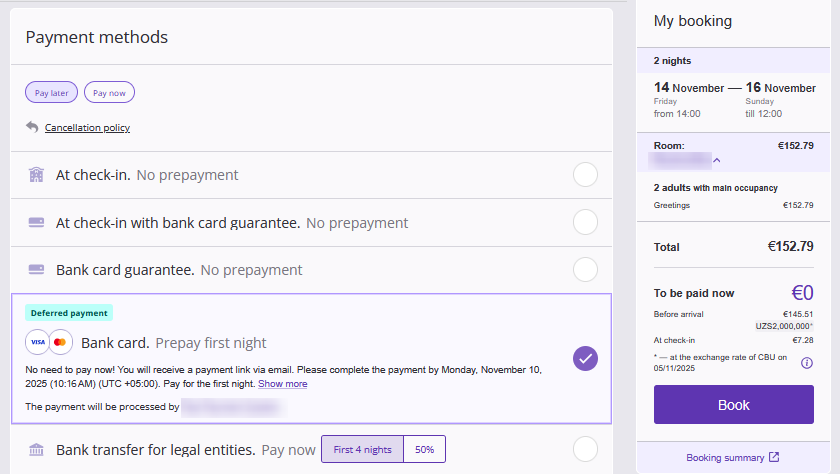
1. A guest makes a booking in the booking engine and selects a payment method with the “Deferred payment” motivator.
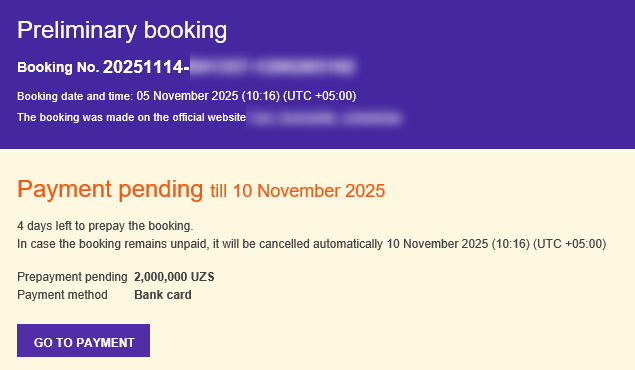
2. The guest receives a preliminary booking confirmation showing the prepayment amount, the payment due date, and a button to proceed to payment.
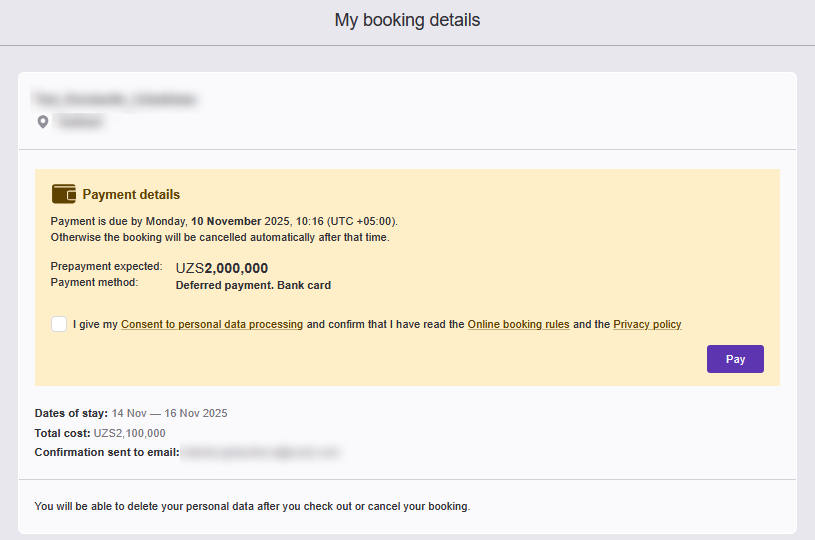
3. The guest clicks “Go to payment” > “Pay”. A payment system window will be opened, where the guest can make the payment.
4. If the guest does not make the prepayment by the specified due date, further actions depend on the "Automatic booking cancellation" setting:
Automatic cancellation is enabled — the booking will be canceled automatically.
Automatic cancellation is disabled — the booking will remain active. If necessary, the guest or the property can cancel it manually.
How to set up deferred payment by bank card
If you want to enable this payment method, contact your Customer Support manager or Exely Customer Support team.
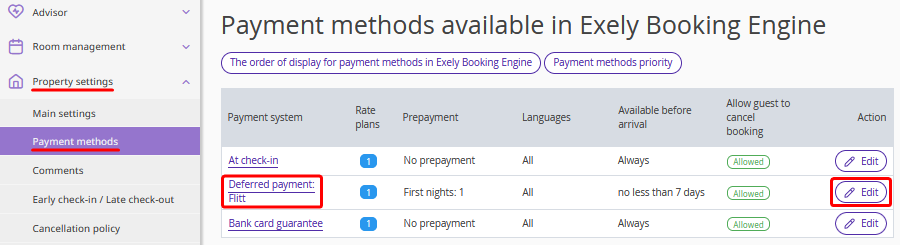
1. Go to the “Property settings” > “Payment methods” section, and find the “Deferred payment” payment method.
2. Click the payment method name or the “Edit” button.
3. In the "Main settings" section, specify the conditions under which the payment method is available and the due date:
"Payment method is available" — specify how long before arrival the guest can select this payment method.
"Payment due" — the point from which the payment due date is calculated:
"before arrival" — the due date is calculated from the check-in date and time.
"after booking" — the due date is calculated from the time the booking is created.
"Guest must pay" — specify the prepayment due date based on the selected option.
For example, if you select "Before arrival" and specify 3 days, the guest must pay the prepayment no later than 3 days before the check-in date and time.
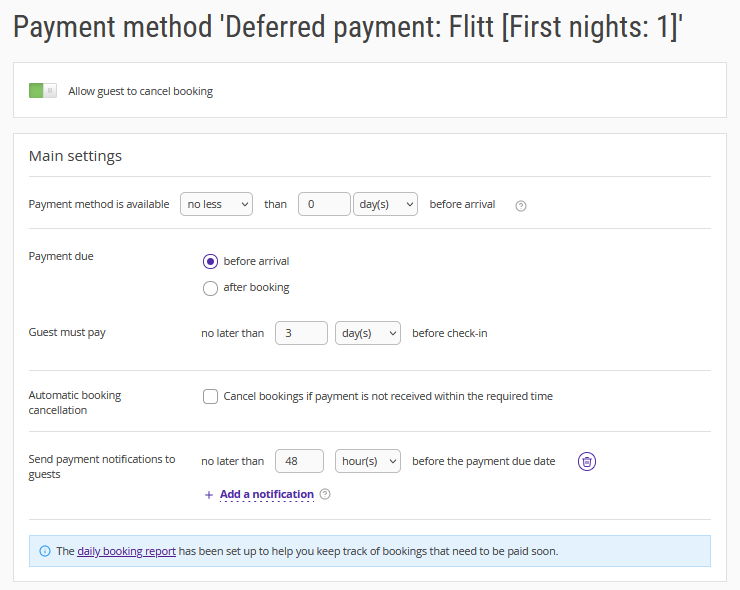
4. Set up automatic booking cancellation.
Under "Automatic booking cancellation", tick the "Cancel bookings if payment is not received within the required time" check-box if you want unpaid bookings to be canceled automatically after the payment due date expires.
If the check-box is not ticked, bookings will not be canceled automatically, even if the guest does not make the prepayment on time.
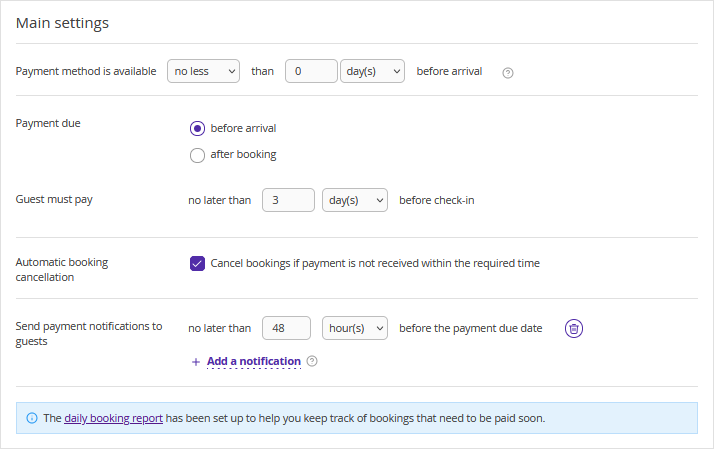
Features of automatic booking cancellation:
Automatic booking cancellation is disabled by default.
Changes to the automatic booking cancellation setting apply only to new bookings. Bookings created earlier retain the cancellation terms that were in effect when they were created.
If a booking is created when, according to the settings, it should already have been canceled, the payment link remains valid for one hour. For example, if automatic cancellation is set for 14 days before the check-in date and time, a booking created four days before check-in will be canceled automatically after one hour.
5. If necessary, set up payment notifications for guests.
In the "Send payment notifications to guests" field, specify how many hours or days before the payment due date the reminder should be sent. To add another notification, click "Add a notification".
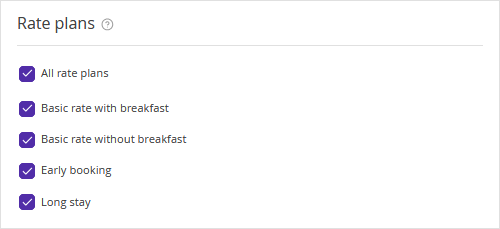
6. In the "Rate plans" section, tick the check-boxes for the rate plans for which deferred online payment will be available.
7. Select the languages of the booking engine for which this payment method should be available.
8. Click the “Save” button at the top of the page.
Deferred electronic payment by bank card is set up. Now, your website visitors can book a room and pay later.
How to track unpaid bookings
To track bookings with overdue payments and bookings for which the payment due date is approaching, configure a daily report on unpaid bookings.
The report includes active bookings for which the guest has not yet paid the required amount and the check-in date has not passed. Report delivery does not depend on the automatic booking cancellation setting. For more information about configuring the report and its contents, see the article "Daily report on unpaid bookings".
