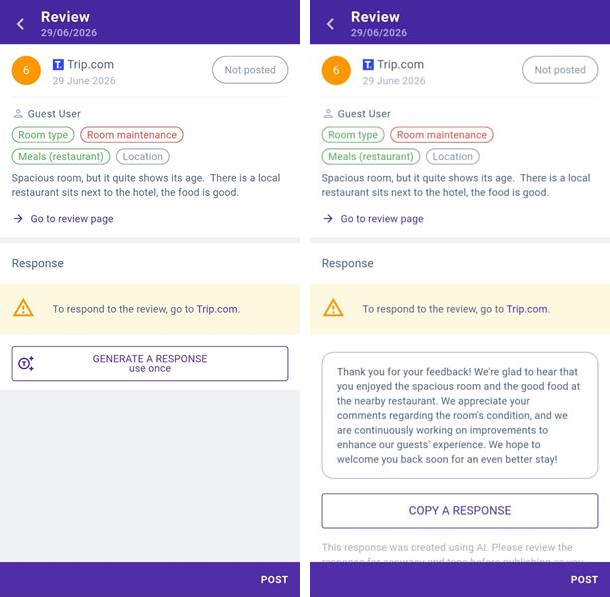
If you work with Exely Reputation Manager, you can analyze and respond to reviews using artificial intelligence (AI) in the Exely Hotelier mobile app.
AI automatically processes reviews, determines their tone and content, and then creates appropriate responses.
Using AI to analyze and respond to reviews improves the efficiency and speed of handling guest feedback, so you can respond to guests’ comments promptly, improve service quality, and strengthen your reputation through personalized and timely responses.
How to analyze reviews using AI
1. In the Exely Hotelier mobile app, go to “Reputation” > “Reviews” and click a review to open the review details page.
2. Categories and tone of the review will be reflected above the review text.
Note. Only the categories under which the review falls will be displayed on the review details page.
The following categories are analyzed:
Location Bathroom Meals (restaurant) Service and staff Room amenities Room type Bed Check-in Room comfort Cleanliness Wi-Fi Room maintenance |
Interior and design Availability Price Window Soundproofing Temperature control Media and technology Child services Toiletries Car parking Ventilation Windows |
Lighting Hotel area Drinks (bar) Sports facilities Safety and security Entertainment Transfer SPA Swimming pool Anti-COVID measures Treatment |
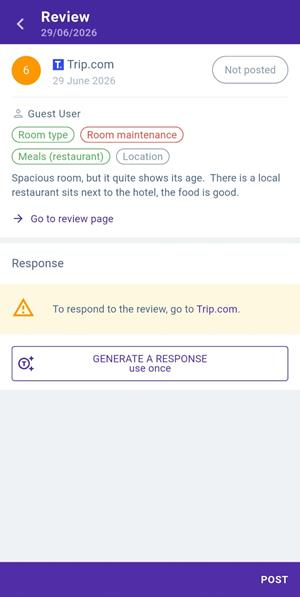
3. Tap on a category to highlight the corresponding text in the review. The text will be highlighted in the color that corresponds to the tone:
Positive — green
Negative — red
Neutral — grey
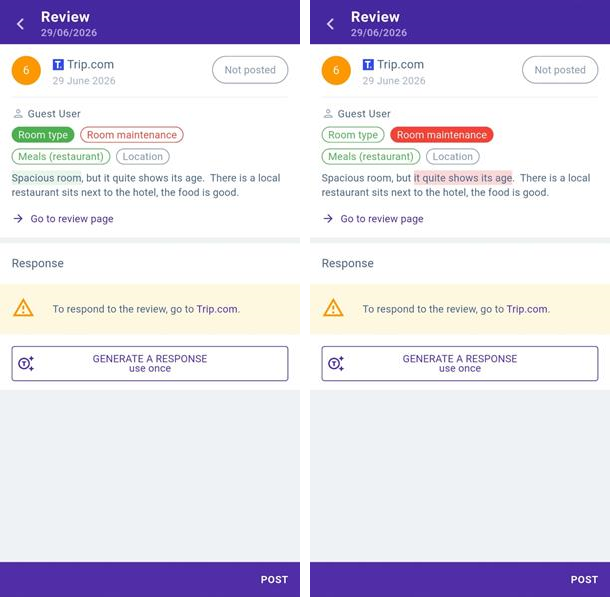
Note. The tone of different categories in the review may differ. When you tap on the corresponding category, the text of the review about it will be highlighted.
How to generate a response to a review using AI
1. Open a review.
2. Click “Generate response”.
Note. You can generate a response only once. If you have already added a response to a review, the “Generate response” button is not displayed on the review details page.
3. Copy the response text by clicking the “Copy a response” button. If it is possible to publish a response on the review details page for this review, click the “Add a response” button. Posting a response from a review details page is available for reviews from Exely Automated Emails.
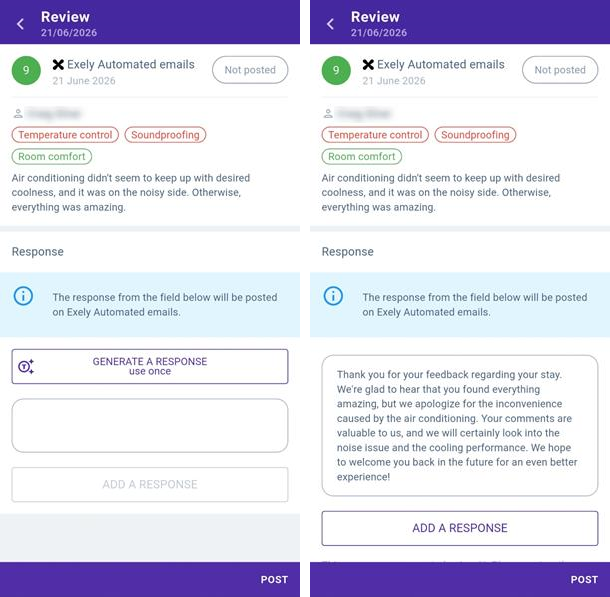
4. Click the “Go to review page” link to post the response to the review in the source.