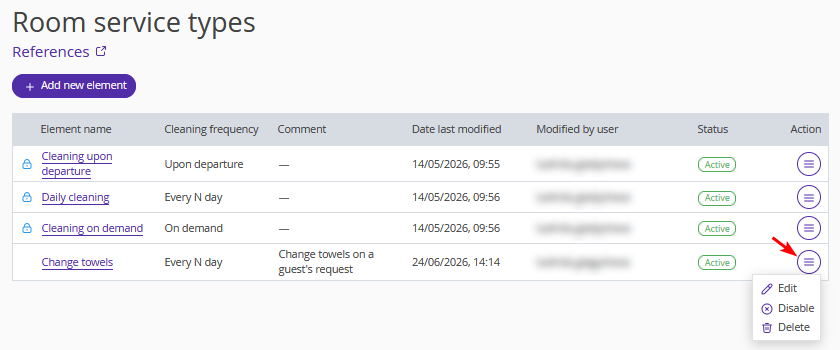
You need the “Room service types” reference for the proper functioning of the full version of the Housekeeping extension in Exely PMS. In the reference, you can create and edit the room service types.
1. In the Exely extranet, go to “Property management” > “Settings” and switch to the “References” tab.
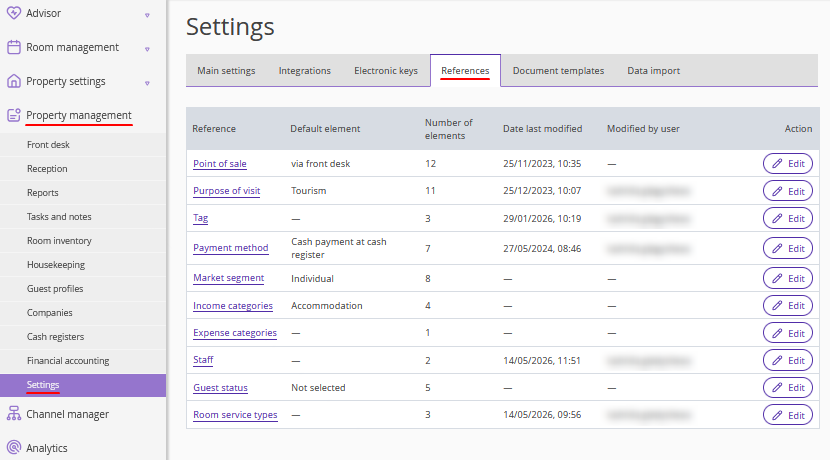
2. Open the “Room service types” reference.
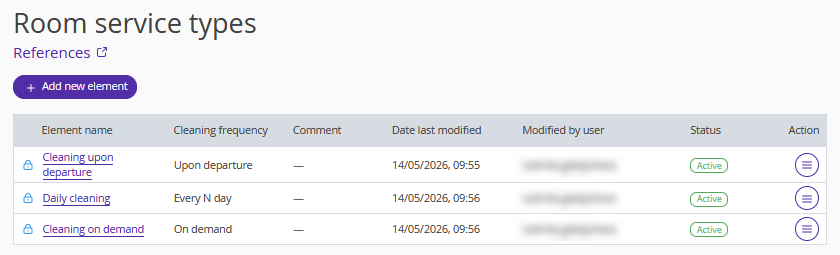
By default, three service types are available:
Cleaning upon departure is automatically assigned to rooms where a guest is scheduled to check out or has already checked out.
Daily cleaning is automatically assigned to occupied rooms. In the settings, you can specify cleaning frequency and linen change frequency for different room types. For more information, see the article “How to set bed linen change schedule”.
Cleaning on demand is used for on-demand cleaning requests and assigned manually to selected rooms in the "Housekeeping" section.
You can also create your own service types, including recurring automatic cleaning tasks or unscheduled cleaning tasks that can be assigned manually in the "Housekeeping" extension when needed.
How to create a new room service type
1. Click the “Add new element” button.
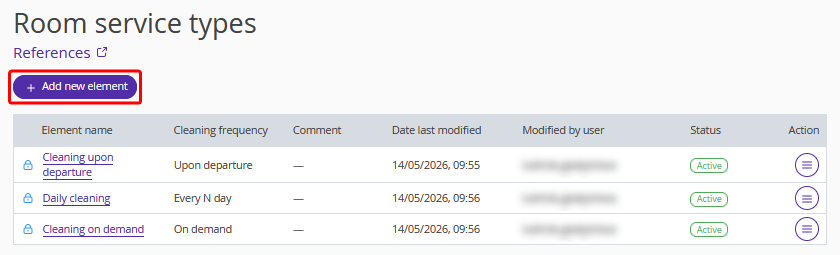
2. Enter the service name and description.
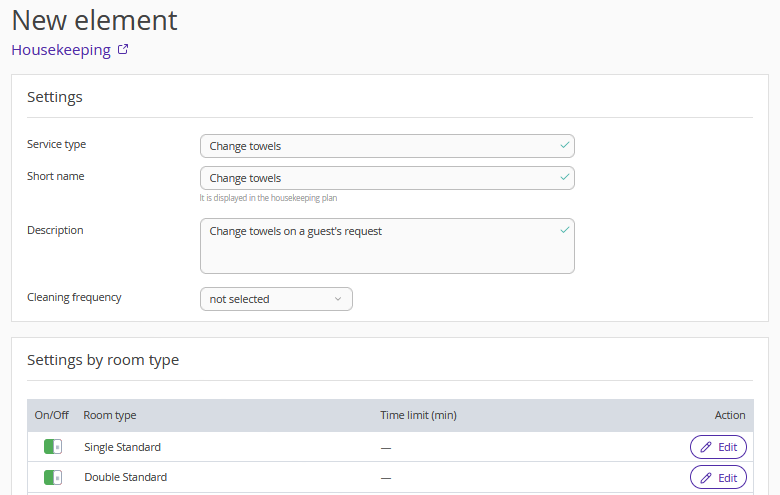
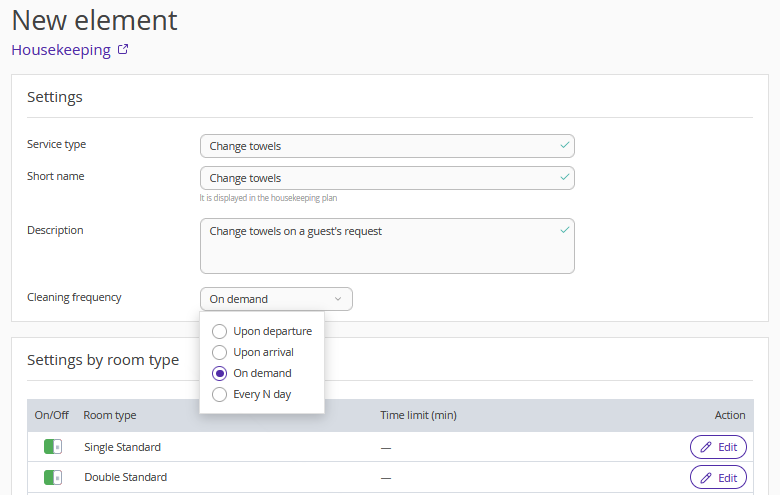
3. Select the cleaning frequency:
Upon departure — assigned automatically after guest check-out.
Upon arrival — assigned automatically before guest check-in.
On demand — assigned manually when needed.
Every N day — assigned periodically on the specified day interval during the guest's stay.
4. Set the service schedule and time limit for each room type. To do this, click "Edit" next to the room type name.
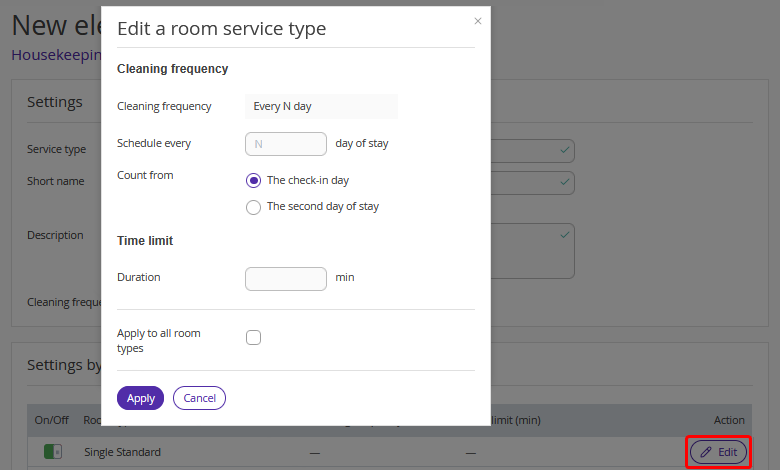
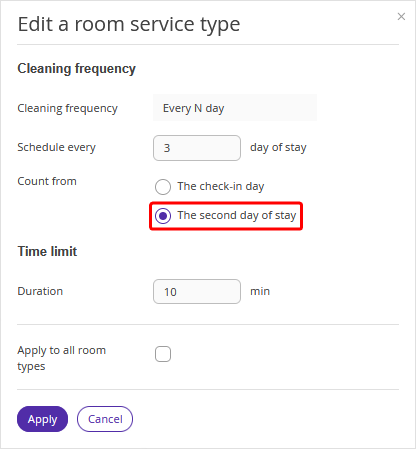
In the example below, the cleaning task is assigned every third day of the stay.
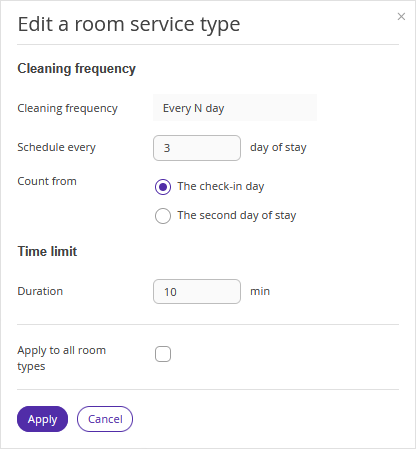
Rooms are always cleaned before guest check-in. To exclude the arrival day from the schedule, select "The second day of stay" option for the “Count from” setting.
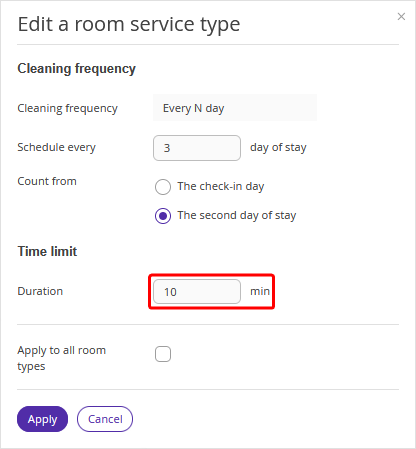
In the “Time limit” setting, specify the expected cleaning time in minutes.
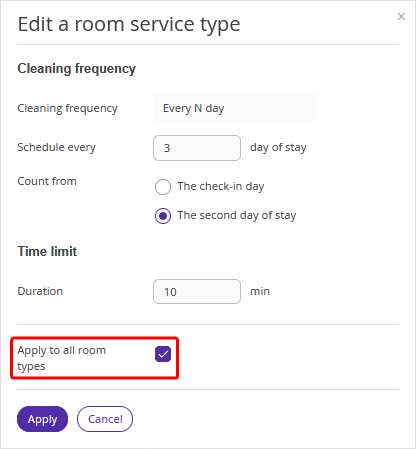
You can set different schedules and time limits for different room types. To apply the same settings to all room types, select "Apply to all room types".
How to delete a room service type
Click the “Action” button to disable or delete a room service type from the reference.