After the seasons for a default rate plan are created and set, create the default rate plan itself.
Method 1. Create a default rate plan from scratch
1. In the Exely extranet, go to “Room management” > “Rate plans” and click the “Create default rate plan” button.

2. Enter the public and internal name for the rate plan and select the currency and a meal type. If a meal is not included into the rate plan, select "No meal included". Then, click the “Save” button.
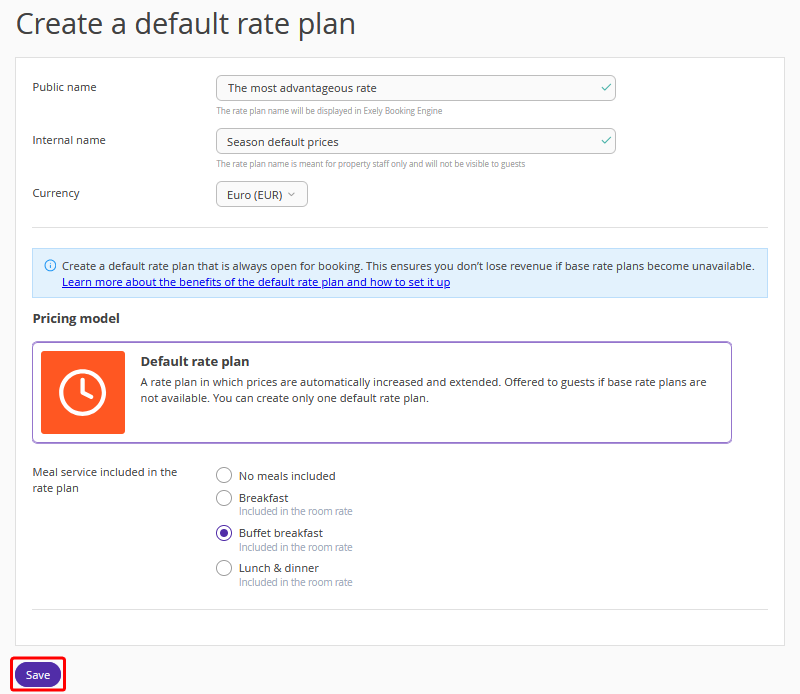
The default rate plan is created.
Method 2. Create a default rate plan from an existing rate plan
1. Go to “Room management” > “Rate plans”. Find the required rate plan and click “Action” > “Create default rate plan”.
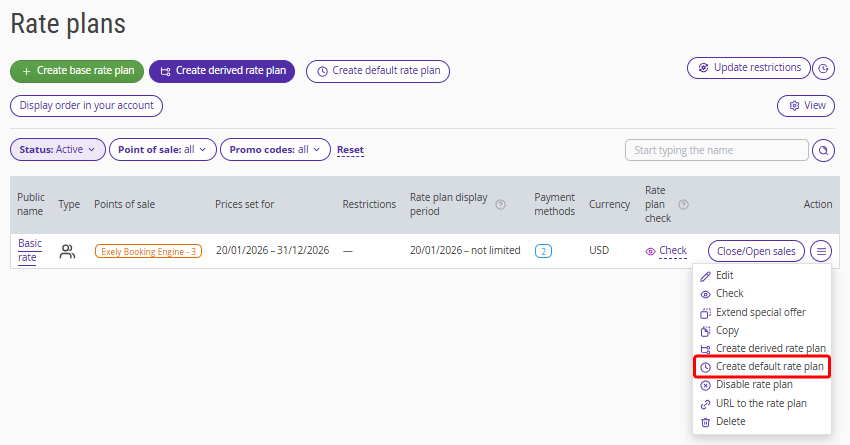
2. In the opened window, enter the rate plan name and a surcharge on copied prices. Click “Create”.
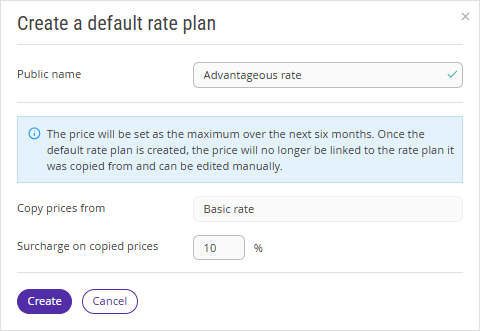
The default rate plan is created.
How to set up the default rate plan
“General settings” tab
If the default rate plan was created from scratch
1. In the "Room types" drop-down list, select the room types available for the selected rate plan.
2. Select if prices should be the same or different for business days and days off.
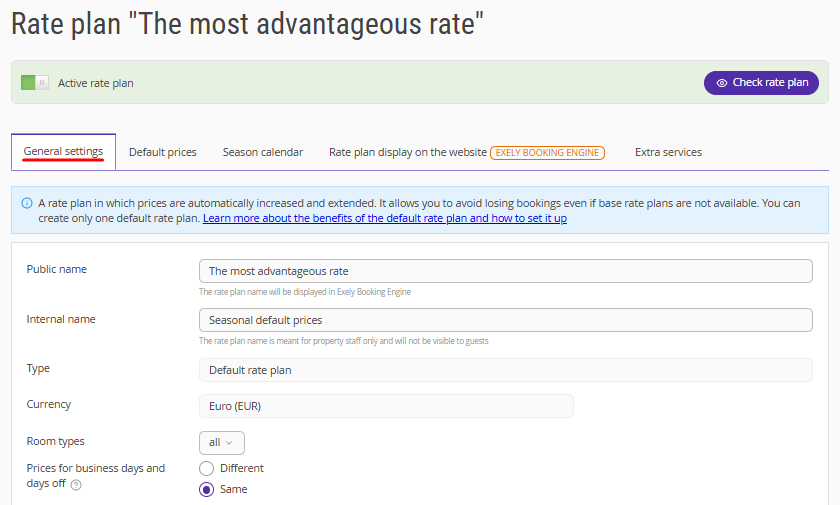
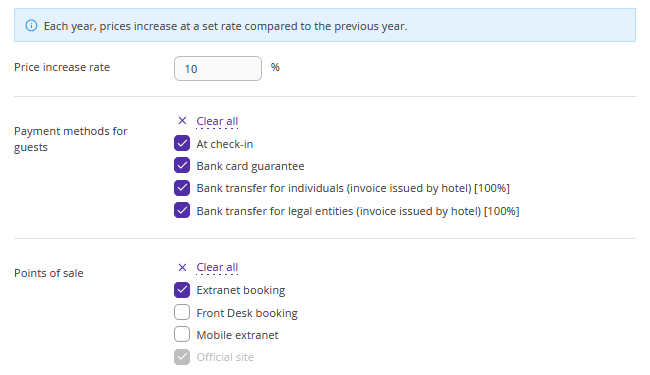
3. Specify the price increase rate.
4. Select the required payment methods.
5. Select the points of sale where the rate plan should be available.
Pay attention. The “Official site” option is enabled by default and cannot be disabled.
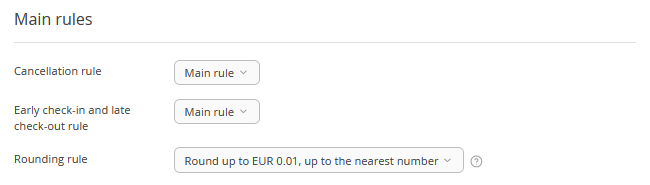
6. In the “Main rules” section, select the booking rules that should be applied to the rate plan.
7. Click “Save”.
If the default rate plan was created from an existing rate plan
1. The following settings will be copied from the source rate plan:
currency,
room types,
payment methods,
cancellation, early check-in and late check-out, and rounding rules.
2. The surcharge percentage specified when creating the default rate plan will be displayed in the "Price increase rate" field.
3. The prices for business days and days off are set to be the same by default.
“Default prices” tab
Set the prices to make a rate plan active.
If on the “General settings” tab you selected that prices should be different for business days and days off, specify the prices on business days and days off for all room types for all created seasons.
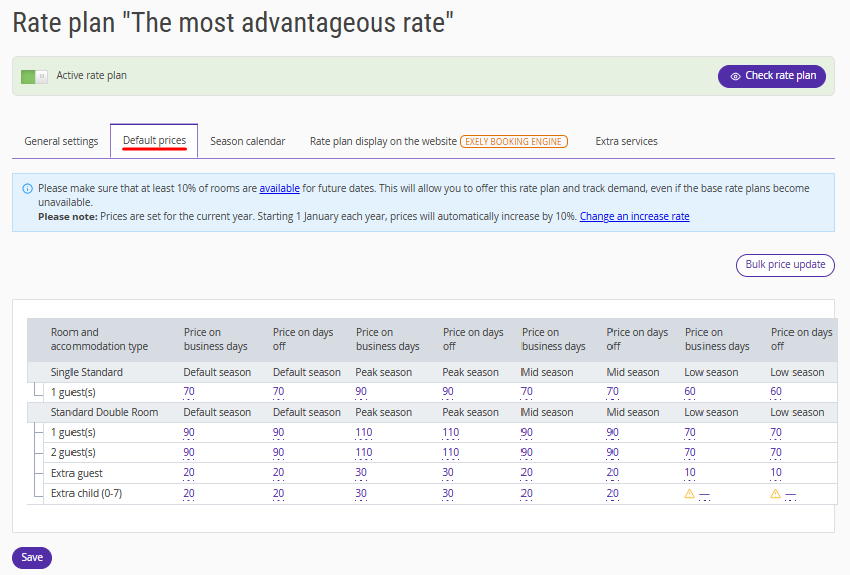
If on the “General settings” tab you selected that prices should be the same for business days and days off, specify the prices in the “Price on business days” column for all room types for all created seasons. Prices for days off will be automatically copied from the “Price on business days” column.
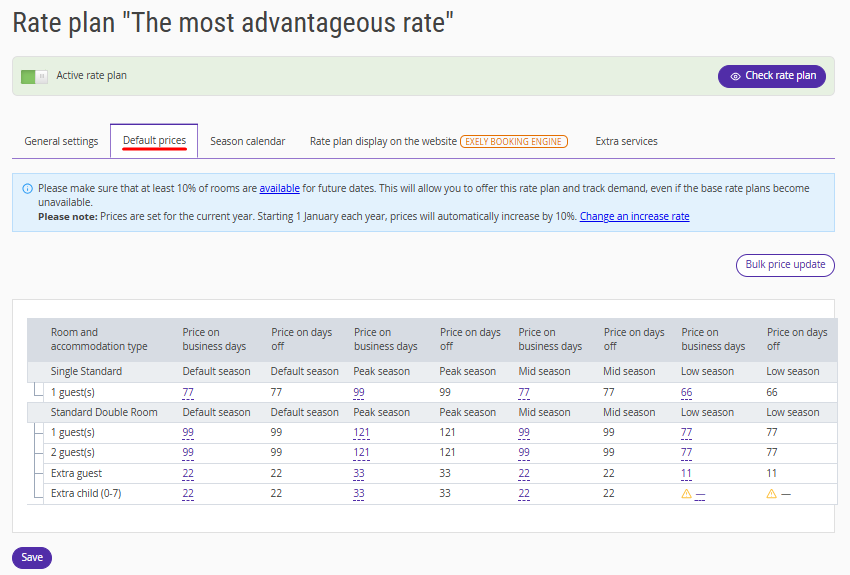
If the default rate plan was created from an existing rate plan, prices will be filled in automatically only for the default season — the system calculates the maximum price in the original rate plan for each occupancy type over the last 180 days and adds the surcharge specified when creating the rate plan.
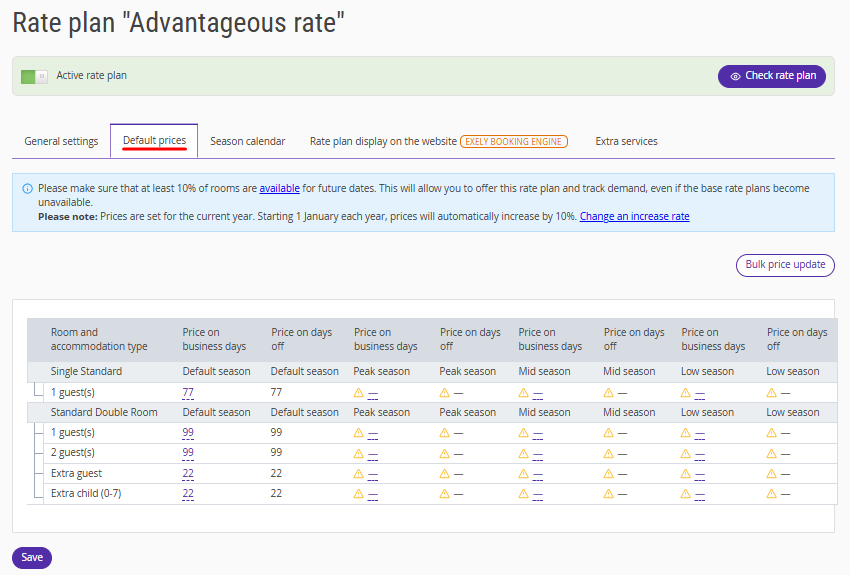
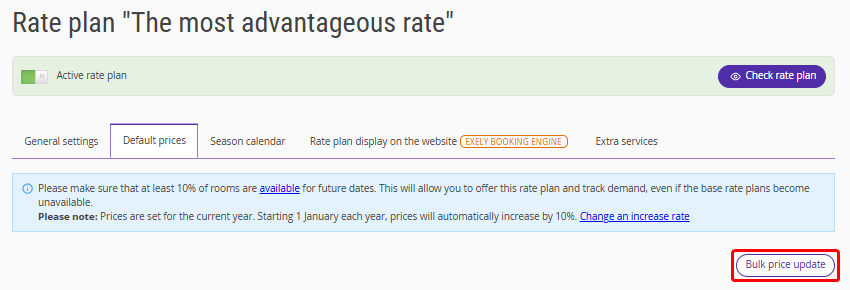
To set or change prices for several room types and occupancy types at once, click the "Bulk price update" button.
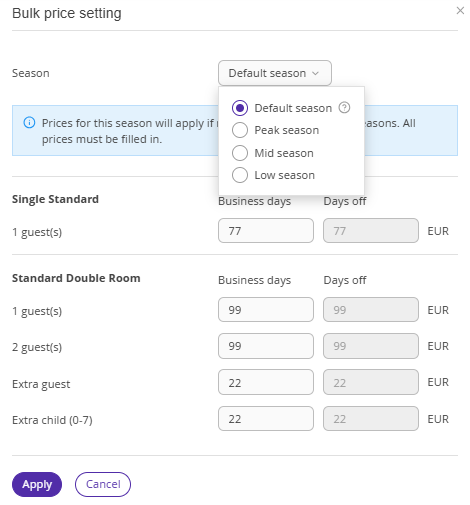
In the opened window, select the season and specify the prices. Click "Apply".
Pay attention:
If a price is not specified for a specific season, the price from the default season will be applied.
Every year, on 1 January, prices are automatically indexed by the percentage specified in the “General settings” tab, allowing you to set prices several years in advance.
“Season calendar” tab
In the "Price calendar" tab, you can check the prices set for the default season and change them for specific dates. To do this, select the dates in the calendar and click "Change value".
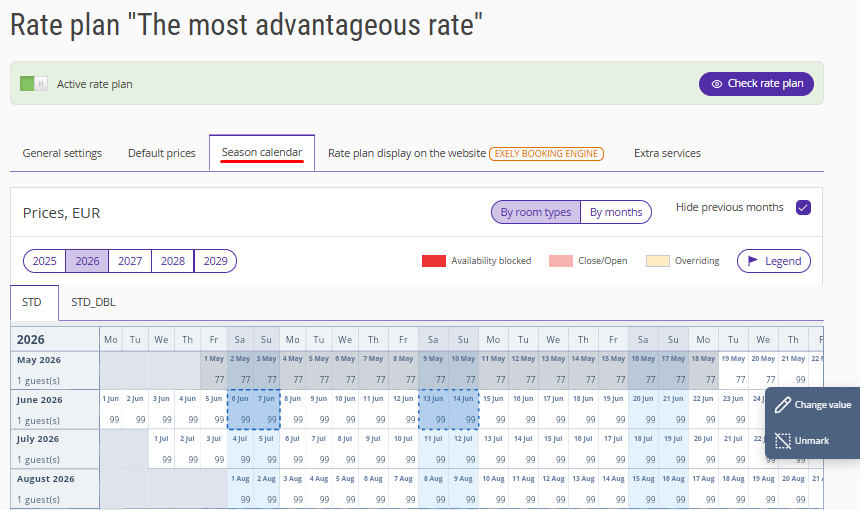
In the opened window, specify the prices and save the changes.
“Rate plan display on the website” tab
1. Add a detailed description of the rate plan.
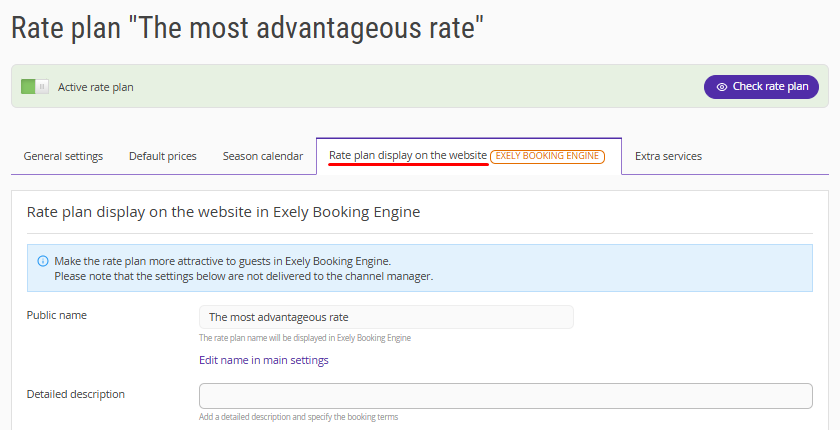
2. Upload a thumbnail and a promo image to the rate to attract guests’ attention.
3. Click “Save” at the top of the page.
“Extra services” tab
You can add extra services, which motivate guests to book.
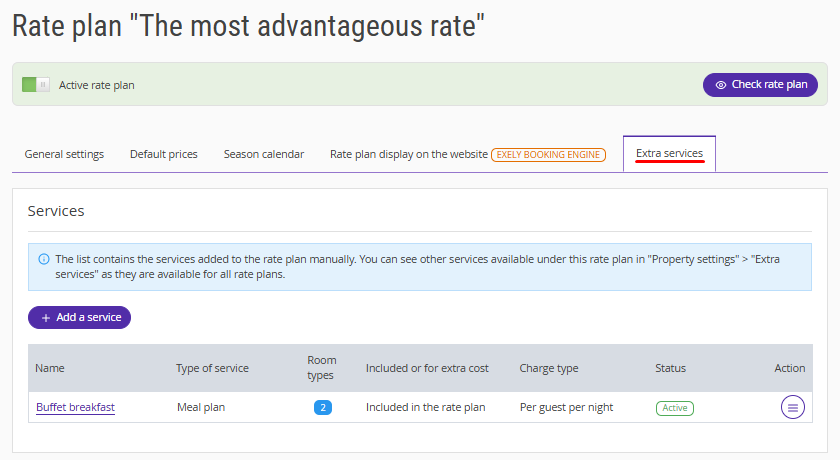
Pay attention. If the default rate plan was created from an existing rate plan, services will be copied from the source rate plan.
Save the changes.
To learn more about the features of the default rate plan, see the article "Default rate plan in Exely Booking Engine".