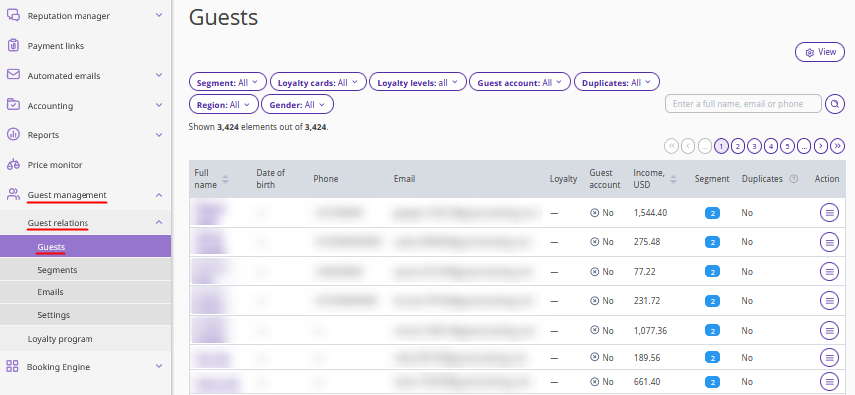
In the Exely extranet, go to “Guest management” > “Guest relations” > “Guests”.
The table shows the data of the property's guests for the entire period.
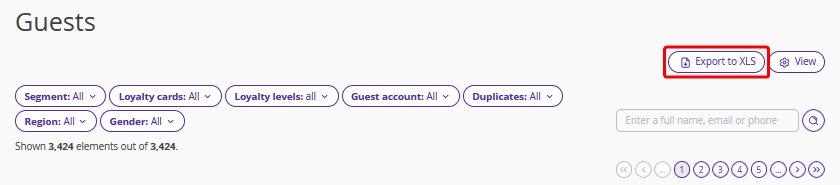
Export to XLS
Click the “Export to XLS” button to download the guest list in the XLS format. The downloaded file will be saved on your computer.
If necessary, use filters before exporting to customize the guest list by required parameters. The downloaded report will only include guest profiles from the table that is generated based on the parameters specified in the filters.
Pay attention. The “Export to xls” button in the “Guests” section is available to employees with administrator access rights. If such rights are required, send a request to your Customer Support manager or Exely Customer Support team. In the request, specify the property ID and employee login.
The table in the downloaded file contains all displayed data.
Guest’s full name.
Phone number and email address — three of the phone numbers and email addresses listed in the profile.
Region.
Gender.
Date of birth.
Loyalty program — its level and number of points in case Exely Loyalty Program: Points is connected.
Guest account.
Income.
Email subscription.
Properties — if the property is part of a group.
What the data in the “Email subscription” column means:
Yes — the guest agreed to receive special offers and news when making their last booking.
No — the guest declined to receive special offers and news when making their last booking.
Unknown — the guest did not make any bookings using the Exely Booking Engine on the property website or in the mobile version, so there is no data about their consent.
View
1. Click the “View” button to customize the display of the desired information in the table.
2. Tick the check-boxes for the required details and click the “Save” button. The selected columns will be added to the table.
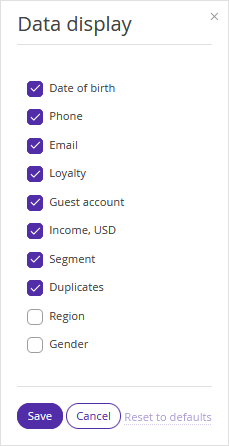
Click “Reset to defaults” to return the table to its original appearance.
How to work with guest list filters
The section provides filters that allow you to form guest lists according to the required parameters.
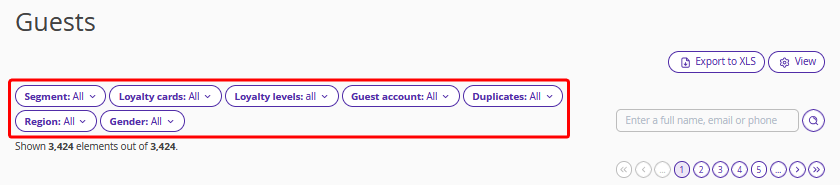
Pay attention. By clicking the “Export to XLS” button, you can download the guest list displayed in the table to your computer. The list is generated according to the parameters set in the filters.
Reset
Click “Reset” to reset the filters. After this, the table will display the full list of guests.
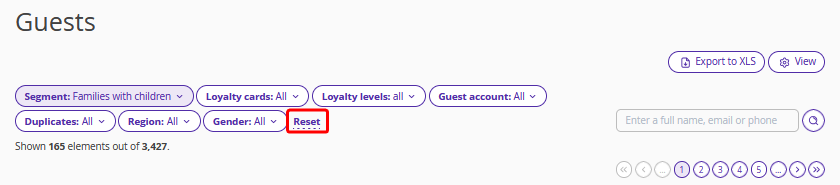
Segment
In the “Segment” drop-down list, select the required guest segment from the drop-down list.
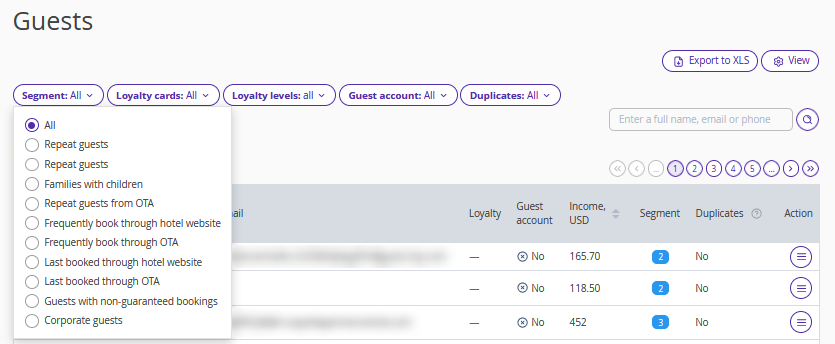
Loyalty levels
In the “Loyalty levels” drop-down list, tick the check-boxes for the required loyalty levels.
Pay attention. The button displays the number of the selected levels.
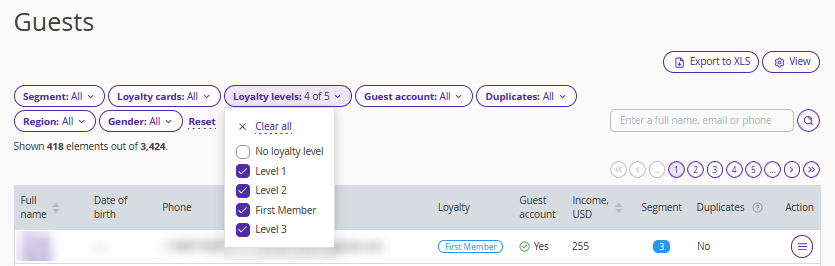
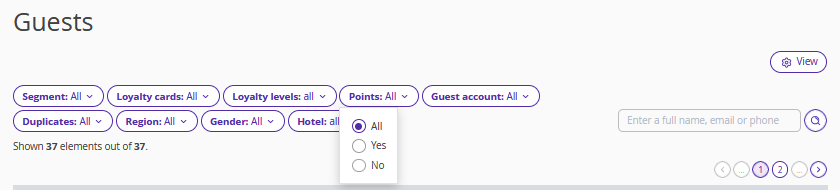
Points
In the “Points” drop-down list, select the condition for filtering guests by points availability.
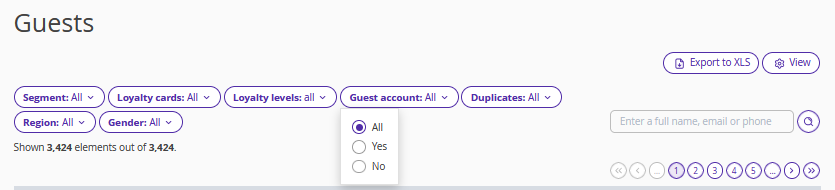
Guest account
In the “Guest account” drop-down list, select the condition for filtering guests by guest account presence.
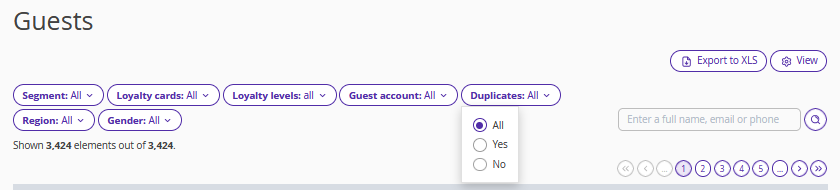
Duplicates
In the “Duplicates” drop-down list, select the condition for filtering guests by presence of duplicate guest profiles.
Region
In the “Region” drop-down list, select the required region.
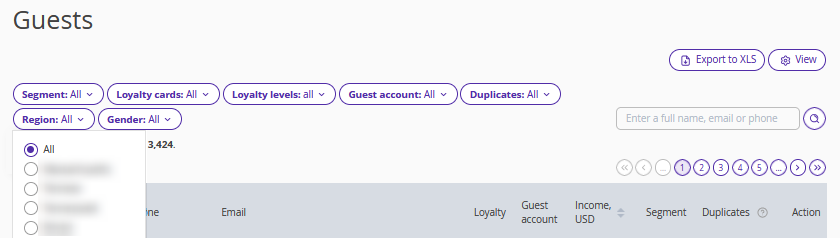
Pay attention. Data on the guest's region of residence specified in Exely PMS or another PMS for which integration with Exely is configured is used in the table.
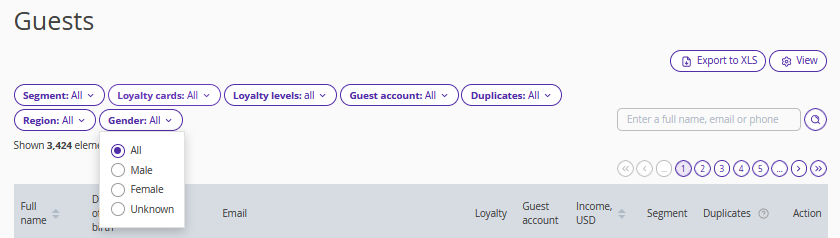
Gender
In the “Gender” drop-down list, select the required gender.
Hotel
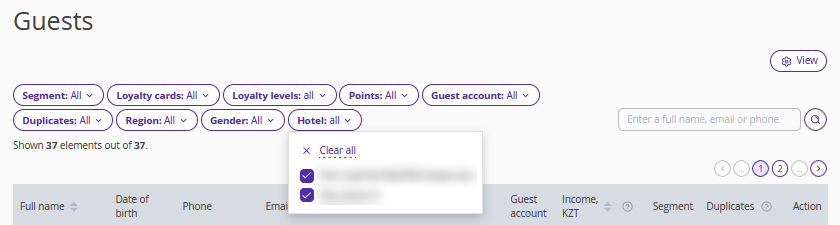
Pay attention. The “Hotel” filter is displayed only for the properties included into a group in Exely.
In the “Hotel” drop-down list, tick the check-boxes for the properties for which the guest list should be generated.
Search
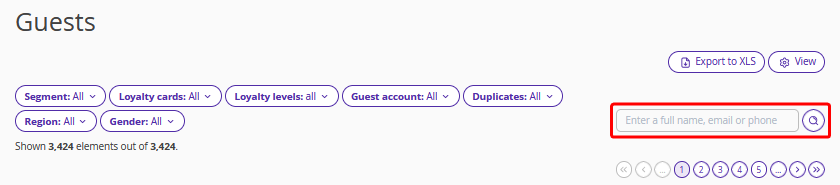
Use the search field to find the required guest in the table.
Guest list navigation
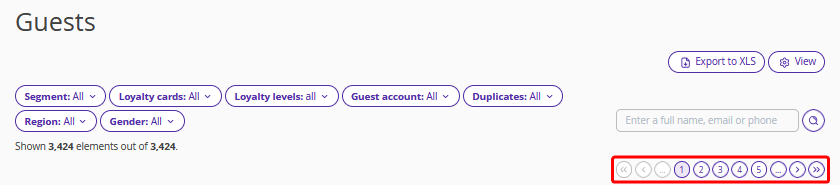
Use the navigation buttons to switch between guest list pages.