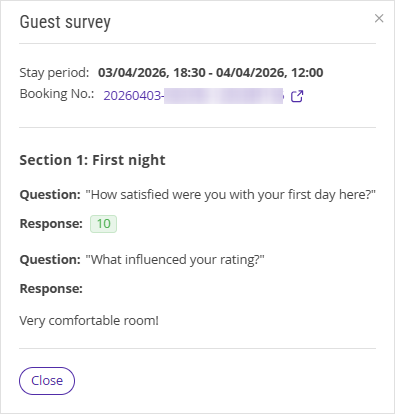
The guest card in the “Guest relations” section contains all necessary information about a particular guest:
guest full name;
contact details;
loyalty card level;
a list of segments to which the guest belongs;
booking history;
evaluations;
a list of extra services that have been provided to the guest;
automated emails sent to the guest.
The guest card allows you to personalize the service, improve the quality of interaction with guests and better manage their data.
How to view guest card
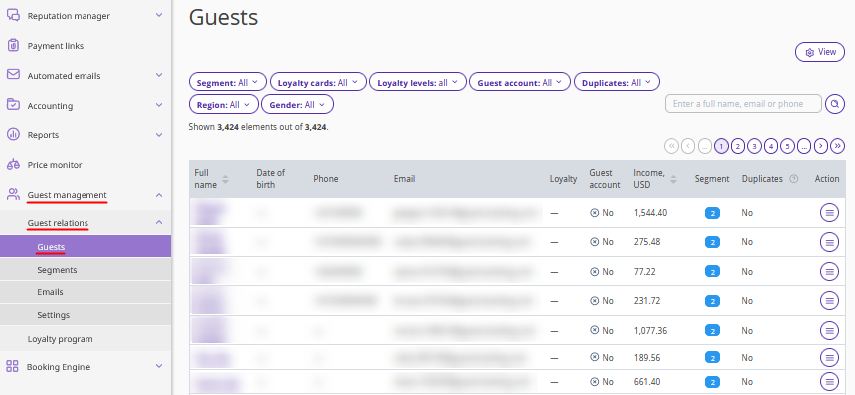
To see a guest card, go to the “Guest management” > “Guest relations” > “Guests” section and click the required guest name in the list.
The guest card page will be opened.
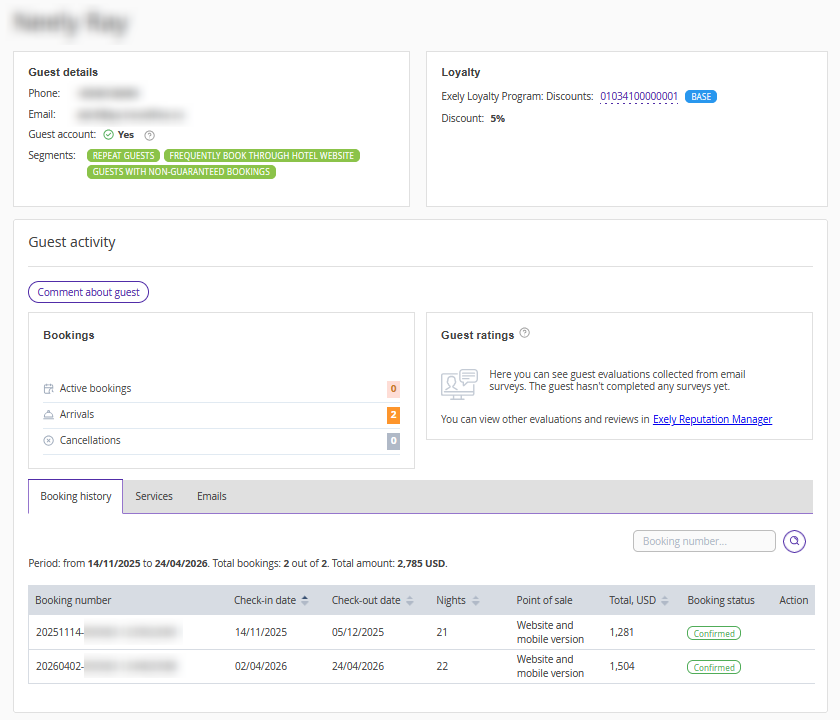
“Guest details” section
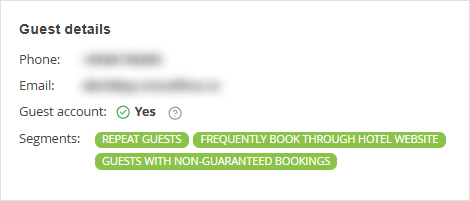
The section displays basic information about the guest.
Date of birth.
A reminder of the upcoming birthday. It will appear 30 days before the date.
All specified phone numbers.
All specified emails.
A note if the guest has a guest account.
All segments the guest belongs to. For details about segments, refers to the article «How guest segments are formed in Exely Guest Relations».
“Loyalty” section
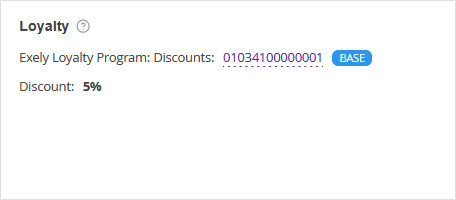
This section displays basic information about the presence and level of the guest's loyalty card.
If the property is part of a group, it displays general data for all properties belonging to the group in Exely.
Guest’s loyalty level.
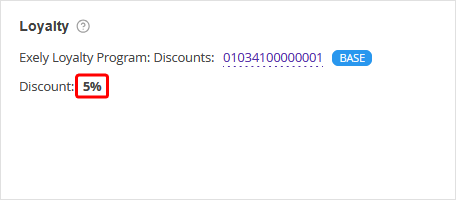
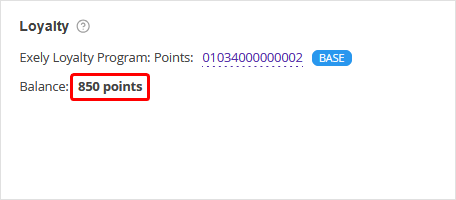
The guest's number of points or discount rate. For details about the loyalty programs, refer to the articles: “Exely Loyalty Program: Discounts” and “Exely Loyalty Program: Points”.
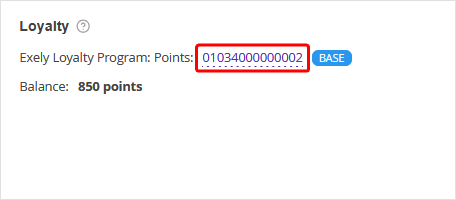
Guests’s loyalty card number. Click the link on the loyalty card number to open the guest's loyalty card page.
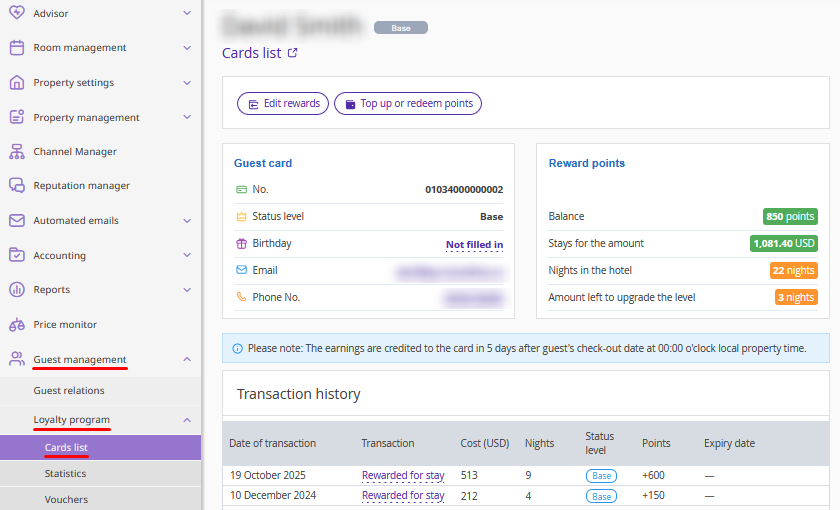
The guest's loyalty card page in Exely Loyalty Program will be opened. For details about the loyalty programs, refer to the articles: “Exely Loyalty Program: Discounts” and “Exely Loyalty Program: Points”.
"Guest activity" section
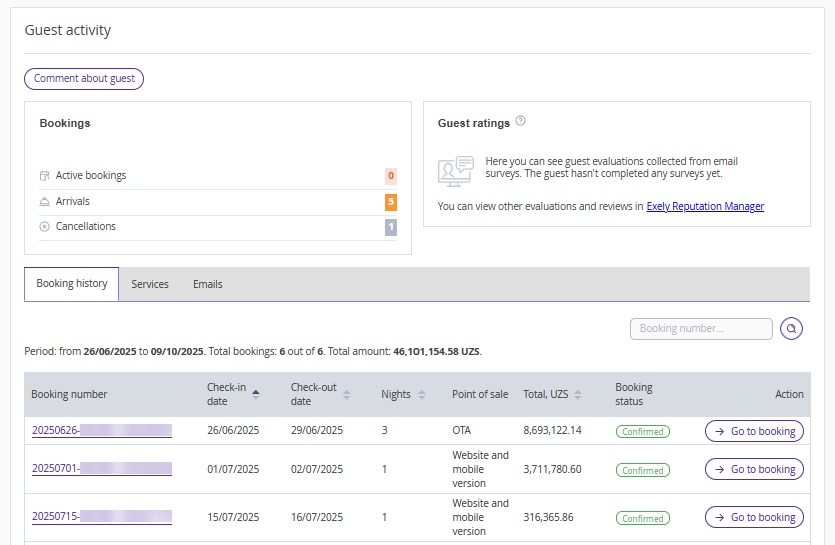
All guest activities are stored in the section. If a property is part of a group in Exely, the section displays information for the selected property.
“Hotel” filter
Select the required property from the “Hotel” drop-down list. A report for it will be generated in the “Guest activity” section.
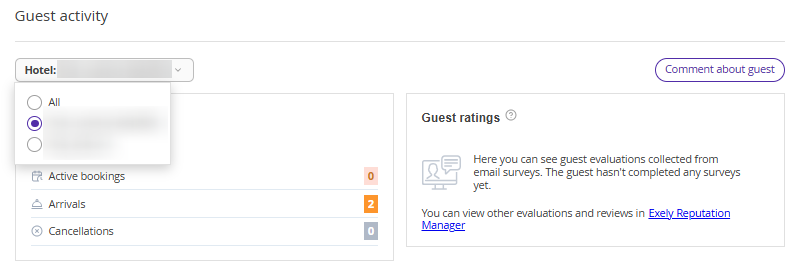
Pay attention. The “Hotel” filter is displayed only for the properties included into a group in Exely.
Comment about guest
In the "Guest activity" section, there is a "Comment about guest" button.
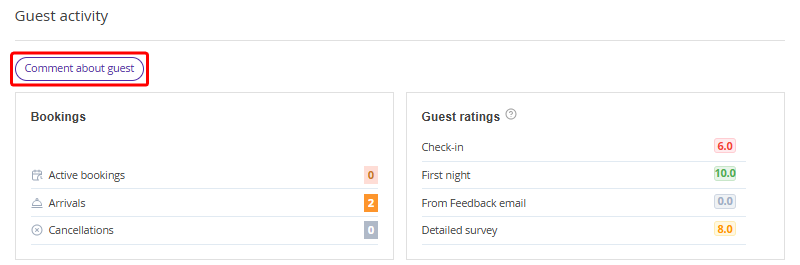
If the property is part of a group in Exely Guest Relations, the "Comment about guest" button will be located on the right.
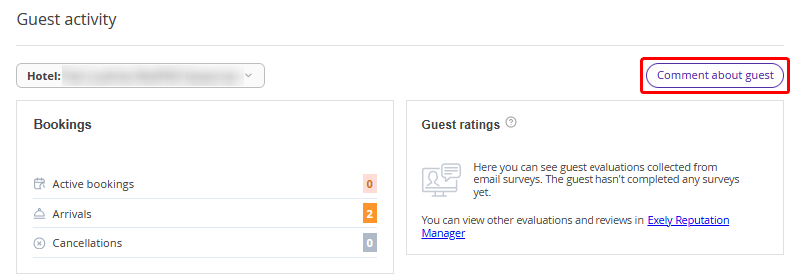
Clicking the button opens a window where you can:
view the comment added for the guest in Exely Guest Relations (the "Guest relations" section);
view the comment added in the guest profile in Exely PMS, as well as from the booking storage in case of specific integration settings with Opera or Fidelio PMS — these comments cannot be edited or deleted;
add a comment;
delete and edit comments from a guest card in Exely Guest Relations.
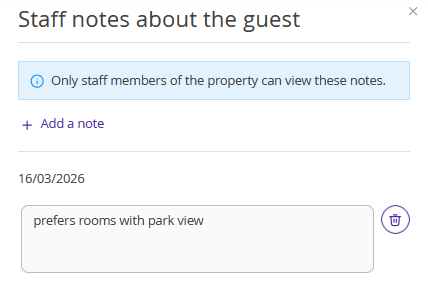
How comments are displayed on the guest card
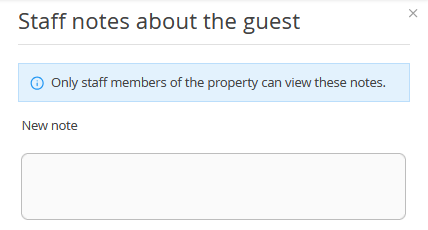
If the guest has no comments yet, a text input field will be available immediately.
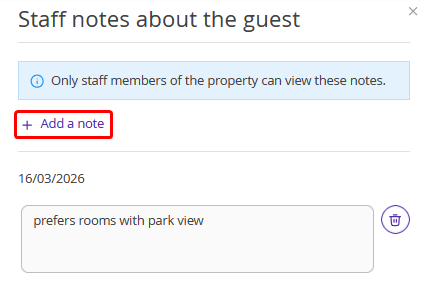
If there are comments for a guest already, you can add a new one using the "Add a note" button.
If the guest has a comment in the profile in Exely PMS or a third-party PMS, it cannot be edited or deleted. When hovering over the icon, a tooltip "The note can be edited in PMS" will appear.
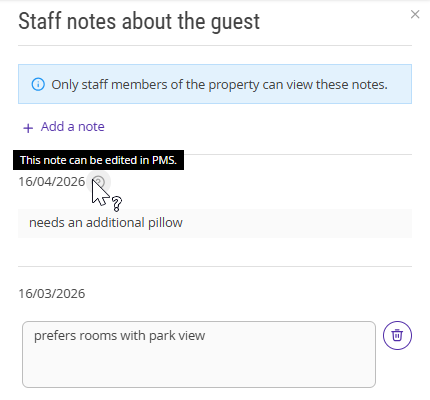
If the guest has multiple profiles with comments in Exely PMS, all of them will be displayed in Exely Guest Relations.
How to add a comment
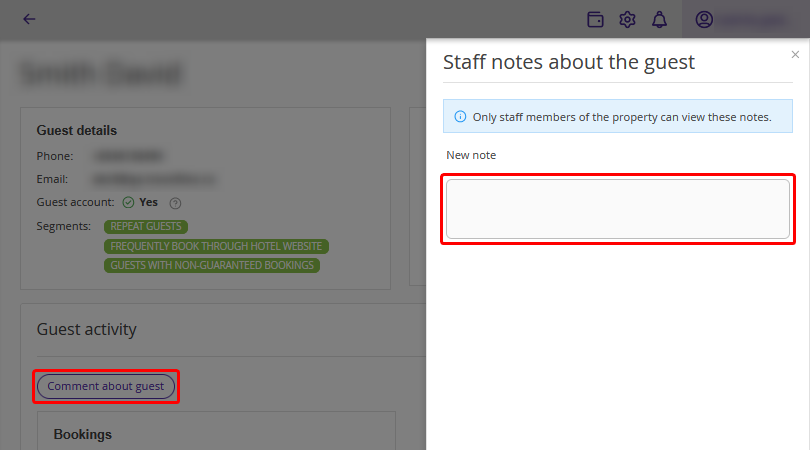
1. In the "Guest activity" section, click the "Comment about guest” button.
2. A window will be opened where you can enter the comment text.
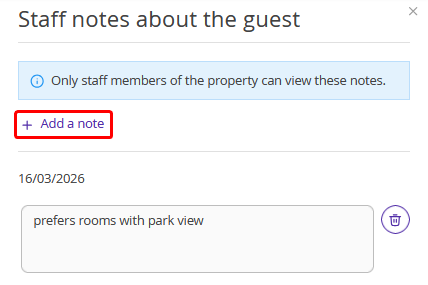
If a comment already exists, click "Add a note" and enter the text.
3. Click "Save changes" at the bottom of the window.
Features of comments added in Exely Guest Relations
The comments are not passed to Exely PMS, Exely Loyalty Program (the "Loyalty program" section), or other systems.
They are visible only to property staff in the guest card in Exely Guest Relations.
How to edit or delete comments
You can edit or delete comments added in Exely Guest Relations.
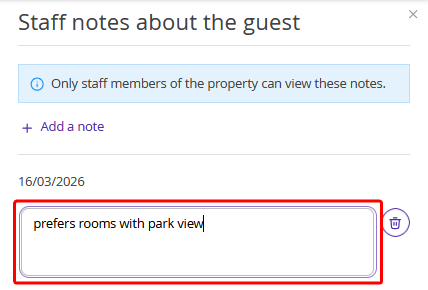
To edit a comment, click on the comment field and edit the text.
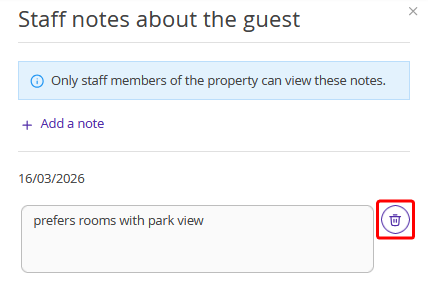
To delete a comment, click the trash icon next to it.
After editing or deleting a comment, click "Save changes" at the bottom of the window.
To edit or delete a comment imported from Exely PMS, go to "Property management" > "Guest profiles" > find the required guest profile. On the guest details page, edit or delete the comment text and click "Save".
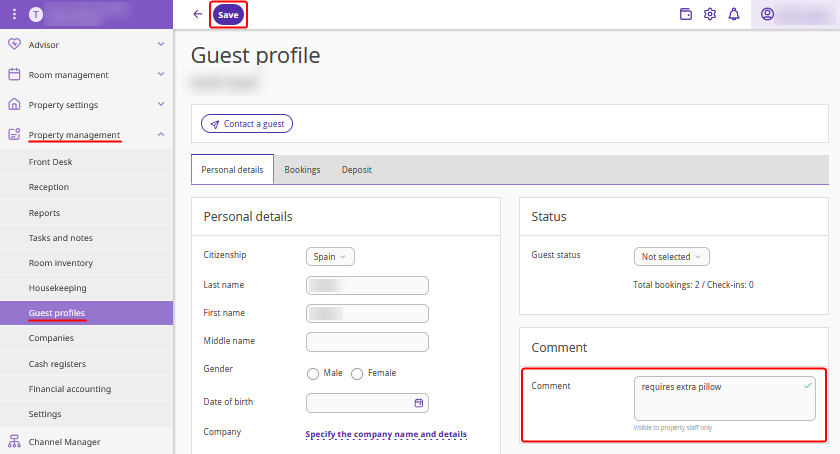
To edit or delete a comment imported from a third-party PMS, do it in the PMS.
Bookings
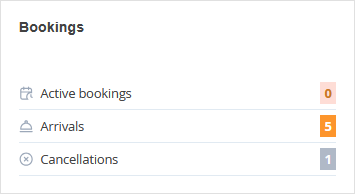
The “Bookings” section displays all key information about the guest's bookings for the entire period.
Active bookings — currently confirmed bookings that have not yet been finalized and are in progress, including future bookings and the guest's current stay.
Arrivals — total number of guest stays registered in the system for the entire period.
Cancellations — bookings that have been canceled by the guest or property prior to the arrival date.
Guest ratings
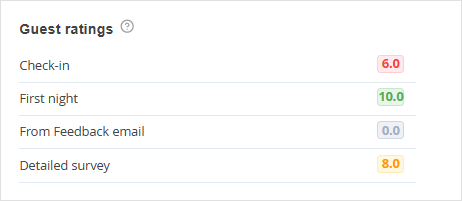
The section displays guest ratings — survey results from automated emails. For more details about automated emails, see the article ”What types of automated emails can be set up in Exely Guest Relations”.
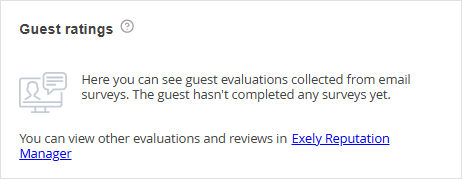
Pay attention. The information in this section will not be displayed if the guest has not completed any surveys.
“Booking history” tab
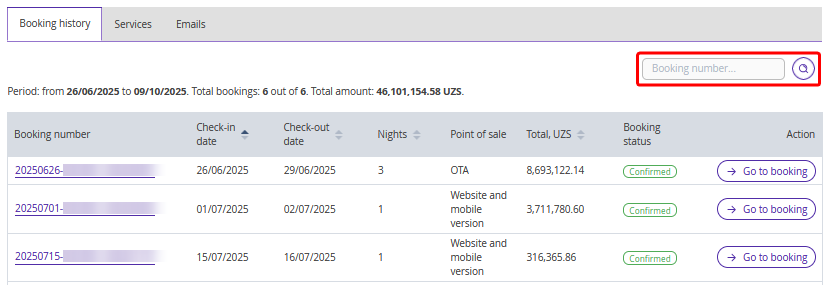
The tab contains a table with the data of all guest bookings for the entire period.
Booking number.
Check-in date.
Check-out date.
Number of nights.
Point of sale.
Total amount for the booking.
Booking status.
Available actions for the booking.
1. Use the “Search” field to find the required booking by the number.
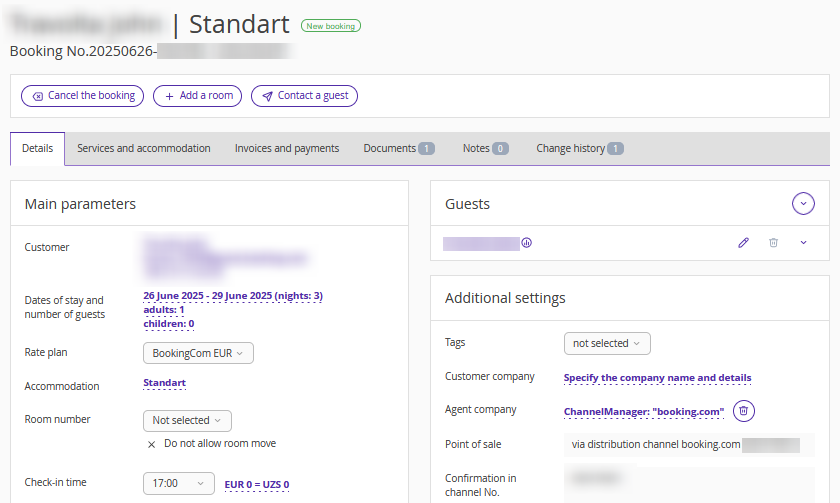
2. Click the “Go to booking” button in the “Action” column to open the booking details page in Exely PMS.
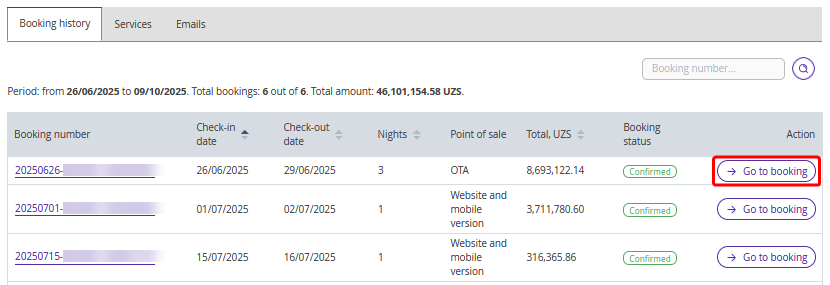
Pay attention. The booking details page can be opened only if you work with Exely PMS.
“Services” tab
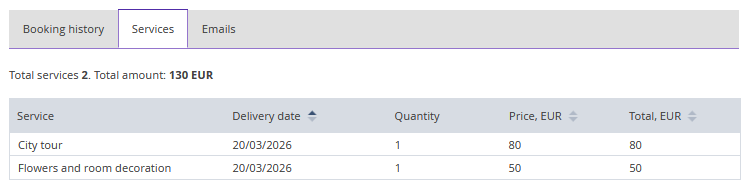
The tab displays information about extra services that were ordered by the guest during their stay.
Service.
Date the service was provided.
The number of services provided.
The service price.
The amount of all services provided.
"Emails" tab
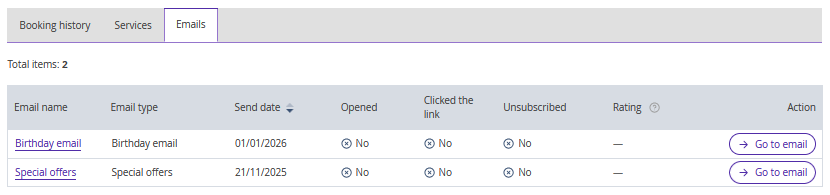
This tab displays a table with emails that were sent to the guest.
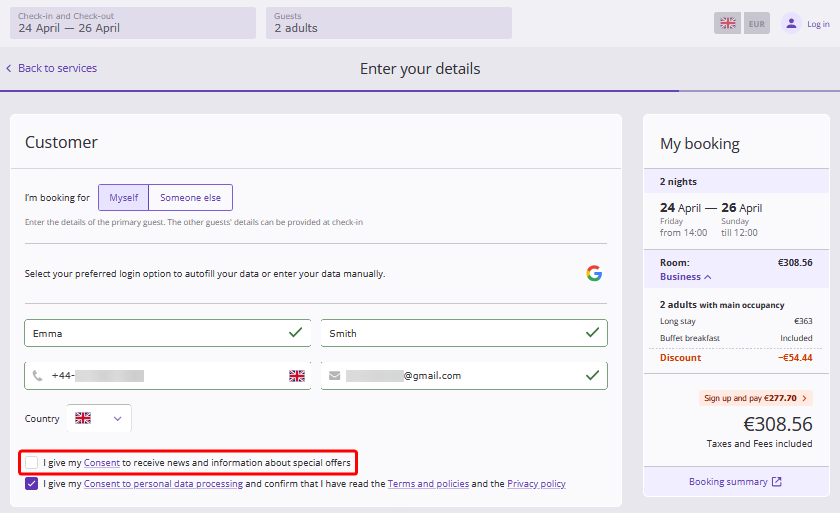
If the guest did not tick the check-box "I give my Consent to receive news and information about special offers” in the booking engine at the details entry step, a red banner will appear on the "Emails" tab indicating that the guest has opted out of receiving emails with special offers and news.
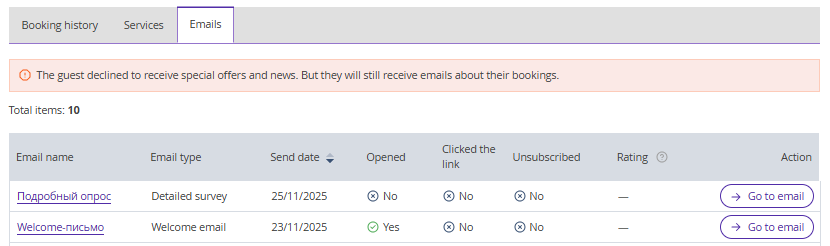
Pay attention. This message does not affect the sending of informational emails related to the guest’s bookings.
The table displays the following data for emails:
1. Email name.
2. Email type.
3. Send date.
4. Opened — whether the guest opened the email.
5. Clicked the link — whether the guest clicked a link in the email.
6. Unsubscribed — whether the guest unsubscribed from automated emails after receiving this email.
7. Rating — the rating given by the guest in the feedback form attached to the email. It is available for the following email types:
check-in experience survey,
day one experience survey,
feedback email;
detailed survey.
8. Property — the name of the property within the group from which the email was sent. This column is displayed only for properties combined into a group.
9. Action — depending on whether feedback is available, the following actions are available:
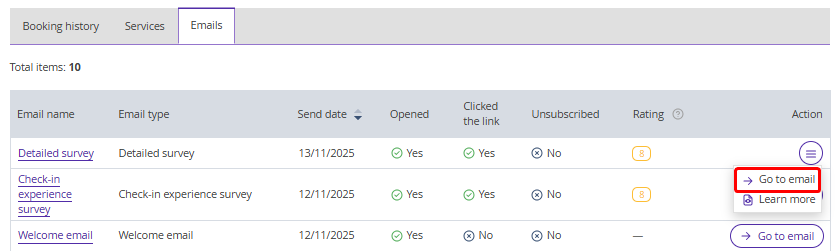
Go to email.
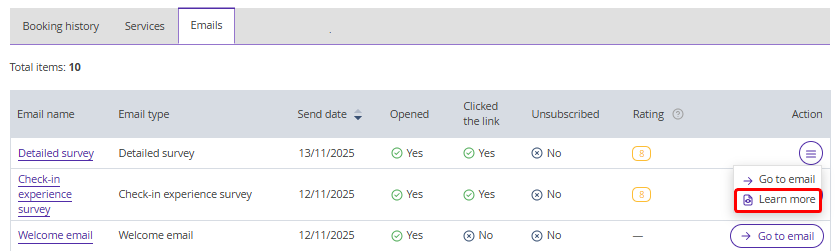
View feedback.
Go to email
Click the button in the corresponding line to open the settings page of the selected email.
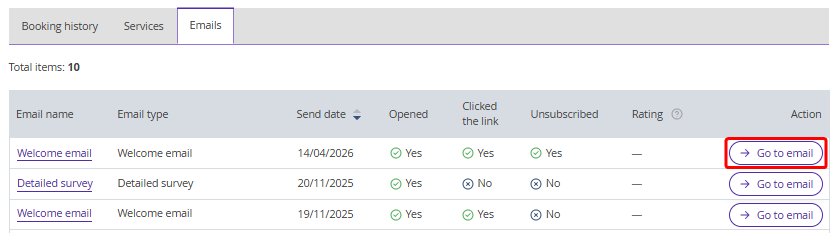
Pay attention. If there is a guest response in the "Rating" column for the selected email, the "Go to email" button will be available in the "Action" menu.
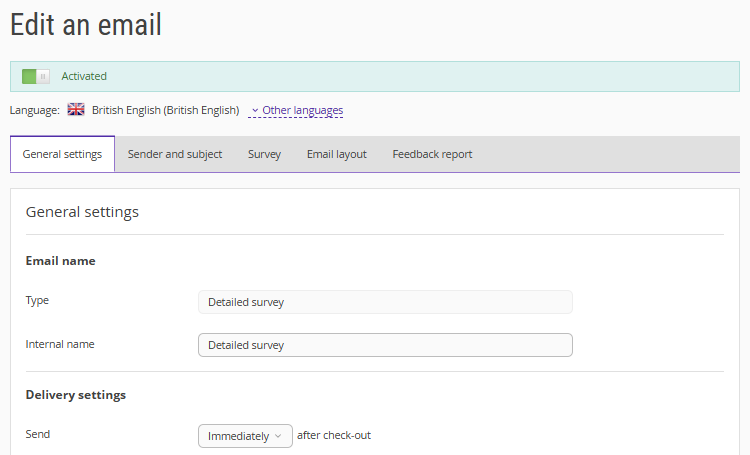
The email editing page will open.
View feedback
Click "Action" and select "Learn more" to open the feedback card.
The feedback card displays the following information:
Rating.
Stay period.
Booking number.
Check-in time.
Guest comment.