Reports in Exely Guest Relations automated emails
How to download the summary report for all automated emails
How to download a detailed report for a specific automated email
How to download a survey report
In the Exely extranet, in the "Guest management" > "Guest relations" > "Emails" section, all active and inactive automated emails are displayed.
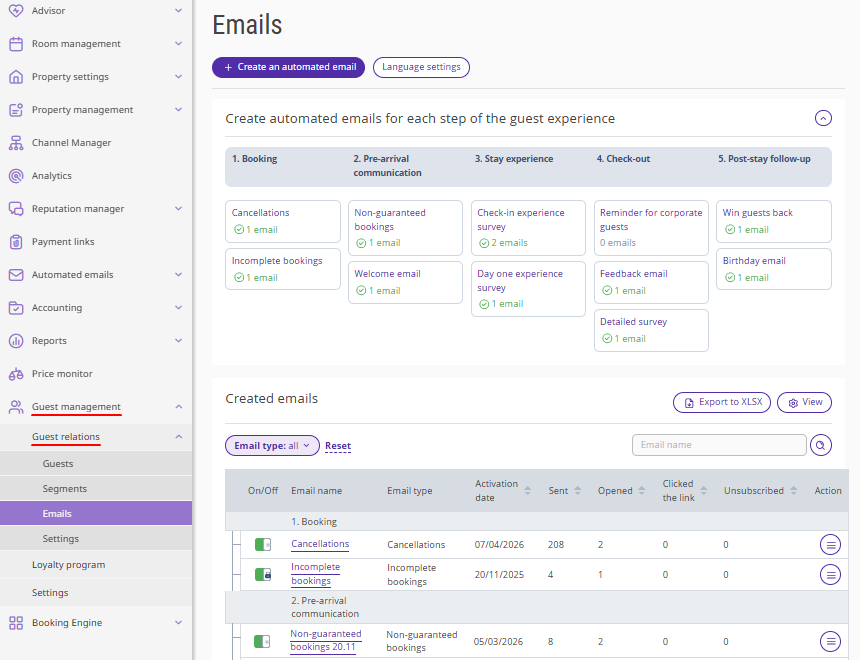
At the top of the "Emails" page, there is the "Create automated emails for each step of the guest experience" section, which shows the number of activated emails of each type.
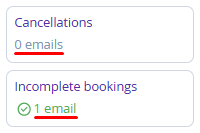
For details about activating emails, see the article “How to activate and deactivate automated emails in Exely Guest Relations”.
Pay attention. The "Special offers" automated email is not displayed in the "Create automated emails for each step of the guest experience" section, as it is an additional email and does not belong to regular guest interaction emails. For details, see the article “Create automated emails for each step of the guest experience”.
Data for all emails is presented in the table below. Email types are grouped according to the steps of the guest experience.
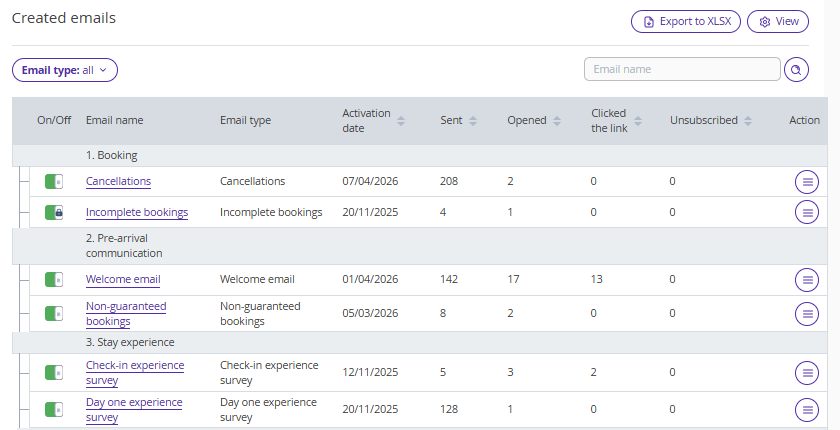
The “Created emails” table includes the following data:
1. Email name — added during the email setup in the "Internal name" field.
2. Email type.
3. Activation date — shows the date of the last activation using the switch. Editing the email does not affect this date.
4. Deactivation date — shows the date of the last deactivation using the switch. Editing the email does not affect this date.
5. Sent — the number of emails sent after activation.
6. Opened — shows the number of emails received and opened by guests.
7. Link clicks — the number of clicks on links in the email.
8. CTOR (Click-to-Open Rate) — percentage of guests who opened the email and clicked links.
9. Unsubscribed — the number of clicks on the "Unsubscribe" link.
Pay attention. Guests who unsubscribe from one email type will not receive other emails created in Exely Guest Relations using the property’s email.
10. Overall rating — the overall rating of surveys for this email type. Displayed for the following automated emails: "Day one experience survey", "Check-in experience survey", “Feedback email”.
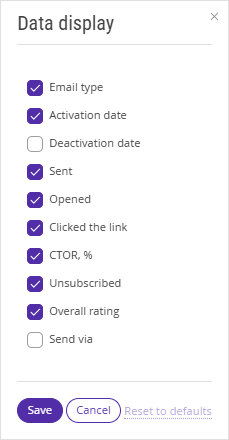
You can customize the table view using the "View" button.

In the opened window, select the parameters to be displayed in the table.
Reports in Exely Guest Relations automated emails
When working with automated emails in Exely Guest Relations, you can generate and download three types of reports:
Summary report for all automated emails.
Detailed report for a specific automated email.
Survey report.
How to download the summary report for all automated emails
1. In the Exely extranet, go to "Guest management" > "Guest relations" > "Emails".
2. Click "Export to XLSX".
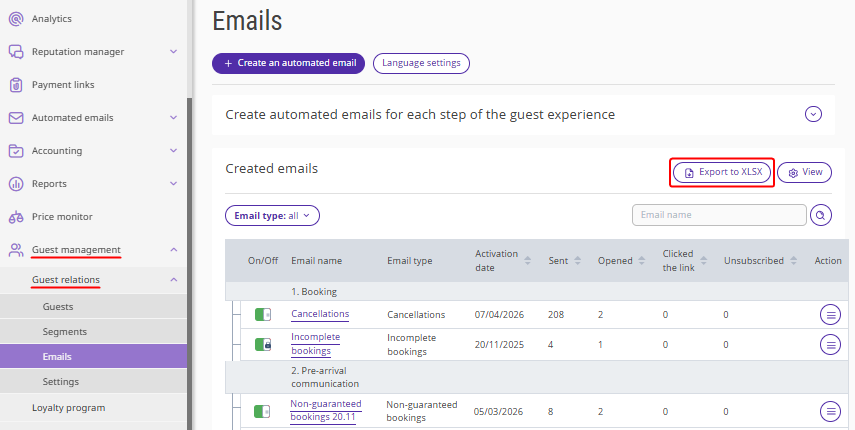
3. In the opened window, in the "Reporting period" field, select the required dates and click "Generate a report".
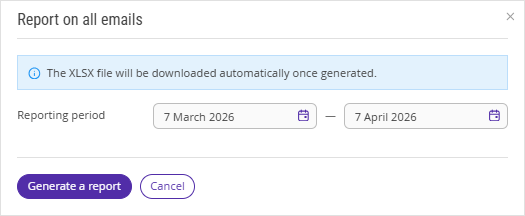
The XLSX file will be downloaded automatically after generation. The data will be displayed in a table with the following fields:
Name — internal name of the automated email.
Type — automated email type.
Activation date — last activation date of the automated email.
Deactivation date — last deactivation date of the automated email.
Sent — total number of emails sent during the selected period.
Opened — number of opened emails.
Clicked the link — number of clicks on links in the email.
CTOR (Click-to-Open Rate) — percentage of guests who opened the email and clicked links.
Unsubscribed — number of unsubscribed email recipients during the selected period.
Responses — number of surveys from the newsletter containing a feedback form that guests have completed during the selected period.
Overall rating — overall rating of guest survey responses in the "Overall impression" section for the selected period.
Booked via the link — number of bookings made after clicking a link. Bookings are counted within the selected period, even if the email was sent earlier. For accurate conversion analysis, we recommend exporting data for the entire period.
How to download a detailed report for a specific automated email
1. In the Exely extranet, go to "Guest management" > "Guest relations" > "Emails".
2. In the “Created emails” table, find the required automated email and click "Action" > "Email report".
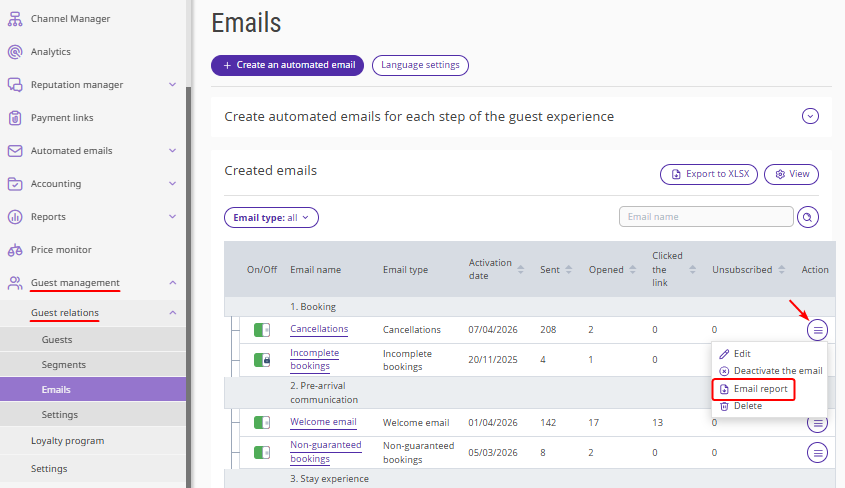
3. In the opened window, in the "Reporting period" field, select the required dates and click "Generate a report".
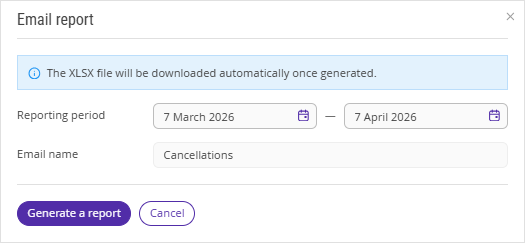
The XLSX file will be downloaded automatically after generation. The data will be displayed in a table with the following fields:
Date — time the message was sent to a specific guest in the property’s time zone.
Guest — guest’s full name. This field is clickable and opens the guest profile in Exely Guest Relations.
Contacts — guest email address to which the email was sent.
Status — current sending status: "Sent", "Pending", or "Error".
Error description — technical reason if sending failed.
Opened the email — "Yes" if the guest opened the email, "No" if not.
Clicked the link — "Yes" if the guest clicked at least one link in an email, "No" if not.
Completed the survey — displayed only for emails with feedback forms. "Yes" means the guest submitted the survey from the email.
Unsubscribed — "Yes" if the guest clicked "Unsubscribe" in the email.
Booking number in Exely — filled if the booking was created via Exely solutions. Booking number in PMS — filled if the booking was created in a third-party PMS.
How to download a survey report
1. In the Exely extranet, go to "Guest management" > "Guest relations" > "Emails".
2. In the “Created emails” table, find an automated email with a survey form and click "Action" > "Survey report".
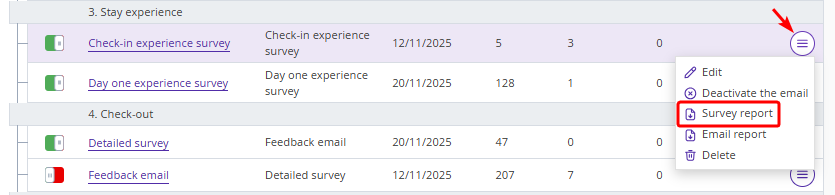
The XLSX file will be downloaded automatically after generation. The data will be displayed in a table with the following fields:
Respond date,
Rating,
Guest name,
Booking number,
Check-in,
Check-out,
Comment.
