In the Exely extranet, you can set up different types of promotions for several rate plans at the same time to increase direct bookings and build customer loyalty.
How to create a promotion
1. In the Exely extranet, go to “Room management” > “Promotions” and click “Add a promotion”.
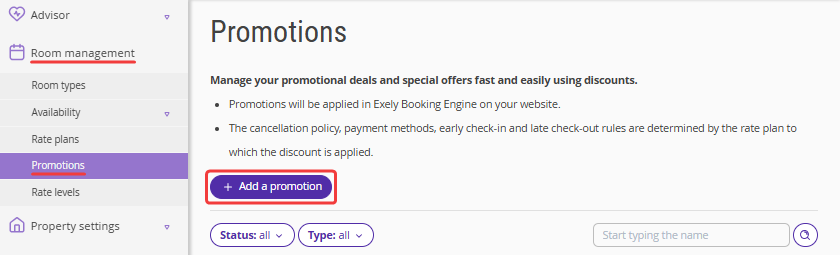
2. Select a promotion type.
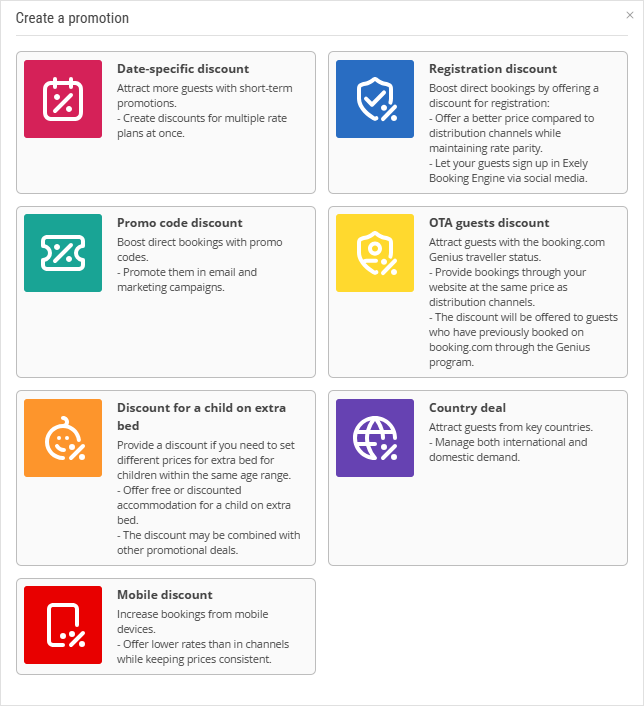
Date-specific discount is offered to guests who choose certain dates for the stay and certain rates
Registration discount is offered to those who sign up on the hotel website. If there are two discounts set up — for registration and for the loyalty program — the system will show the guest and apply the largest discount to the booking.
Promo code discount is applied when guests enter a promo code on the website for the rate plans to which this discount is linked.
OTA guests discount is offered if a client has a booking.com Genius status.
Discount for a child on extra bed is offered if different prices need to be specified for children on extra bed in a single age range.
Country deal is offered to users depending on their locations.
Mobile discount is offered to guests who book from mobile devices.
Additionally, the following loyalty program discounts are listed in the “Room management” > “Promotions” section:
Loyalty level discount is applied to guests after they sign in to the guest account in the booking engine.
Free night voucher provides the guest with free accommodation for one night and is applied according to certain rules. A guest can use the voucher when they sign up or log in to their guest account in Exely Booking Engine.
Voucher discount — a special code or electronic document that provides a discount. A guest can use the voucher when they sign up or log in to their guest account in Exely Booking Engine.
3. On the promotion creation page, enter the promotion name and discount amount. Select the rounding rule.
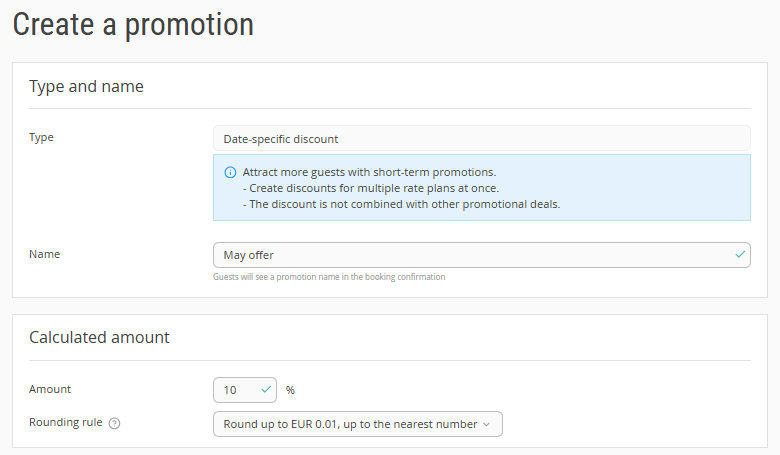
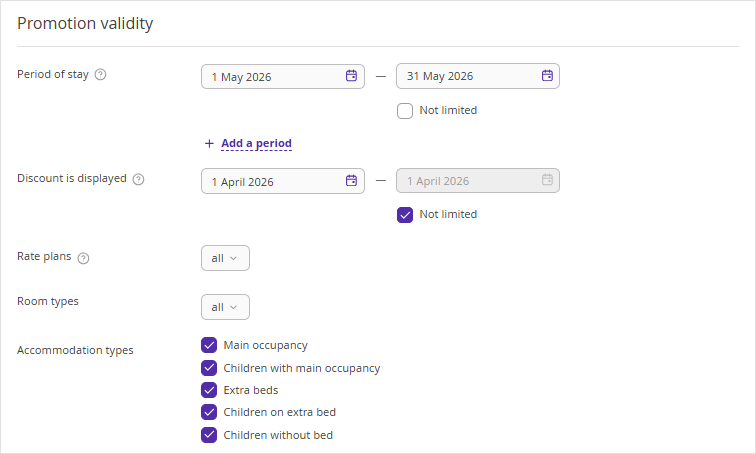
4. In the “Promotion validity” section, specify:
the promotion period. You can set several ones by clicking “Add period”.
the period when the guests will see the promotion in Exely Booking Engine.
Select rate plans, room types, and accommodation types that you want to apply the discount to. All the rate plans, room types and accommodation types are selected by default.
5. If you create a promo code discount, select the promo codes for which you offer it. If you add new promo codes to the selected promo code group, the discount will be applied to the new promo codes automatically.
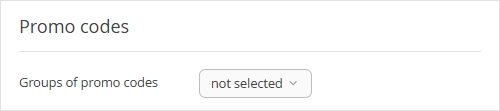
To create multiple promo code discounts, we recommend using different promo codes for each offer. If you use the same promo code for different discounts, the largest discount will be applied, provided all other conditions are equal.
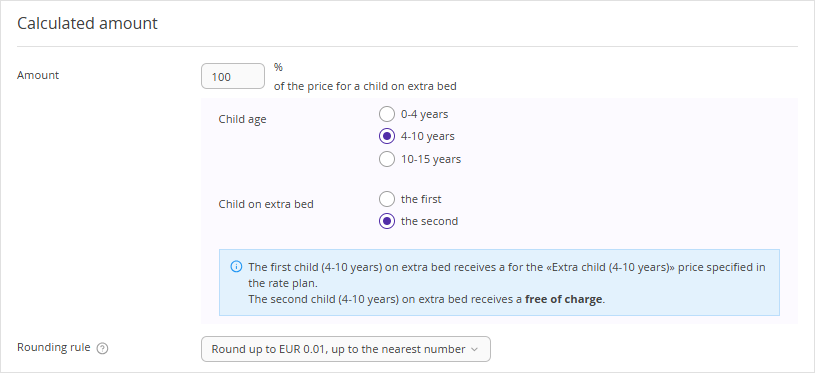
6. For "Discount for a child on extra bed", indicate the child age. Decide for which child of the selected age in the booking the discount will be applied — for the first, second or third. The discount can only be set up for room types that have two or more extra beds. For details on creating this discount, see the instructions.
7. Click “Save”.
To see all the promotions you have created, go to “Room management” > “Promotions”. To edit or delete a promotion, click the “Action” button for the required promotion and select the option you need.
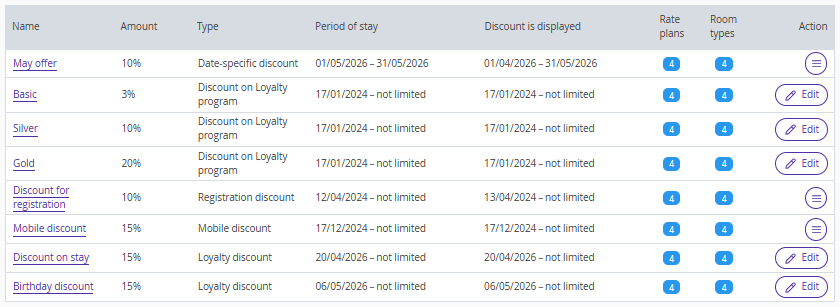
How promotions are displayed in Exely Booking Engine
For all promotion types, the discount motivator (price crossing) is shown in the booking engine.
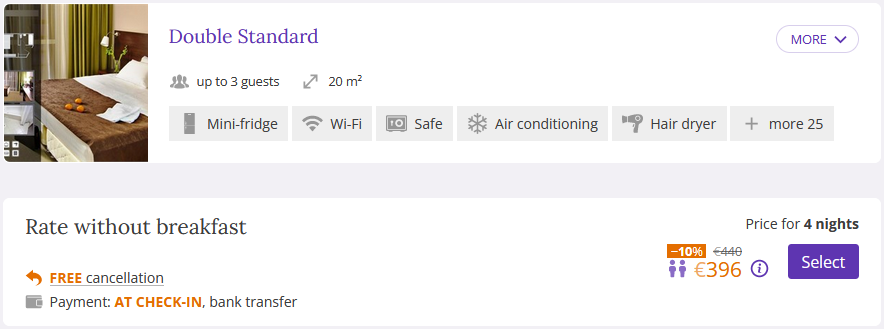
"Registration discount", "OTA guests discount", loyalty program discounts are additionally highlighted with a motivator:
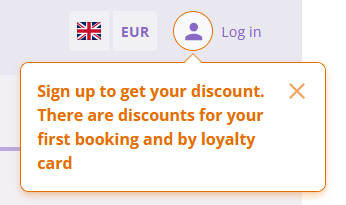
How to get the discount for registration or for guests from OTA
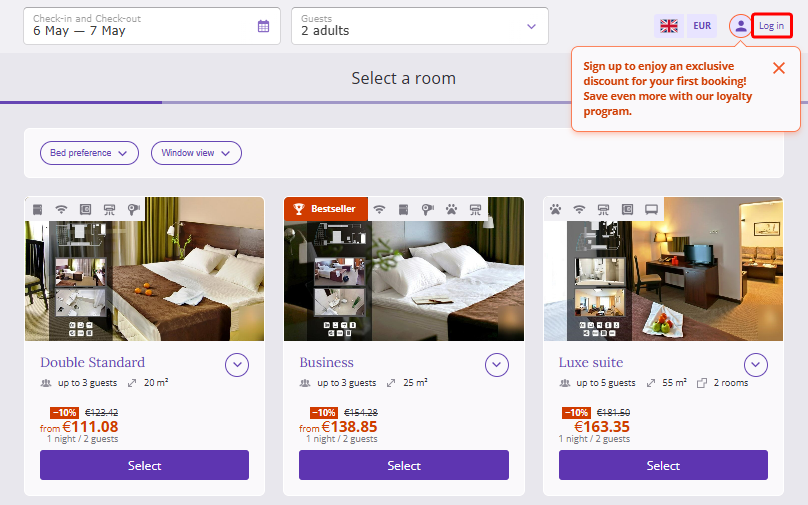
To get a “Discount for registration” or a “Discount for guests from OTA”, your guests need to log in to their accounts. For this, they need to click a “Log in” button in the booking engine.
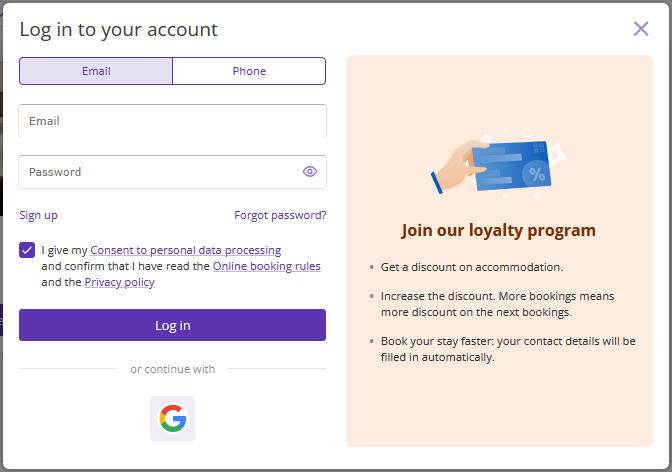
In the opened window, the guest should log in with an email, phone number or Google account. If a guest does not have an account yet, they need to click "Sign up" to create one.
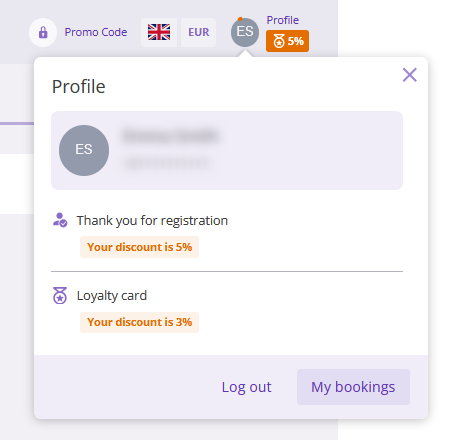
When logged in, the “Discount for registration” will be applied automatically.
Then the guest will be offered to write in their phone number to verify their Genius status on booking.com. If they do have it, the “Discount for guests from OTA” will be applied
Combining discounts
If you use Exely Loyalty Program, you can combine standard discounts with loyalty program discounts or a registration discount.
After that, a new section — "Combine discounts" — will appear on the discount settings page.
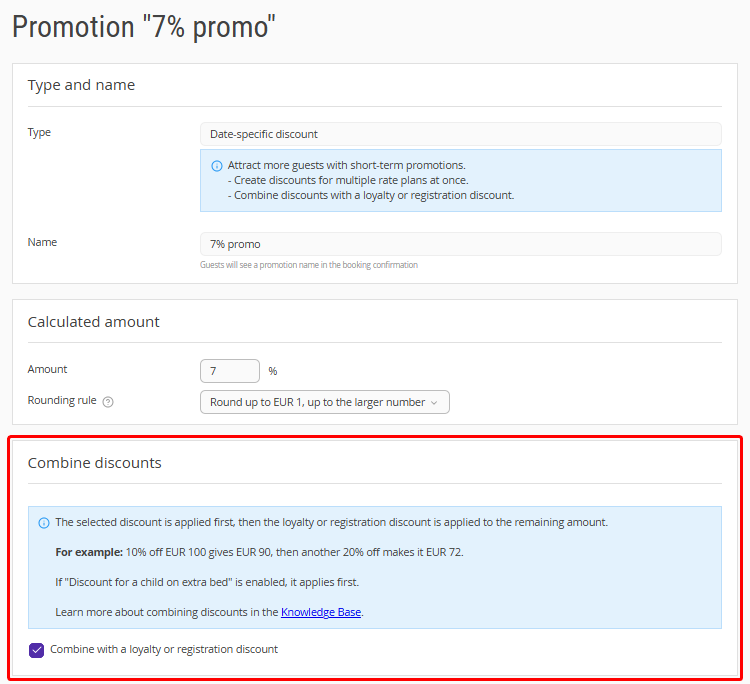
Select the discount you want to combine with the loyalty program discounts and, in the "Combine discounts" section, tick the "Combine with a loyalty or registration discount" check-box. Save the changes.
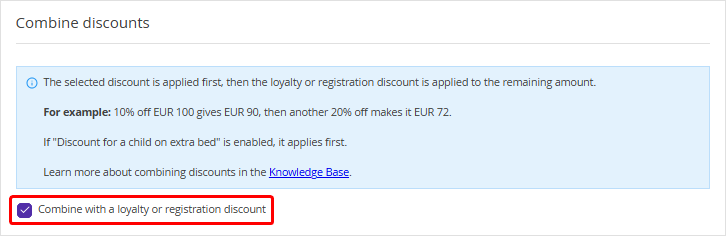
When combining discounts is enabled, the standard discount is applied first, and then the loyalty program or registration discount is applied to the remaining amount.
Example of discount calculation with the option of combining discounts enabled
A guest booked a room on the official website from June 1 to June 5 for 500 euros. A 10% "Date-specific discount" is active in the booking module from June 1 to June 5. The guest also registered in the loyalty program and received a 5% base level discount. The final booking amount with both discounts applied is calculated as follows:
500 - 50 euros (10% — date-specific discount) = 450
450 - 22.5 euros (5% — loyalty program discount) = 427.5
Pay attention. If the "Discount for a child on extra bed" promotion is enabled and set up in the Exely extranet, this discount will be applied first.
Combining discounts and Exely PMS
The way multiple discounts are applied depends on whether Exely PMS is connected:
Without Exely PMS (sequential calculation) — discounts are applied one after another. Calculation example: A booking costs EUR 100 and includes a 10% date-specific discount and an additional 10% loyalty program discount. The first discount is applied first (EUR 100 − 10% = EUR 90), then the second discount is calculated from the reduced amount (EUR 90 − 10% = EUR 81). The final booking price is EUR 81.
With Exely PMS connected (combined calculation) — when Exely PMS is connected, the calculation method is automatically changed to combined calculation. The discount percentages are added together and applied to the original booking amount. Calculation example: A booking costs EUR 100 and includes a 10% date-specific discount and a 10% loyalty program discount. The guest pays EUR 80 because the combined 20% discount is calculated from the original booking amount.
How to check the current settings
To see which method of combining discounts is currently active, create or edit any discount. A tooltip in the Exely extranet will display the current calculation method along with an example.
Features of combining discounts
The OTA guests discount (Genius) is not combined with loyalty level or registration discounts. It can only be combined with the discount for a child on extra bed.
Voucher discounts and free night vouchers are not combined with loyalty level or registration discounts, or with the discount for a child on extra bed.
If combining discounts is not enabled in the extranet, discounts are applied as follows:
Promotions and discounts are applied only for bookings created in Exely Booking Engine.
Promotions and discounts are applied to each day of the stay. For example, a property set up 15% discount for booking stay in April and 10% discount for booking stay in May. If a guest books a stay for the period from April 29 till May 3, the 15% discount will be applied to the dates in April and 10% discount — to the dates in May.
Combining discounts depends on the promotion type. Voucher discounts are not combined with any other discounts. The discount for a child on extra bed cs combined with standard discounts. For example, if a 10% discount is set for a specific date and the first child stays free, both discounts will be applied to the booking.
The discount is applied to each night of the stay. Discounts do not apply to extra services, early check-in, or late check-out.