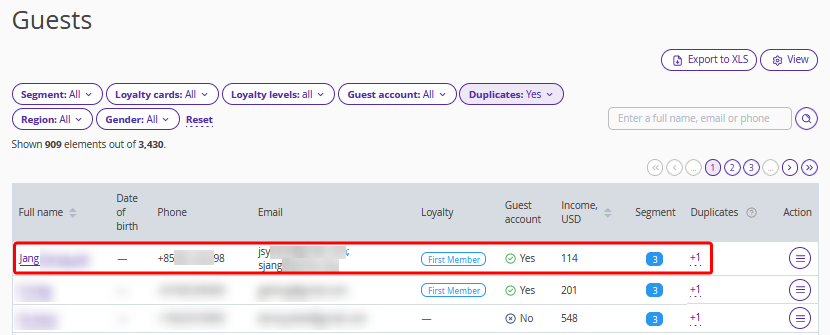
The accuracy and validity of a property guests' data play a key role in ensuring a high level of service and personalization. The large number of booking channels and guest interaction points leads to duplicate guest profiles — duplicates. This can lead to confusion and reduced efficiency in guest management.
In the “Guest management” > “Guest relations” > “Guests” section, tools for working with duplicates are provided. This allows you to optimize the data and improve the guest relations quality.
There are two steps in working with duplicates in the guest list.
Automatic merge.
Manual merge.
How the automatic merge works
The Exely Guest Relations solution automatically merges guest profiles into one guest card, if the profiles are completely identical:
Full name, email or phone.
Full name and other contact details are not specified.
When profiles are merged, all booking information is saved. All data is displayed in one guest card. Automatically merged profiles are not included in the list of duplicates.
Pay attention:
If guest profiles have been previously merged in Exely PMS, this data will also be updated in the guest cards in Exely Guest Relations. For details on how to merge guest profiles, refer to the instruction “How to merge several profiles of one guest”.
If guest profiles are merged in Exely Guest Relations, the updated data on them are not passed to other Exely solutions.
How to manually merge duplicate guest profiles
Guest profiles are listed as duplicates for manual merge if they have the same last name, email or phone number, but different first or middle names.
1. To merge the required guest profiles, go to the Exely extranet > “Guest management” > “Guest relations” > “Guests”.
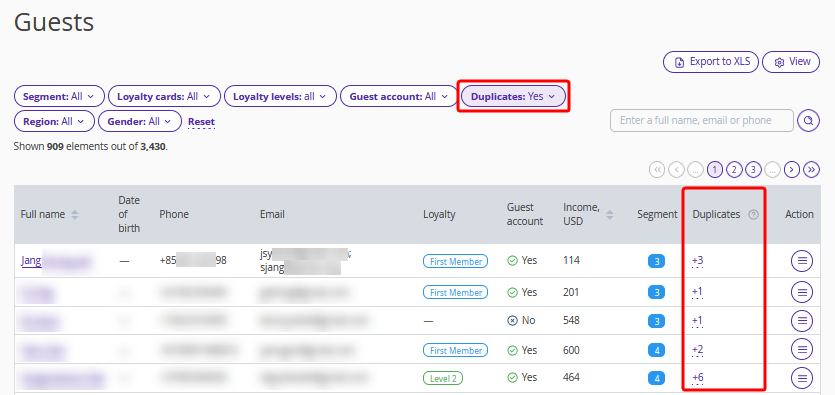
2. Click the “Duplicates” button and select the “Yes” option.
The table will display a list of all guest profiles with possible duplicates.
3. Find the required profile with duplicates. Click the number in the “Duplicates” column or “Action” > “Merge duplicates”.
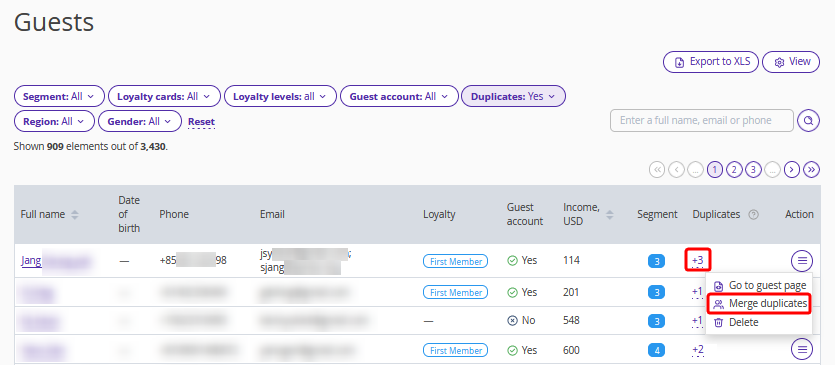
Pay attention. Merging duplicates in the “Guests” section is available to employees with administrator access rights. If such rights are required, send a request to your Customer Support manager or Exely Customer Support team. In the request, specify the property ID and employee login.
The “Merge duplicates” page will be opened.
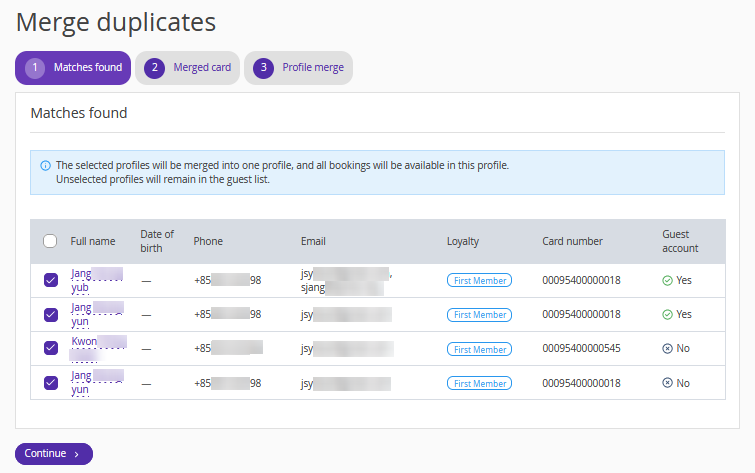
Follow the steps described below.
“Matches found” tab
On the “Matches found” tab, all profiles with duplicate information are listed.
Tick the check-boxes for the profiles that should be merged and click “Continue”.
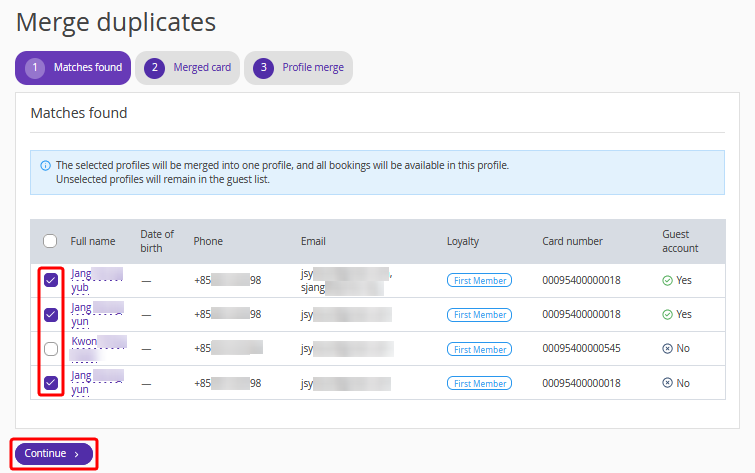
Pay attention. The selected profiles will be merged into one. All bookings made in the merged profiles will be added to that profile. Profiles that were not selected will remain unchanged.
“Merged card” tab
On the “Merged card” tab, you can select the data to be added to the merged guest card.
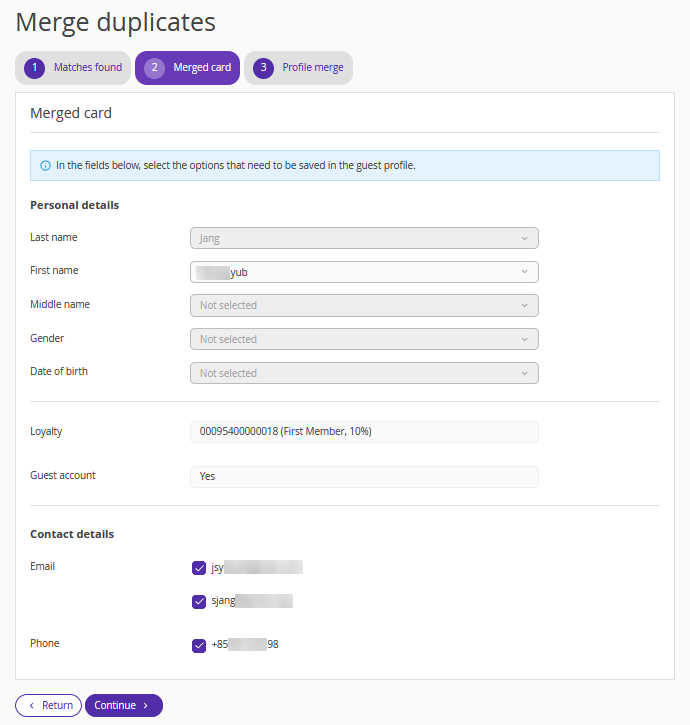
1. In the “Personal details” section, click the fields and select the details that should be saved in the guest profile from the drop-down lists.
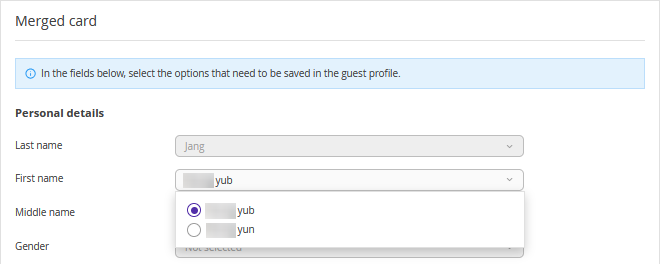
Pay attention. If some details match, the corresponding fields will be inactive.
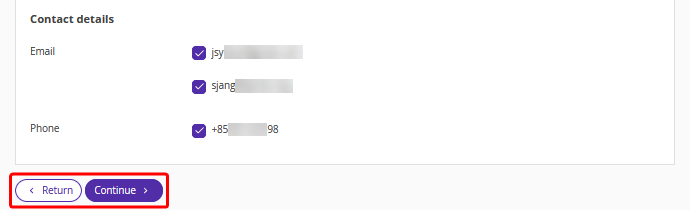
2. In the “Contact details” section, tick the check-boxes for the phone numbers and emails that should be added to the merged guest card.
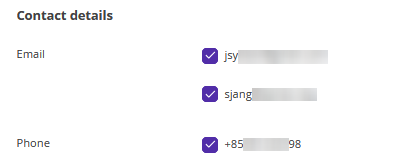
3. Click “Continue” to go to the next step, or “Return” to return to the previous step.
“Profile merge” tab
1. Check the information in the merged profile.
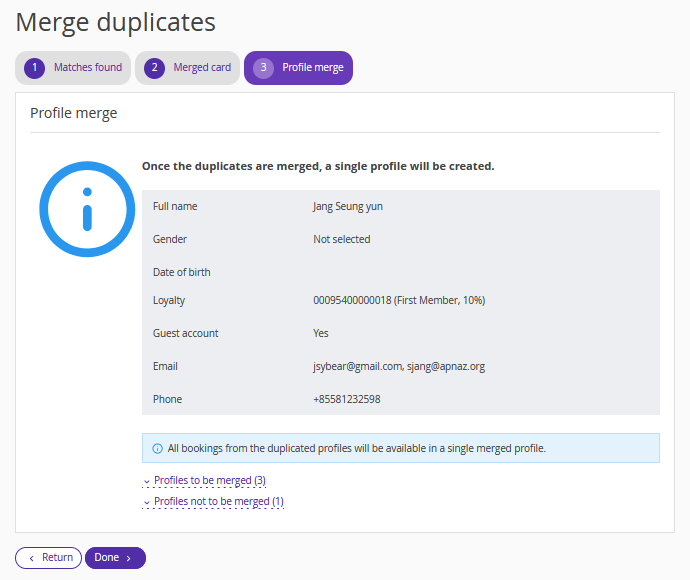
2. Click the “Profiles to be merged” link to see the list of guest profiles data from which will be added to the merged profile.
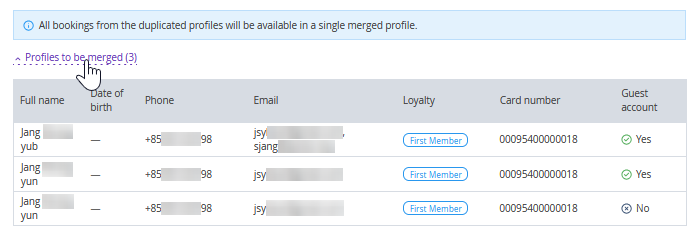
Pay attention. The digit in the brackets shows the number of profiles in the list for merging.

3. Click the “Profiles not to be merged” link to see the list of guest profiles data from which will not be added to the merged profile. Each of them will remain a separate guest profile.
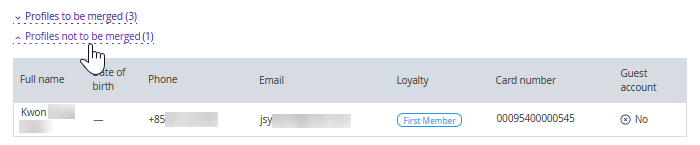
Pay attention. The digit in the brackets shows the number of profiles in the list.

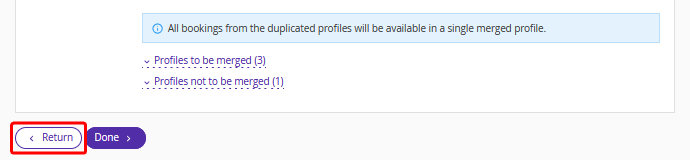
4. Click the “Return” button, if you need to make any changes on previous steps.
5. Click the “Done” button to merge the selected guest profiles.
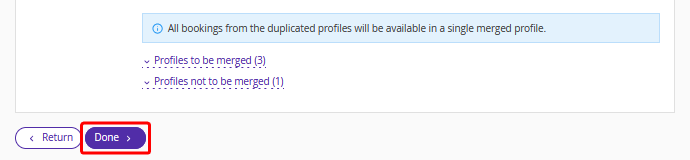
After this, the merged guest card will appear in the table.