The full version of the Housekeeping extension in Exely PMS differs from the basic version by providing more features: with the full version of the extension, it is easier to organize regular cleaning and to schedule cleaning on demand, it is simpler to create a housekeeping plan and to monitor the room status. Your property will always be clean, and satisfied guests will share their impressions of the cleanliness of their cosy room with their friends.
Features of the full version of the Housekeeping extension:
Dashboard showing room occupancy and status
Extended set of room and cleaning statuses
Configurable service types
Automatic scheduling of cleaning services
Automatic scheduling of bed linen change
Bulk actions (change of cleaning status, assignment of housekeepers, scheduling cleanings and maintenance)
Quality control
Extranet for housekeepers
Extranet for supervisors
Notes for housekeeping service in the booking details
Printable housekeeping plan for the day
Ready housekeeping report
The features of the full version of the Housekeeping extension are also available in the Exely Hotelier mobile app. Administrators, managers, supervisors and housekeepers can manage statuses, rooms, maintenance and cleanings from a tablet or a smartphone.
To have the full version of the Housekeeping extension enabled, contact your Customer Support manager or Exely Customer Support team.
Set up references
1. Set room service types: “How to add room service types to References”.
2. Add housekeepers and supervisors to the system:
See the rooms statistics
In the Exely extranet, go to the “Property management” > “Housekeeping” section to see the updated “Housekeeping” page. Date selection presets are now available in the top left corner of the page.
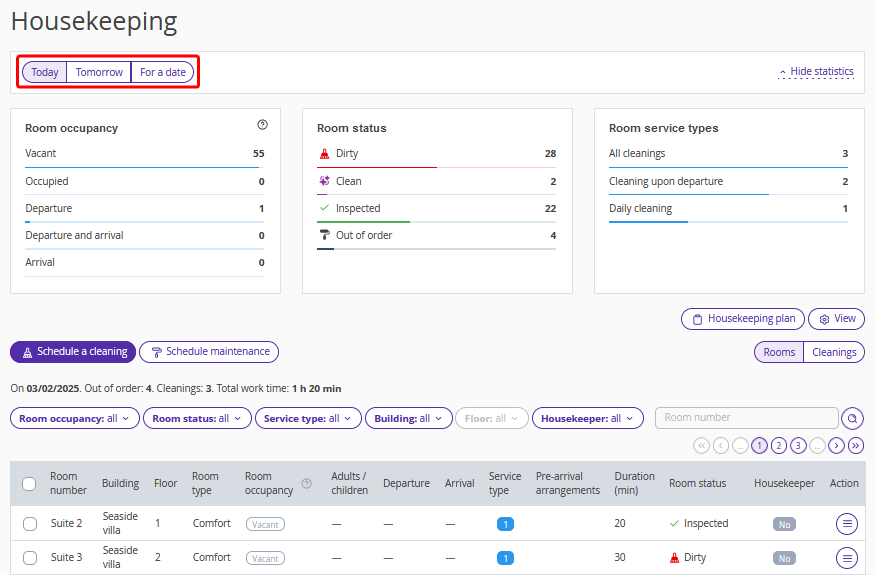
By default, the page is opened on “Today”. Click “Tomorrow” to see the cleanings scheduled for tomorrow. To see cleanings scheduled for a specific date, click “For a date” and select the required date.
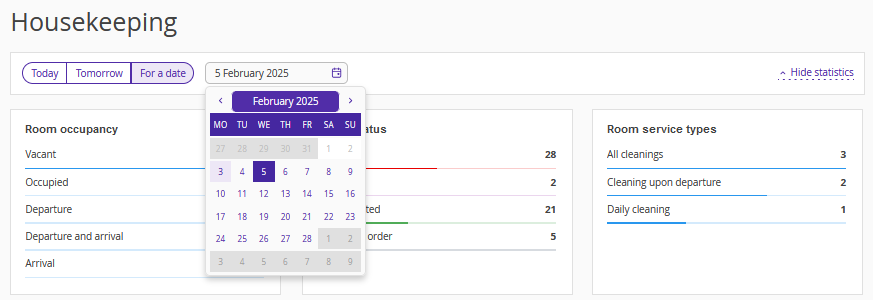
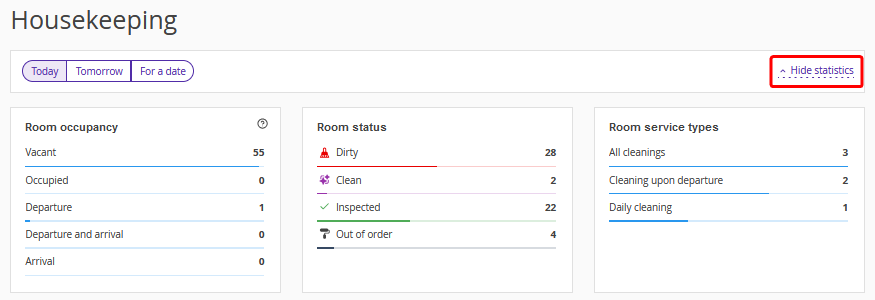
A clickable dashboard is available in the upper part of the page. It allows you to quickly check the room occupancy and status.
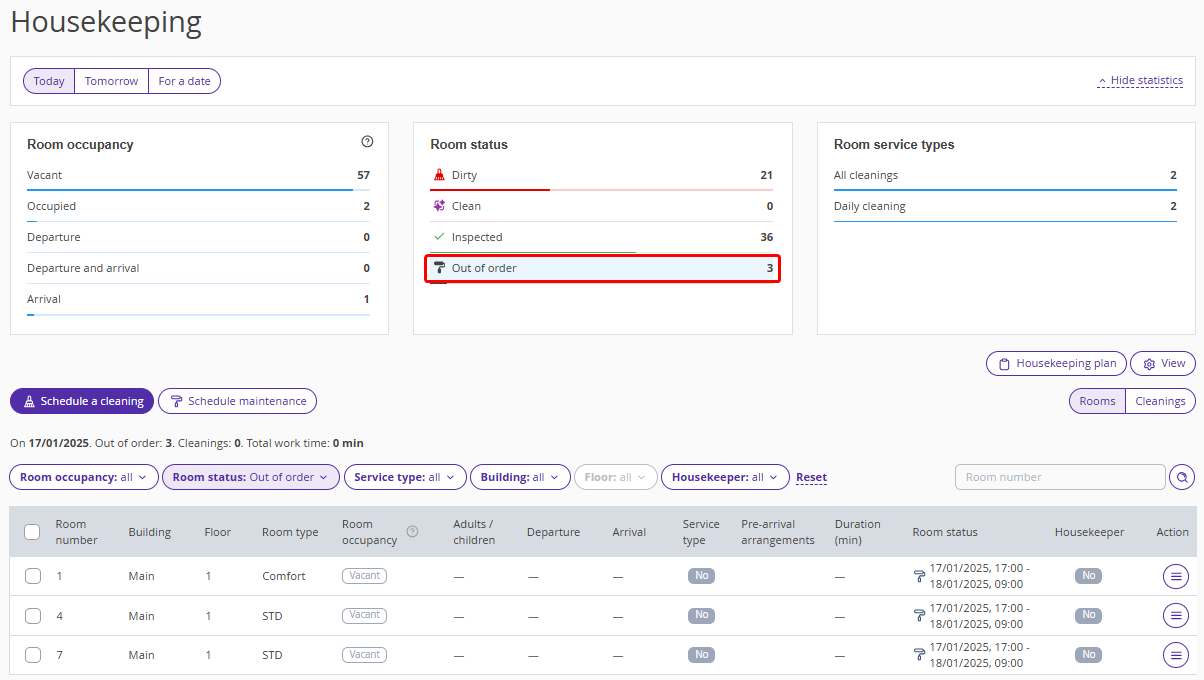
Dashboard can be used as a quick filter. For example, click the “Out of order” line in the “Room status” section and get a list of all rooms under maintenance.
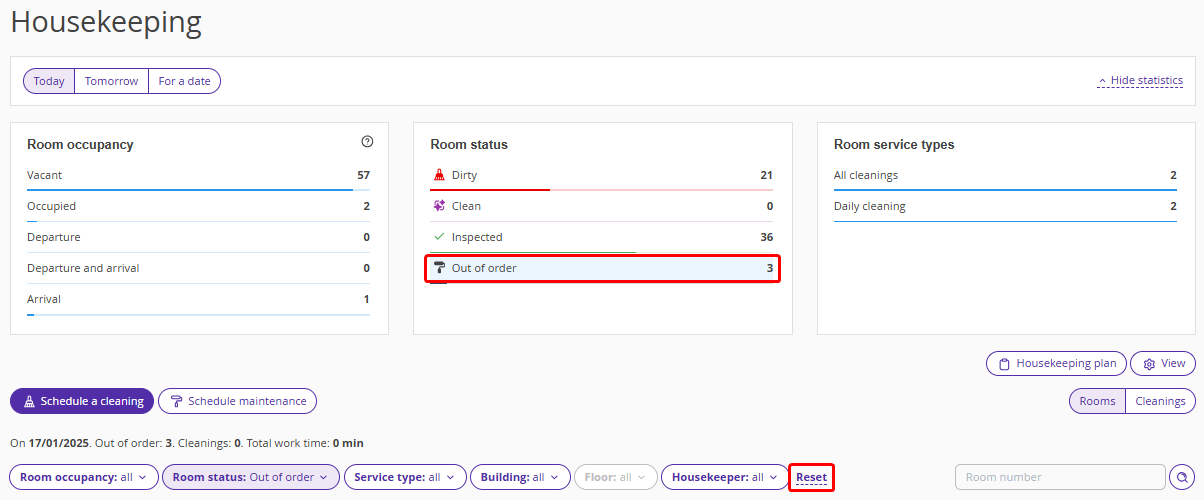
To reset the filter, click the same line once again, or click “Reset” next to the filters.
To hide the dashboard, click the “Hide statistics” link in the top right corner of the page.
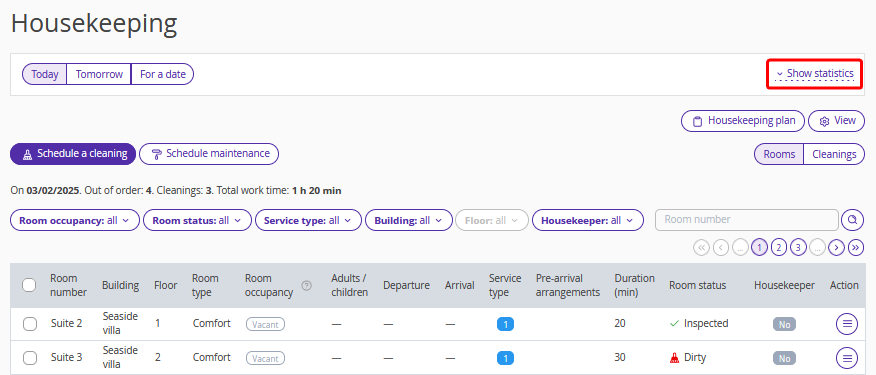
This is what the “Housekeeping” page looks like with the hidden statistics section:
Work with a list of rooms and cleanings
The “Rooms | Cleanings” switch is located on the right above the table.
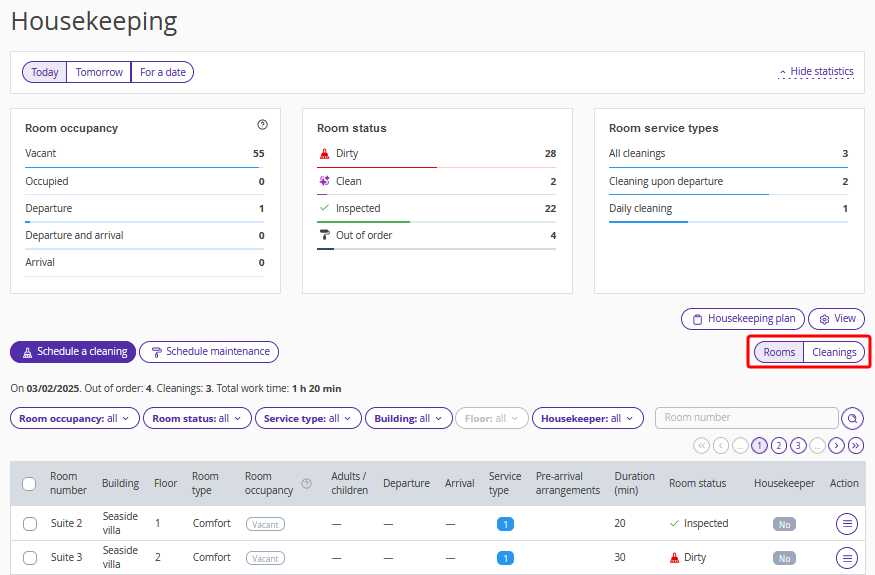
By default, the “Housekeeping” page is opened in the “Rooms” display mode.
In the “Rooms” display mode, you can work with the list of all rooms from the “Room inventory” section: see the rooms status, schedule cleanings and maintenance.
In the “Cleanings” display mode, you can work with the list of all cleanings scheduled for a day: edit and delete scheduled cleanings, assign housekeepers, change cleaning statuses and add comments to cleanings.
For details, see the article “Rooms | Cleanings” display mode switch.
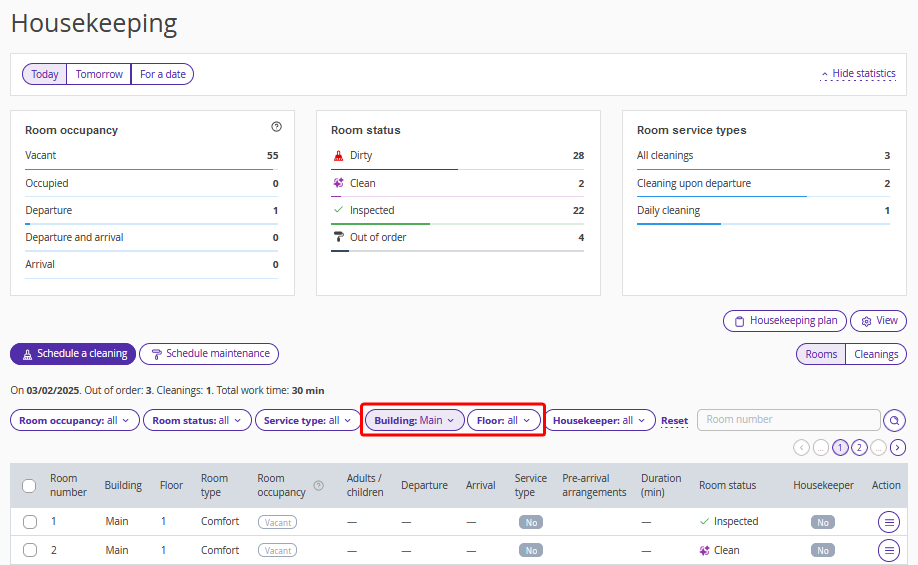
To customize the data display, use the filters and the ‘View’ button, which are available above the table.
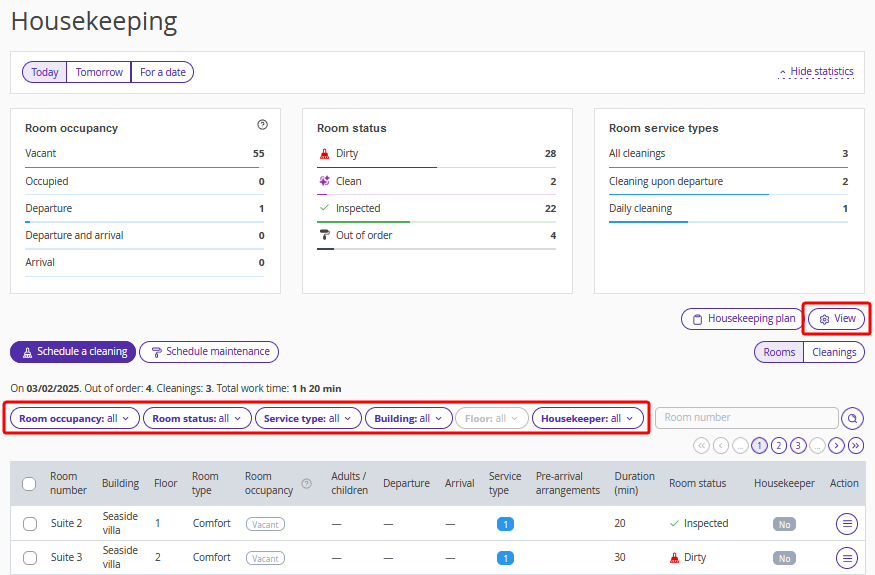
The “Floor” filter becomes active only if a specific building is selected in the corresponding filter.
To find the required room, enter the room number in the search field and click the magnifying glass icon.
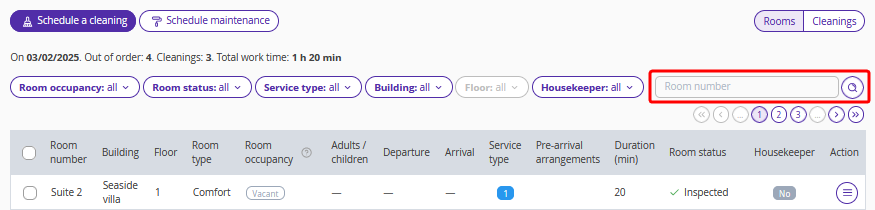
To reset the filter, clear the search field and click the magnifying glass icon again.
Schedule cleanings
Regular room cleanings are scheduled automatically at midnight by property local time according to the settings in the “Room service types” reference.
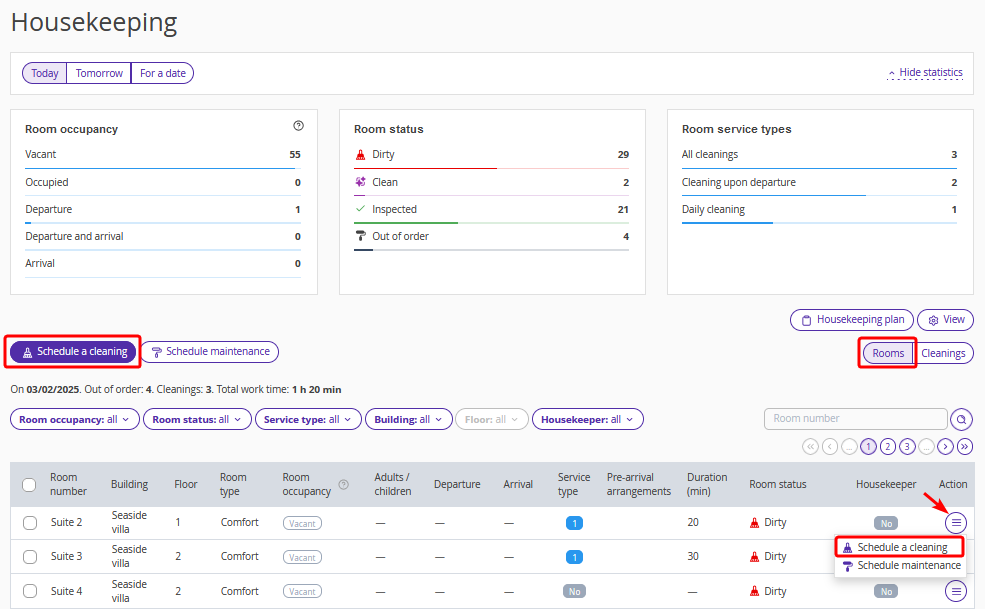
To manually schedule a cleaning, open the “Housekeeping” page in the “Rooms” display mode and click the “Schedule a cleaning” button above the table, or click “Action” > “Schedule a cleaning” on the right of the required room:
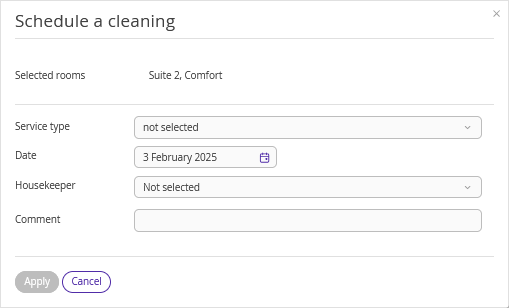
In the opened “Schedule a cleaning” window, select the service type, date and housekeeper. Add a comment, if required, and click “Apply”.
When the cleaning is completed, switch to the “Cleanings” display mode and click “Action” > “Cleaning is completed” for the cleaning.
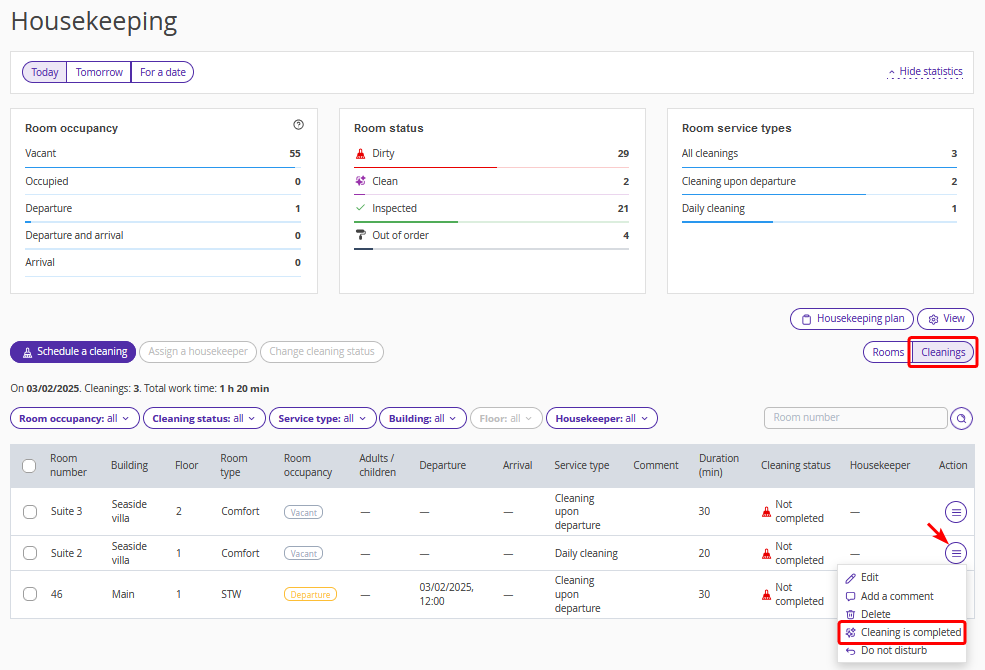
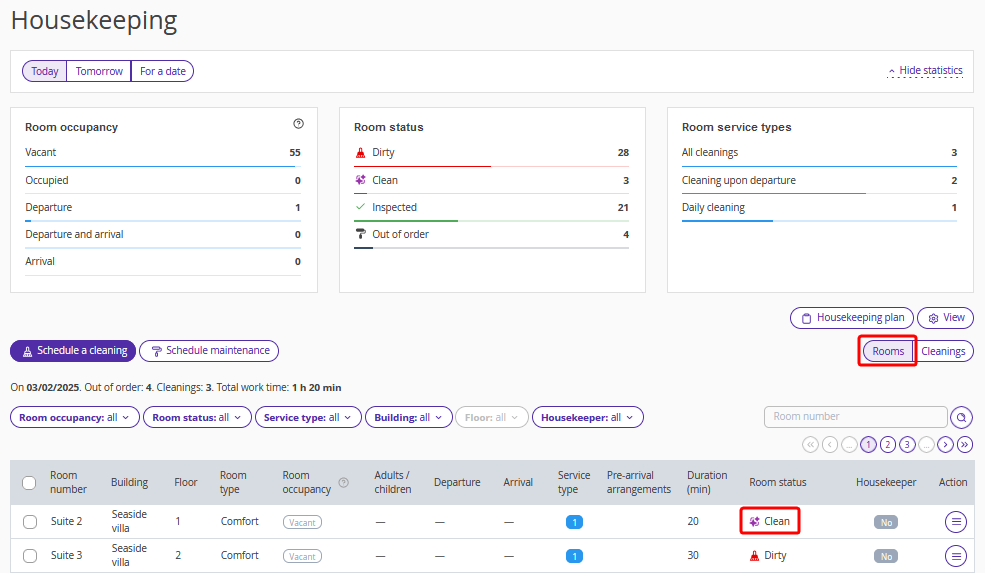
The cleaning status will be changed to “Completed”. The room status in the Front Desk and the “Housekeeping” page in the “Rooms” display mode will be changed to “Clean”.
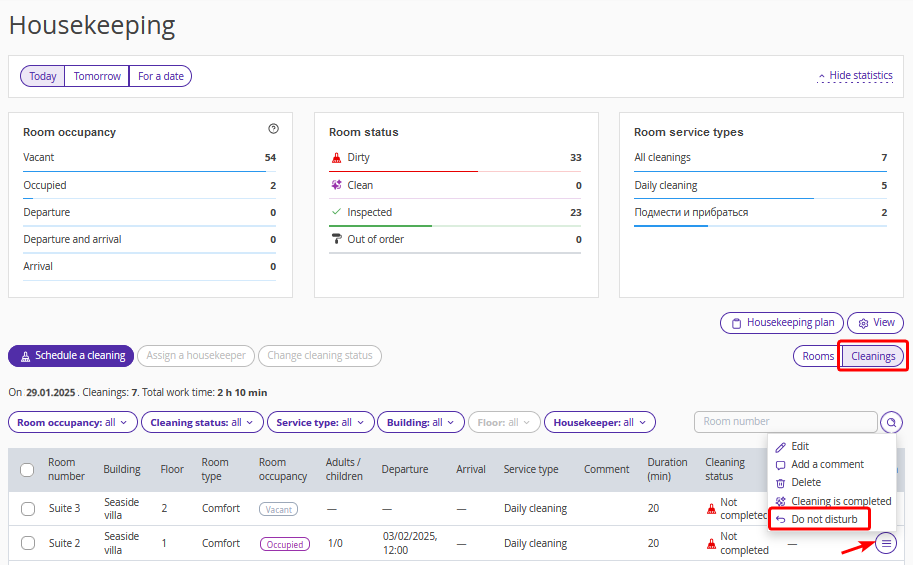
If guests refused the cleaning, open the “Housekeeping” page in the “Cleanings” display mode and click “Action” > “Do not disturb” for the required cleaning.
In the opened “Do not disturb” window, add a comment, if required, and click “Apply”.
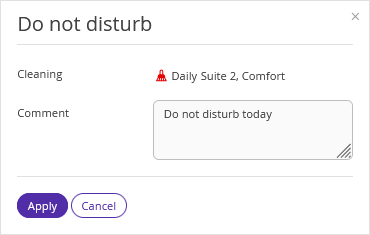
The cleaning status will be changed to “Do not disturb”. The room in the Front Desk and the “Housekeeping” page in the “Rooms” display mode will remain in the “Dirty” status. For details, refer to the instruction ““Do not disturb” status”.
Check the cleaning quality
When the cleaning is completed, check the room state. If you are satisfied with the result — confirm the status, if not — reject it.
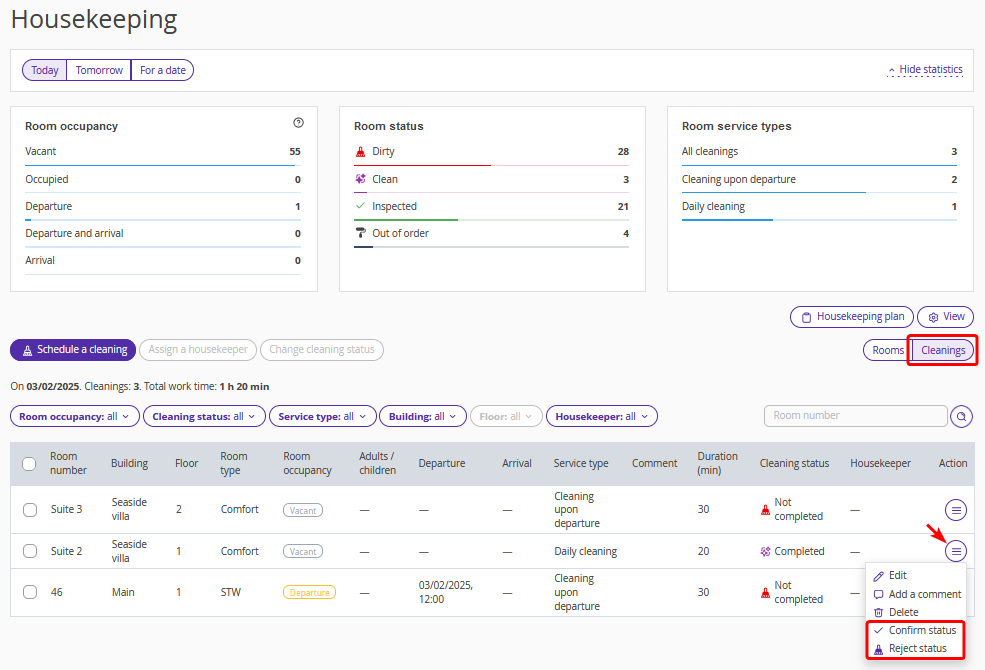
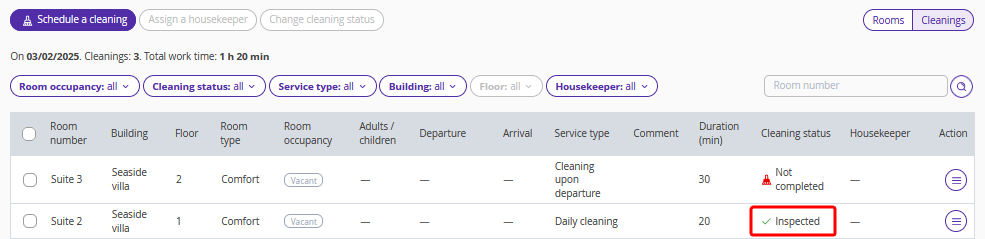
If the status is rejected, the room status will be changed to “Dirty” and the cleaning status — to “Rejected”. In case the status is confirmed, the room status and the cleaning status will be changed to “Inspected”.
Schedule maintenance
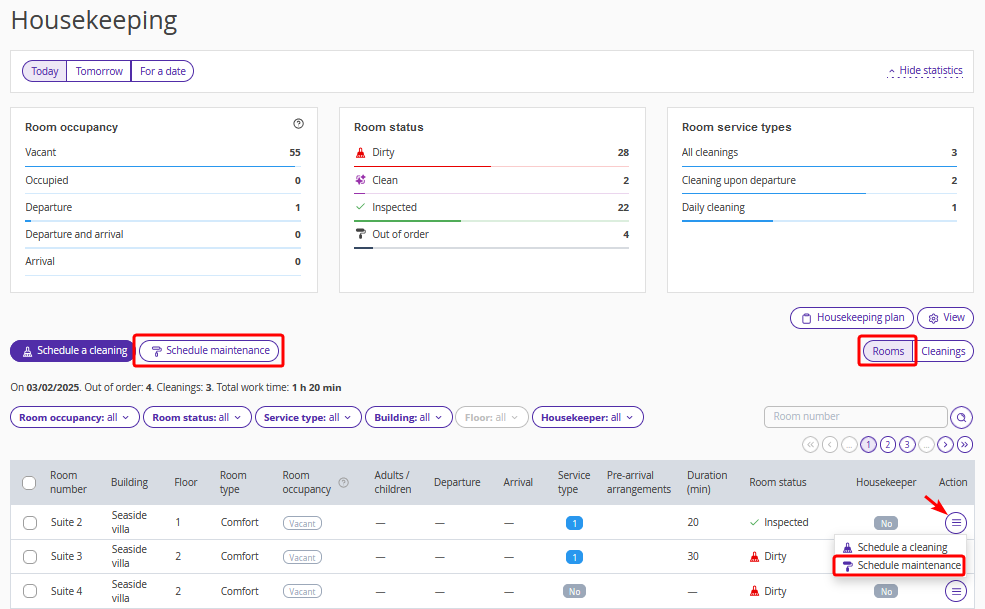
If a room required maintenance, open the “Housekeeping” page in the “Rooms” display mode and click the “Schedule maintenance” above the table, or click “Action” > “Schedule maintenance” on the right of the required room.
In the opened “Schedule maintenance” window, select the maintenance start and end date and time, add the service description. Edit the maintenance type, if required, and click “Apply”.
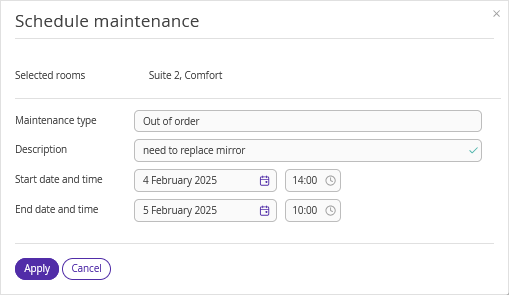
The room status in the Front Desk and the “Housekeeping” page in the “Rooms” display mode will be changed to “Maintenance”.
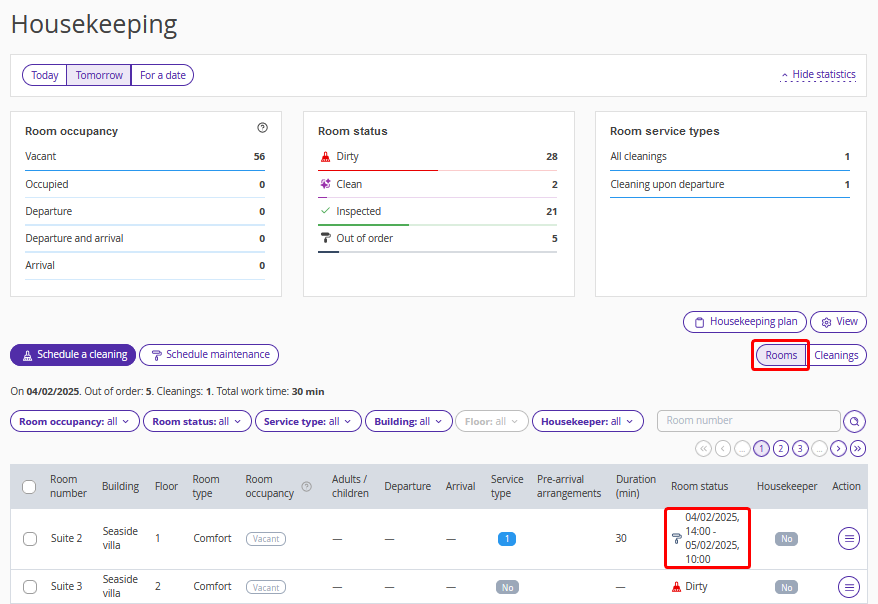
You can schedule maintenance and cleanings, and assign housekeepers for several rooms at once, as well as to change the status of several cleanings at once. For details, see the article “Bulk actions in the Housekeeping extension”.
Print the housekeeping plan
Click the “Housekeeping plan” button below the statistics section.
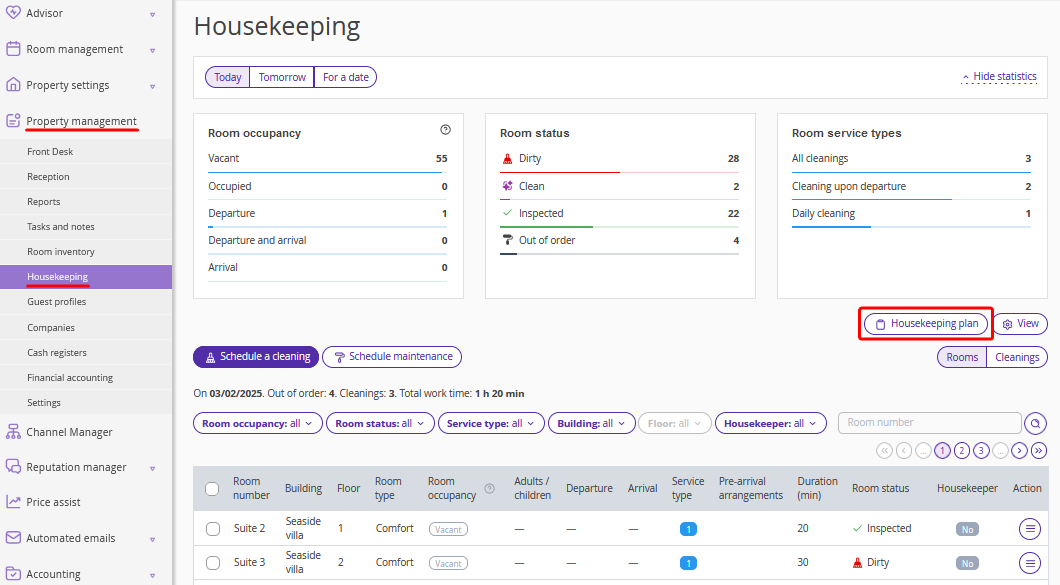
Use filters and the ‘View’ button to configure the data display. Detailed information is available in the article: “Updated housekeeping plan”.
Click “Download” or “Print” to download or print the configured housekeeping plan.
