Create a “Hot deal” rate plan for guests booking at the last minute. For this,
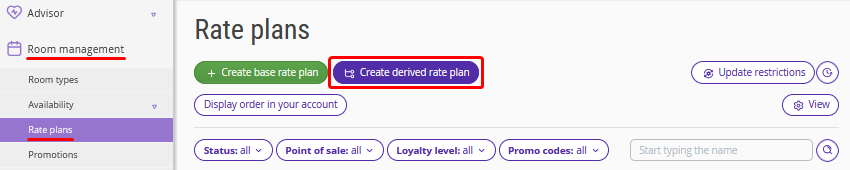
1. In the Exely extranet, go to “Room management” > “Rate plans” and click the “Create derived rate plan” button.
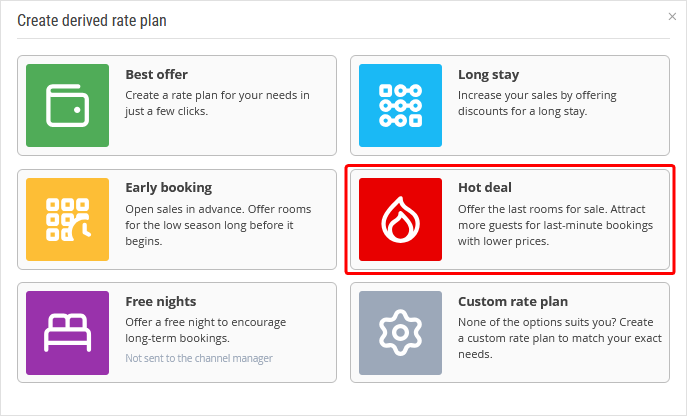
2. In the opened window, select “Hot deal”.
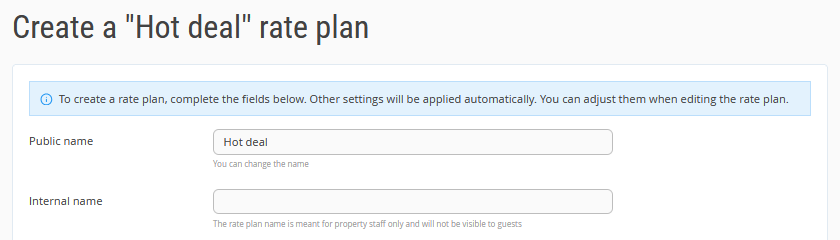
3. Fill in the rate plan details. By default, the rate plan is named "Hot deal", you can change it if needed. Specify the internal name as well.
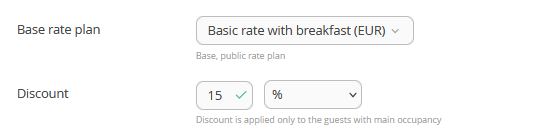
4. Indicate a discount rate and a base rate plan from which the discount will be calculated. The discount can be a certain percent or a certain sum.
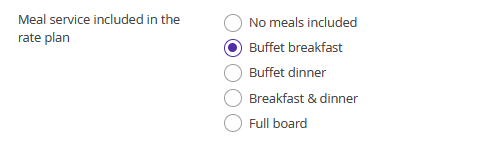
5. If meals are included in the rate plan, select the required meal type. You can set meal services in the “Property settings” > “Extra services”.
6. In the “Guest can book” setting, indicate when guests can book at this rate plan. If they can make a booking only on the arrival day, enter “0”. If it is possible one day before arrival, enter “1”.

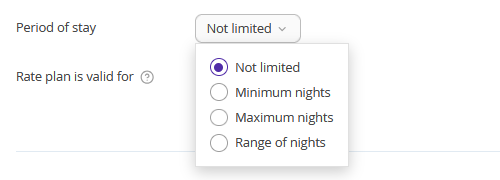
7. For the “Period of stay” setting, indicate a minimum or a maximum number of nights that guests are allowed to stay at this rate plan. When selecting “Range of nights”, you can indicate both a minimum and a maximum number of nights for booking.
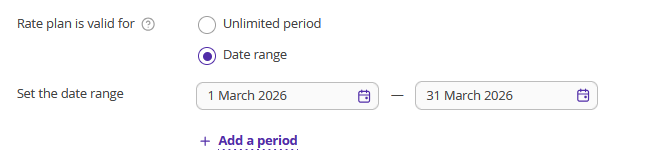
8. Set the “Rate plan is valid for” period. If the period is not set, by default, prices and restrictions for the rate plan are set for two years ahead.
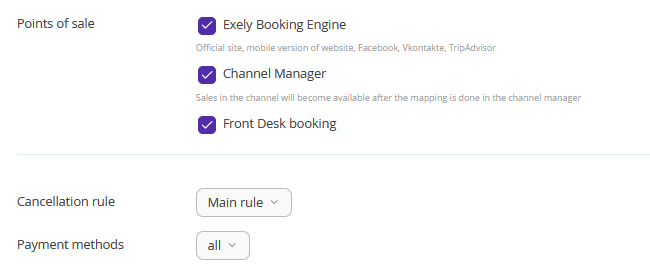
9. Select points of sale, cancellation rule, and payment methods. Click the “Save” button at the top or at the bottom of the page. The rate plan is saved.
10. Click the rate plan name in the list of rate plans. Switch to the “Rate plan display on the website” tab and specify the rate plan description in the “Detailed description” box.
Then, upload a thumbnail for a rate plan and a promo image for the rate plan landing, and set rate plan visualization for the Booking Engine.
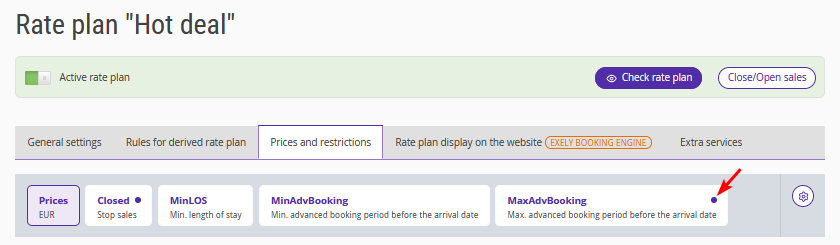
11. To adjust the parameters specified when creating the rate plan, such as the length of stay and the validity period of the rate plan, go to the "Prices and restrictions" tab. Depending on the selected options, different restrictions will be active: Closed, MinLos, etc. Active restrictions are marked with a dot. Detailed instructions on how to set or remove restrictions are described in the article "How to set up rate plan restrictions".
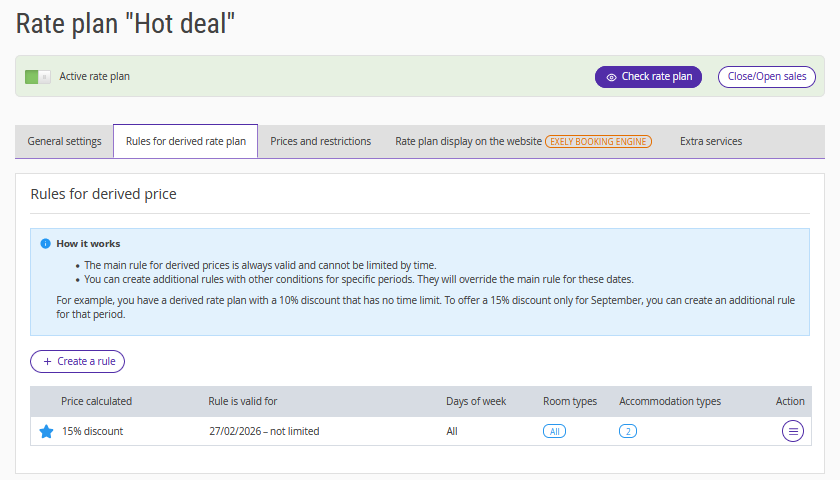
12. If you want to specify which restrictions should be derived from the base rate plan, go to the "Rules to derive a rate plan" tab. Here in the "Rules for derived price" section, you can change the discount amount for the rate plan.
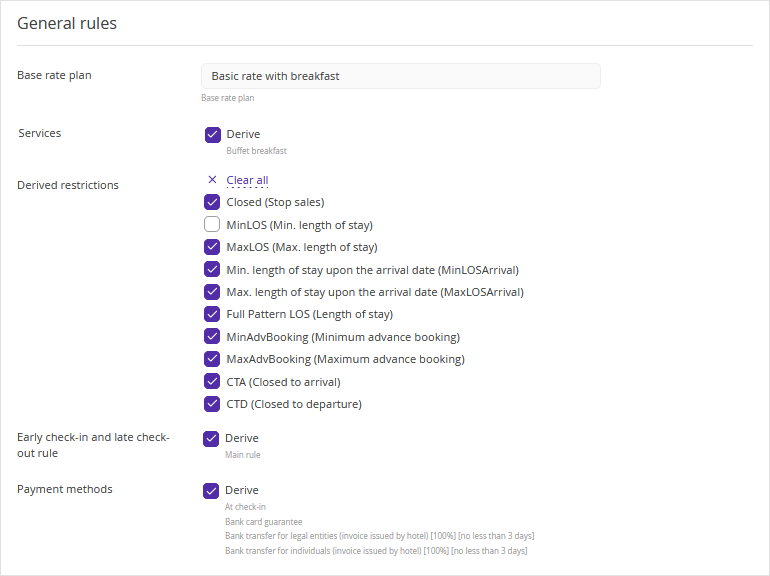
In the "General rules" section, select the restrictions and other parameters that should be derived from the base rate plan. After making changes, click the "Save" button at the top of the page.
For details on configuring rules for derived price, see the article “How to set rules for derived price in derived rate plan”.
To learn more about the creation of derived rate plans, see the instructions:
