How to change the early check-in or late check-out surcharge
What happens to the fee if you change the stay dates or rate plan
If a guest wants to arrive earlier or leave later, you can change the check-in or check-out time in their booking in the Exely extranet.
You can also adjust the early check-in or late check-out fee if necessary. For example, you can offer the guest early check-in free of charge.
You can change the check-in or check-out time if:
The booking was made through the Booking Engine on your website.
The booking editing period has not expired:
In the new booking reconciliation view, you can edit the booking until the reconciliation period ends.
In the old booking reconciliation view, you can edit the booking until the guest's arrival date.
Exely PMS is not connected to your property.
Pay attention. If you work with Exely PMS, follow the instructions given in the article "How to change check-in and check-out time in a booking in Exely PMS".
How to change the check-in or check-out time
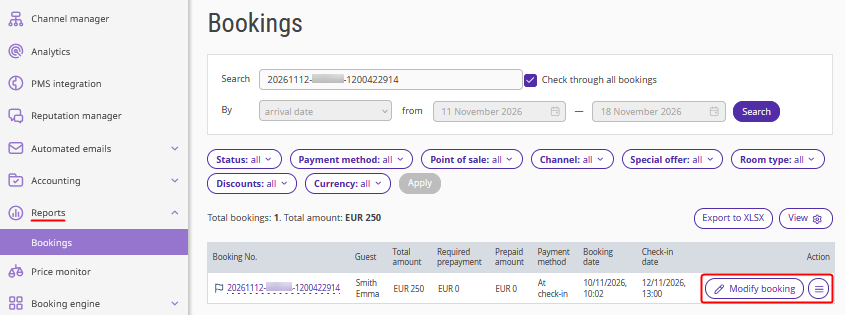
1. In the Exely extranet, go to “Reports” > “Bookings”.
2. Find the required booking using filters, or enter the booking number in the “Search” field and tick the "Check through all bookings" check-box.
3. Click the "Modify booking" button on the right, or "Action" > "Modify booking".
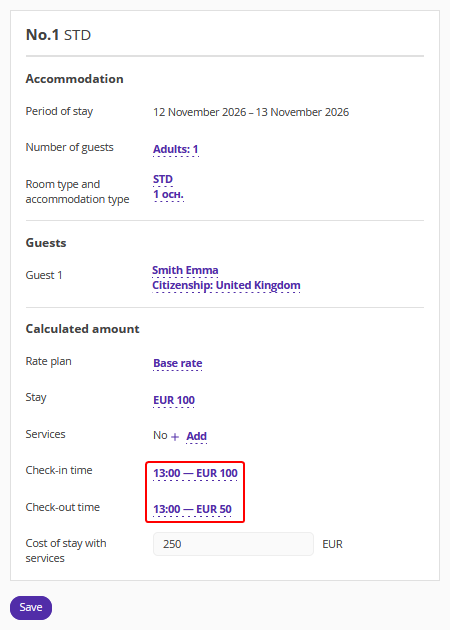
4. On the booking details page, in the "Calculated amount" section, click the check-in or check-out time.
5. In the opened window, select a new time from the list.
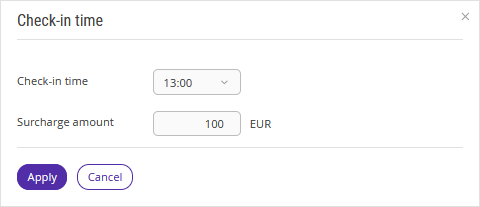
You can select any check-in or check-out time, regardless of the restrictions configured in the rate plan settings. Exely Suite automatically calculates the surcharge amount according to the early check-in and late check-out rules set up in "Property settings" > "Early check-in / Late check-out".
Pay attention. If your Exely extranet is configured for daily room sales, the check-out time cannot be earlier than the check-in time.
6. Check the surcharge amount.
Exely Suite automatically calculates the surcharge amount according to the current rules. If necessary, you can change the amount manually.
Example. The standard check-in time at your property is 14:00. A guest wants to arrive at 10:00. According to your settings, the surcharge for such an early check-in is EUR 30. When you select 10:00, Exely Suite automatically adds EUR 30 to the booking cost.
If you have agreed to offer the guest early check-in free of charge, click the surcharge amount and enter 0.
7. Click "Apply". Exely Suite updates the check-in or check-out time and recalculates the total booking cost.
8. Check the details in the "Calculated amount" section and click "Save" at the top or bottom of the page.
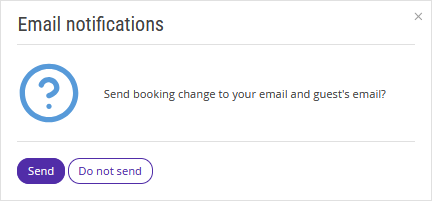
9. In the "Email notifications" window, choose whether to send a booking modification notification to your email address and the guest's email address.
Pay attention. If the payment method of the booking is either “Bank transfer for individuals” or “Bank transfer for legal entities”, make sure to send an updated invoice to the guest.
You can change the check-in and check-out time multiple times while booking editing is available.
How to change the early check-in or late check-out surcharge
By default, Exely Suite calculates the surcharge amount automatically according to the early check-in and late check-out rules set up in the extranet and linked to the rate plan. Rate plan restrictions on check-in and check-out time are not taken into account when calculating the surcharge.
If necessary, you can change the surcharge amount manually. For example, if the fee according to the rules is EUR 60 but you have agreed on a discount with the guest, you can enter EUR 30 instead.
To change the surcharge amount:
1. In the "Calculated amount" section, click the check-in or check-out time.
2. In the opened window, click the surcharge amount and enter the required value.
3. Click "Apply".
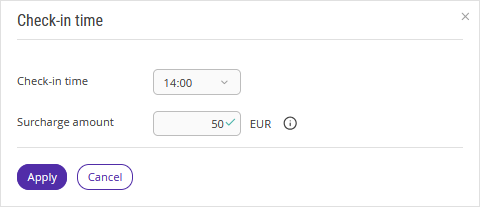
4. Click "Save".
Pay attention. An "i" icon appears next to the amount that you have changed manually. This means that the fee is no longer calculated automatically according to the property's rules.
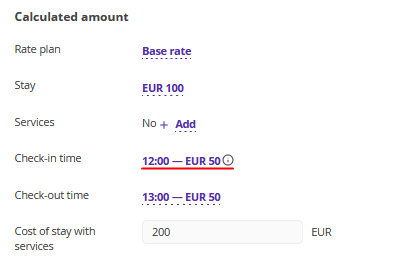
Note. Even if you manually enter the same amount as one of the values in the list, it is still treated as a manually edited amount.
How to restore automatic surcharge calculation
If you have changed the surcharge amount manually but want to restore automatic calculation:
1. Click the check-in or check-out time in the "Calculated amount" section.
2. Select the required time from the list.
3. Click "Apply".
4. Save the changes.
Exely Suite resets the manually entered amount and recalculates the surcharge according to the current rate plan rules.
How to restore the standard check-in or check-out time
You can restore the standard check-in or check-out time specified in the rate plan. To do this:
1. Open the time selection window in the "Calculated amount" section.
2. Select the standard time from the list.
3. Click "Apply".
4. Save the changes.
The early check-in or late check-out surcharge will be set to 0.
Pay attention. If the early check-in or late check-out rules require the room to be additionally reserved for the previous or following day, this additional reservation will be cancelled after you save the booking.
How the total booking cost is calculated
After you change the check-in or check-out time, Exely Suite recalculates the total booking cost.
The calculation includes:
Accommodation cost;
Extra services;
Early check-in surcharge;
Late check-out surcharge;
Taxes and fees, if configured.
Calculation example
A guest has booked a room for two nights and requested early check-in.
Item |
Price |
Accommodation for two nights |
EUR 200 |
Extra services |
EUR 100 |
Early check-in |
EUR 30 |
Late check-out |
EUR 0 |
Total |
EUR 330 |
Note. If taxes and fees are configured in the extranet, they are also included in the total price. However, the early check-in and late check-out surcharges are displayed in the "Calculated amount" section without taxes. Taxes on these surcharges are displayed separately, together with accommodation taxes and fees.
What happens to the fee if you change the stay dates or rate plan
If the surcharge was calculated automatically
Exely Suite recalculates the surcharge, and the new amount is EUR 30.
If you changed the surcharge amount manually
Exely Suite keeps the manually entered amount even if you change the dates of stay or rate plan.
Example. You manually set the early check-in surcharge to EUR 10. You then move the booking to different dates, for which the surcharge according to the rules is EUR 30.
Exely Suite keeps the EUR 10 surcharge because you entered the amount manually.
Pay attention. When you manually change the dates of stay or rate plan, the manually set surcharge is not recalculated, even if different prices or early check-in and late check-out rules apply to the new dates or rate plan. Rate plan restrictions do not prevent you from selecting a check-in or check-out time when editing a booking.
Before saving the booking, Exely Suite will prompt you to check the calculation. Make sure the price is correct and confirm that you want to save the changes.
What to do if the guest has overpaid after the total cost change
If you reduce the booking cost after the guest has made a prepayment, Exely Suite does not automatically adjust the amount already received.
Example. The booking price was EUR 150, including a EUR 30 early check-in surcharge. The guest paid the full amount.
You then cancelled the early check-in surcharge. The new booking price is EUR 120, but the guest has already paid EUR 150.
An overpayment of EUR 30 will appear in the booking details. This means that the property owes the guest EUR 30.
Pay attention. You must process the refund manually. Changing the booking cost does not automatically refund the overpaid amount to the guest.
Features of changing check-in and check-out time
Selecting a time when restrictions apply
You can select the check-in or check-out time even if check-in or check-out is restricted for the selected date or no surcharge calculation rule is set up for that time.
In this case, Exely Suite sets the surcharge to 0. If necessary, you can change the amount manually.
Restrictions on the surcharge amount
The surcharge amount cannot be negative.
Enter the amount without letters, spaces, or currency symbols. The decimal part can contain no more than two digits after the decimal separator, depending on the booking currency.
If you enter an invalid value, the field will be highlighted. You can save the changes only after correcting the error.
Check-in and check-out on the same day
If a guest arrives and leaves on the same day, the check-out time cannot be earlier than the check-in time, and the check-in time cannot be later than the check-out time.
Modification history
All changes to early check-in and late check-out surcharges are saved in the booking's modification history.
When you cannot change check-in and check-out time
You cannot change check-in and check-out time for bookings:
How to change check-in or check-out time in a group booking
If a booking includes several rooms, you can change the check-in or check-out time separately for each room.
To do this:
1. Open the group booking for editing in "Bookings".
2. In the "Calculated amount" section for the required room, change the check-in or check-out time and adjust the surcharge amount if necessary.
3. Check the calculation and save the booking.
Changes to one room do not affect the other rooms in the group.
Example. Guests have booked three rooms. The guests staying in the first room will arrive at 10:00, while those staying in the other two rooms will arrive at 14:00.
You can set the check-in time to 10:00 for the first room only. The check-in time for the other rooms will remain unchanged.
In the booking confirmation sent to the guest and the property, check-in and check-out time are displayed separately for each room.
